
Signing In
Sign in to the portal at your organisation's sign-in page. You enter your username first, and Zetect then decides how you prove who you are. That is why the password box appears only after you select Continue.
Prerequisite
A Zetect account and your organisation's sign-in address, both from your administrator.
Applies to
Everyone.
Signing in to the portal
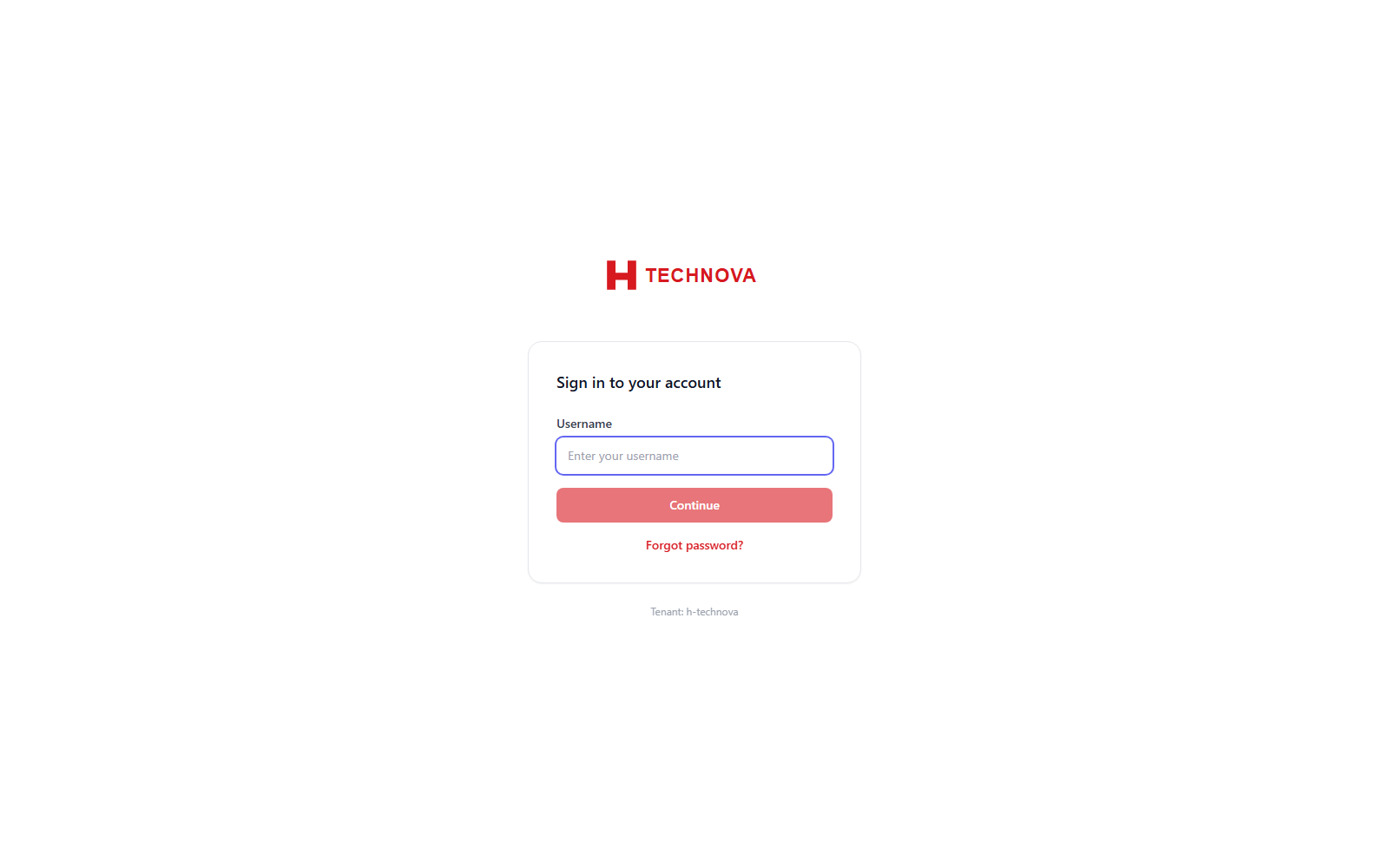
To sign in:
- Go to your organisation's sign-in address. It ends in
/<tenant>/login, for examplehttps://app.zetect.in/identity-shield/login. - Optionally, choose your language with the selector in the top-right corner.
- Enter your username and select Continue.
- Usually the Enter your password step appears.
- If your organisation signs you in through another identity provider, you are sent to its sign-in page instead.
- Enter your password. Select the eye icon to show what you typed, or Back to change the username.
- Select Sign in.
- If your organisation requires a second factor, the Two-factor authentication step appears. Enter the code or use your passkey. See Two-Factor Authentication.
- If your administrator requires a new password, the Change your password step appears. Enter and confirm a new password, then select Set password & continue.
What happens next: the portal opens on Dashboard if one has been set up for you, otherwise on Launchpad. Platform administrators land on the admin console's Dashboard instead.
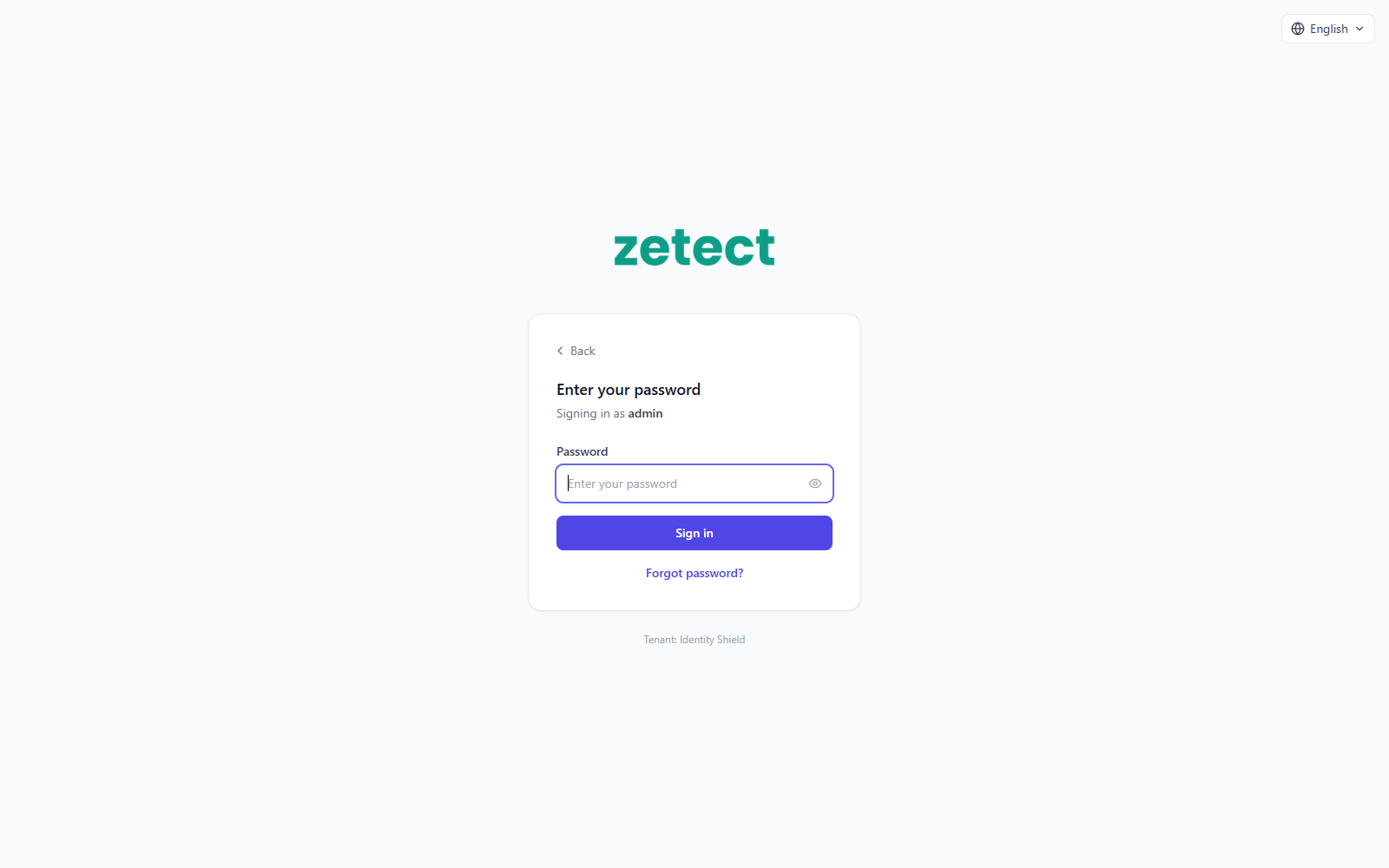
Sign-in fields
| Field | Description |
|---|---|
| Username | Your Zetect username. |
| Password | Your password. Depending on your organisation, it is checked by Zetect or by your company directory. |
| Forgot password? | Starts a self-service password reset. See Resetting a Forgotten Password. |
| Tenant | The footer shows the name of the organisation you are signing in to. |
| Language | Changes the language of the sign-in page and the portal. |
Signing out
To sign out:
- Select Sign out at the bottom of the portal sidebar.
Zetect also signs you out of any applications you opened through single sign-on that support it, and then returns you to the sign-in page.
Troubleshooting
- Invalid username or password. Zetect shows the same message for an unknown username and a wrong password, so nobody can find out which usernames exist. Check both and try again. Repeated failures can lock your account for a while.
- Your account is inactive. Your account has been switched off. Contact your administrator.
- No MFA methods are registered for your account. Your organisation requires a second factor but you have not set one up. Contact your administrator.