
Tracking Your Requests
My Requests shows the status and history of your access requests. It includes requests you submitted for someone else and requests someone else submitted for you. Open a request to see who it is waiting on, or cancel it while it is still pending.
Applies to
Everyone.
Checking a request
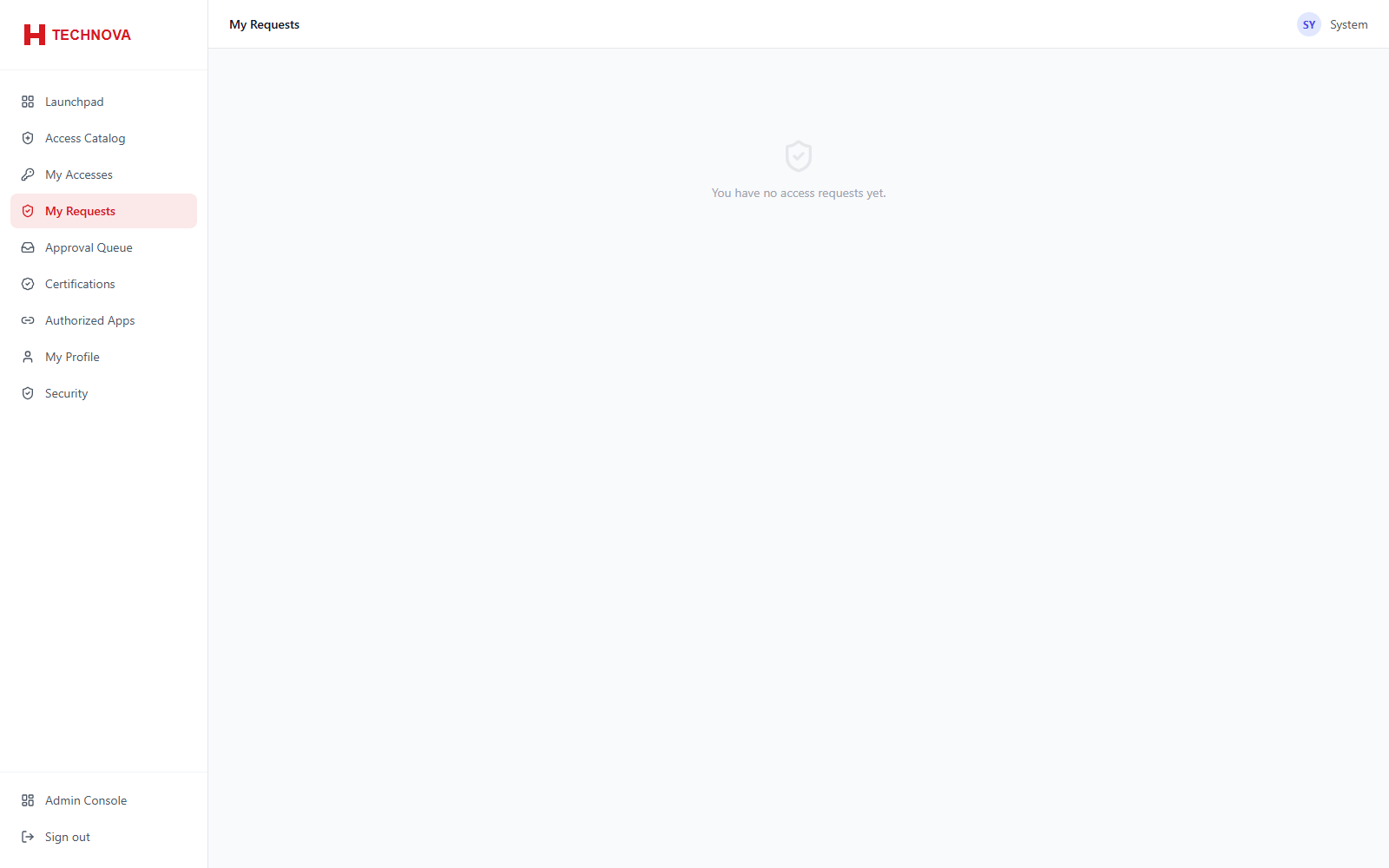
To check a request:
- Select My Requests in the sidebar.
- Narrow the list with Search requests… and the status filter. If you have requested access for other people, use Show to pick All, For me or For others.
- Select a row, or its View button, to open the request details.
- Under Approval stages, see which stage the request is at, who decided each stage, and any notes.
- Under Fulfilment, see whether the access was granted in the target system.
Cancelling a request
To cancel a pending request:
- Open the request details.
- Select Cancel request.
The request status changes to Cancelled.For a request made on someone's behalf, either the person who submitted it or the person receiving the access can cancel it.
Request fields
| Field | Description |
|---|---|
| Access | What was requested. A For … label shows that you submitted it for someone else. |
| Application / asset | Where the access lives. For a privileged asset, the host name is shown too. |
| Status | Pending, Approved, Failed, Rejected, Cancelled or Expired. A second badge shows how granting is going, for example Provisioning, Provisioned, Failed or Risk review. |
| Requested | When the request was submitted. |
| Requested for | In the details: the person who receives the access. |
| Submitted by | In the details: who submitted it. Self-requested means the person asked for it themselves. |
| Duration / Access expires | The duration that was asked for, what was granted, and when the access ends. |
| Approval stages | Each approval stage with its approver and result. Auto-approved — no manual review required. means no one had to approve it. |
| Fulfilment | Whether the access was actually granted in the target system, and the error if it failed. |
Troubleshooting
- The request is approved but the second badge shows Failed. Zetect could not grant the access in the target system. The error is shown under Fulfilment. Contact your administrator.
- The second badge shows Risk review. The request is approved but is waiting for a risk review before it is granted.