
Managing Your Reportees
If you are a manager, Reportees shows the people who report directly to you and the access each of them holds. Use it to check your team's access before a review, or to see what someone needs before you request access for them.
Applies to
Managers with reportees: people whose manager is set to you. The menu is shown to everyone, and says No direct reports if nobody reports to you.
Limits
Read-only. Only direct reports are shown, not people further down the reporting line.
Viewing a reportee's access
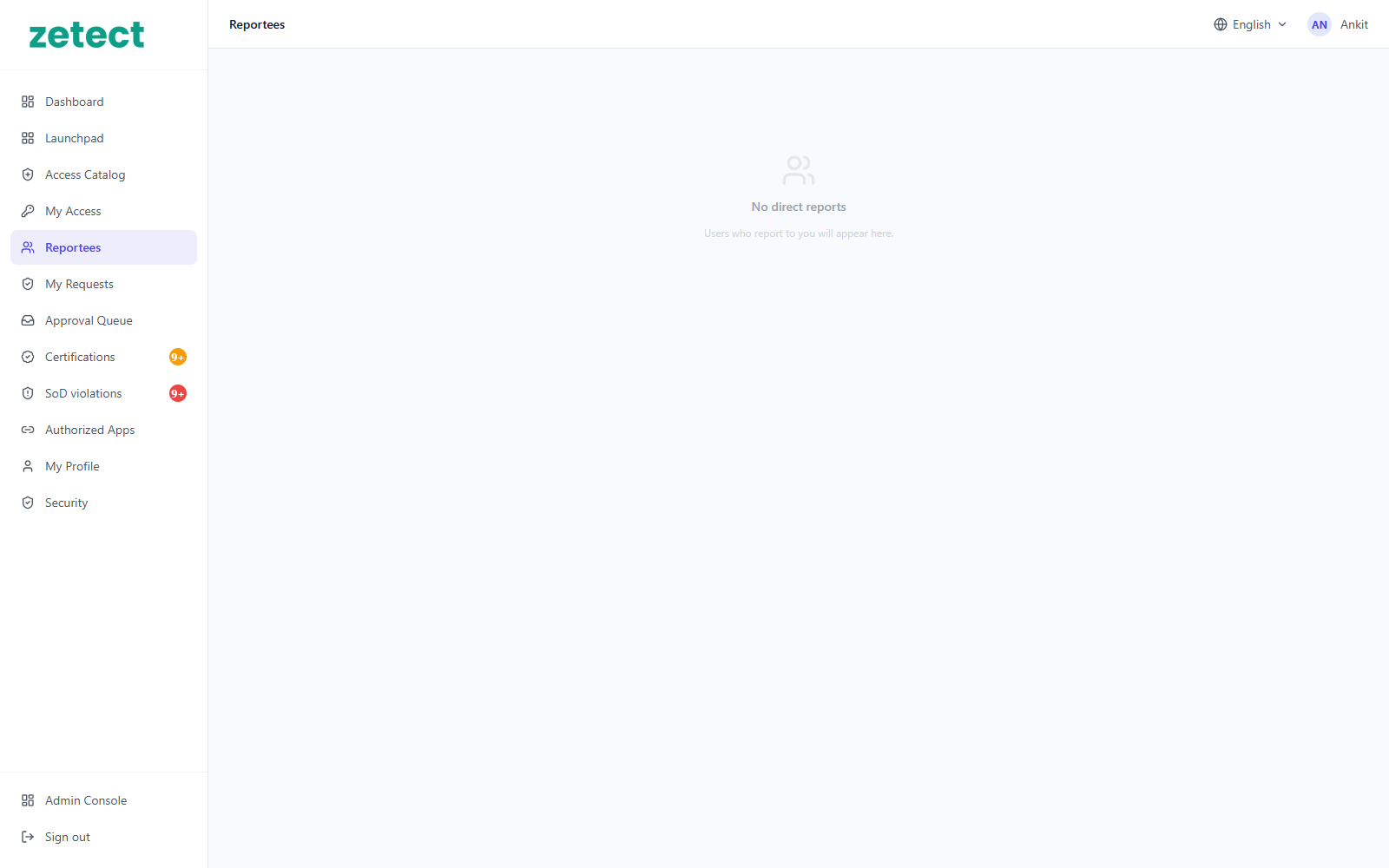
To view a reportee's access:
- Select Reportees in the sidebar. Each direct report is shown as a card with their name and email.
- Select a card. The person's access opens in the same layout as My Access: summary cards, categories, search, and details for each item.
- Optionally, select Export to download their access as a CSV file.
- Select Back to Reportees to return to the list.
Changing a reportee's access
You can't connect, give up access or ask for extensions on a reportee's behalf from this page. To change their access:
- To add access, request it for them in Access Catalog, if you are allowed to. See Requesting Access for Others.
- To remove access, revoke it when it comes up in a certification review assigned to you. See Completing Certification Reviews.
Reportees fields
| Field | Description |
|---|---|
| Reportee card | One card per person whose manager is set to you. |
| <Name>'s access | Everything that person can currently reach, why they have it, its risk and status. |
| No direct reports | Shown when nobody's manager is set to you. |
Troubleshooting
- Someone in your team is missing. Their manager may not be set correctly in their profile. Ask your administrator or HR to correct it at the source.