
Branding
Set your logo, colours, admin sidebar and sign-in page background. A live preview shows every change on the admin console and the sign-in page before you save.
Required permission
Branding – View under Configuration in an administrator group. This is the same permission as SMTP and FIDO2 / Passkey.
Limits
Logo: PNG, JPG, SVG, WebP or GIF up to 1 MB. Sign-in page image: PNG, JPG, SVG or WebP up to 2 MB.
Uploading a logo
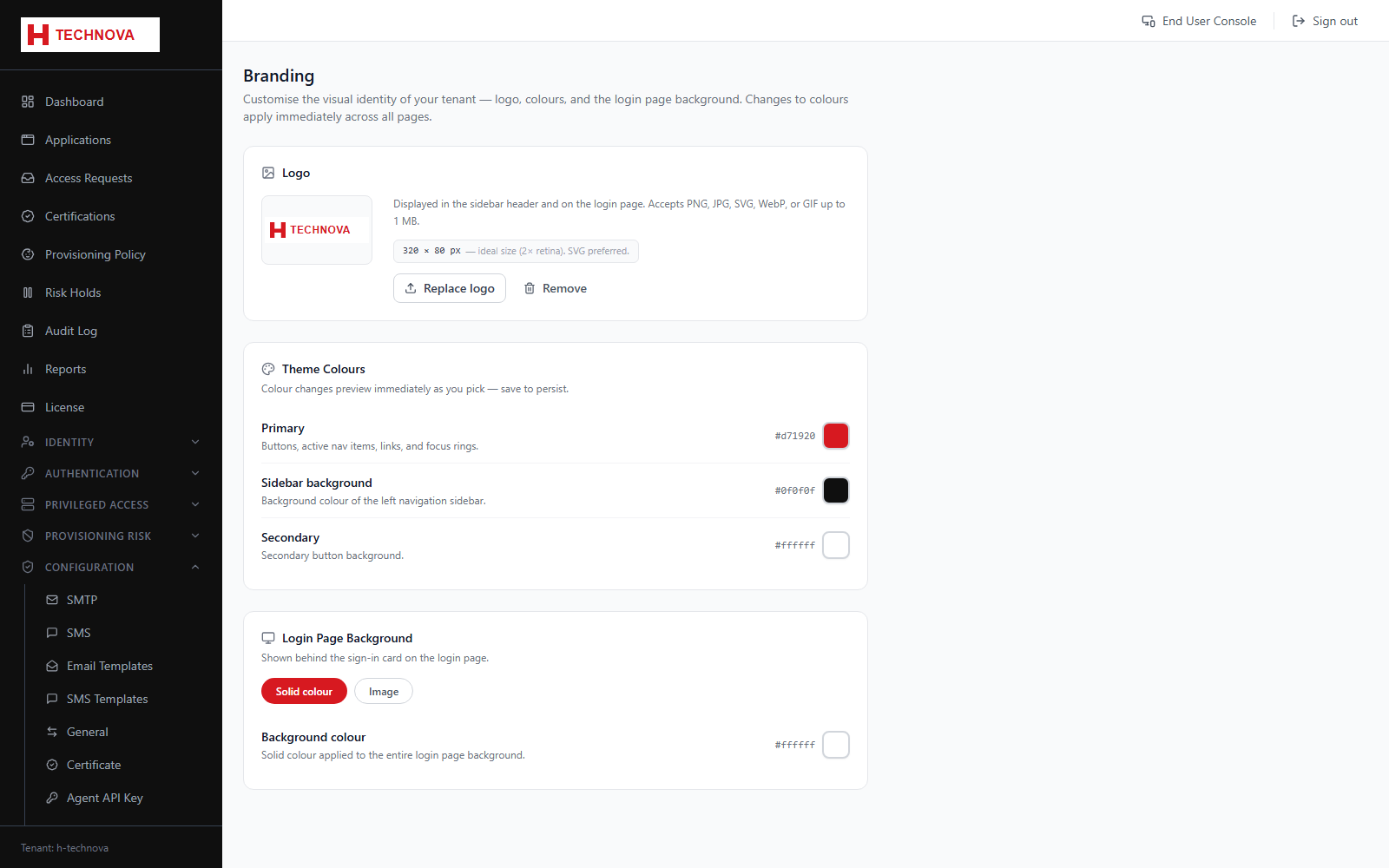
To upload a logo:
- Go to Configuration → Branding.
- Under Logo, select Upload logo, or Replace logo if there is one.
- Pick an image.
The logo is saved straight away and appears in the sidebar header and on the sign-in page. The ideal size is 320 × 80 px, and SVG is preferred. Select Remove to go back to no logo.
Setting colours and the sign-in background
To change the theme:
- Go to Configuration → Branding.
- Under Theme Colours, set the Primary and Secondary colours. Type a hex value or use the colour picker.
- Under Sidebar, pick a preset or set your own colours:
- Presets: Midnight, Charcoal, Brand colour, Soft brand or Light.
- Your own: set the Background and Foreground.
- Under Login Page Background, choose one:
- Solid colour – pick the colour.
- Image – select Choose image and pick a file.
- Check the result in Live preview. Switch between Admin console and Sign-in page.
- Select Save branding in the unsaved-changes bar.
Colour changes show across the admin console while you edit, but are kept only after you save. Select Discard to undo them.
Branding fields
| Field | Description |
|---|---|
| Logo | Shown in the sidebar header and on the sign-in page. |
| Primary | Buttons, the active menu item, links and focus rings. |
| Secondary | Background of secondary buttons in the admin console. |
| Sidebar Background | Fills the whole admin menu. |
| Sidebar Foreground | Menu text and icons. Until you pick one, Zetect chooses a colour that reads well on the background. |
| Easy to read / Hard to read | Whether the sidebar text has enough contrast. Below 4.5:1 the page warns you and offers Use a readable colour. |
| Background colour | Solid colour for the whole sign-in page. |
| Image | Sign-in page background image. |
| Live preview | Updates as you pick. Nothing is saved until you select Save branding. |
Example
| Primary | #4F46E5 |
| Secondary | #FFFFFF |
| Sidebar | Soft brand (background #F1F0FD, foreground #1F2937) |
| Login Page Background | Solid colour |