
Investigating Detections
Find what the detection rules raised, see how each risk was calculated, act on it and close it. The Detections tab lists risky sign-ins, password attacks, high-risk accounts and other threats to your identities.
ITDR – View to see detections. ITDR – Edit to acknowledge, close and reopen them. ITDR – Grant to run actions from a detection.
Finding a detection
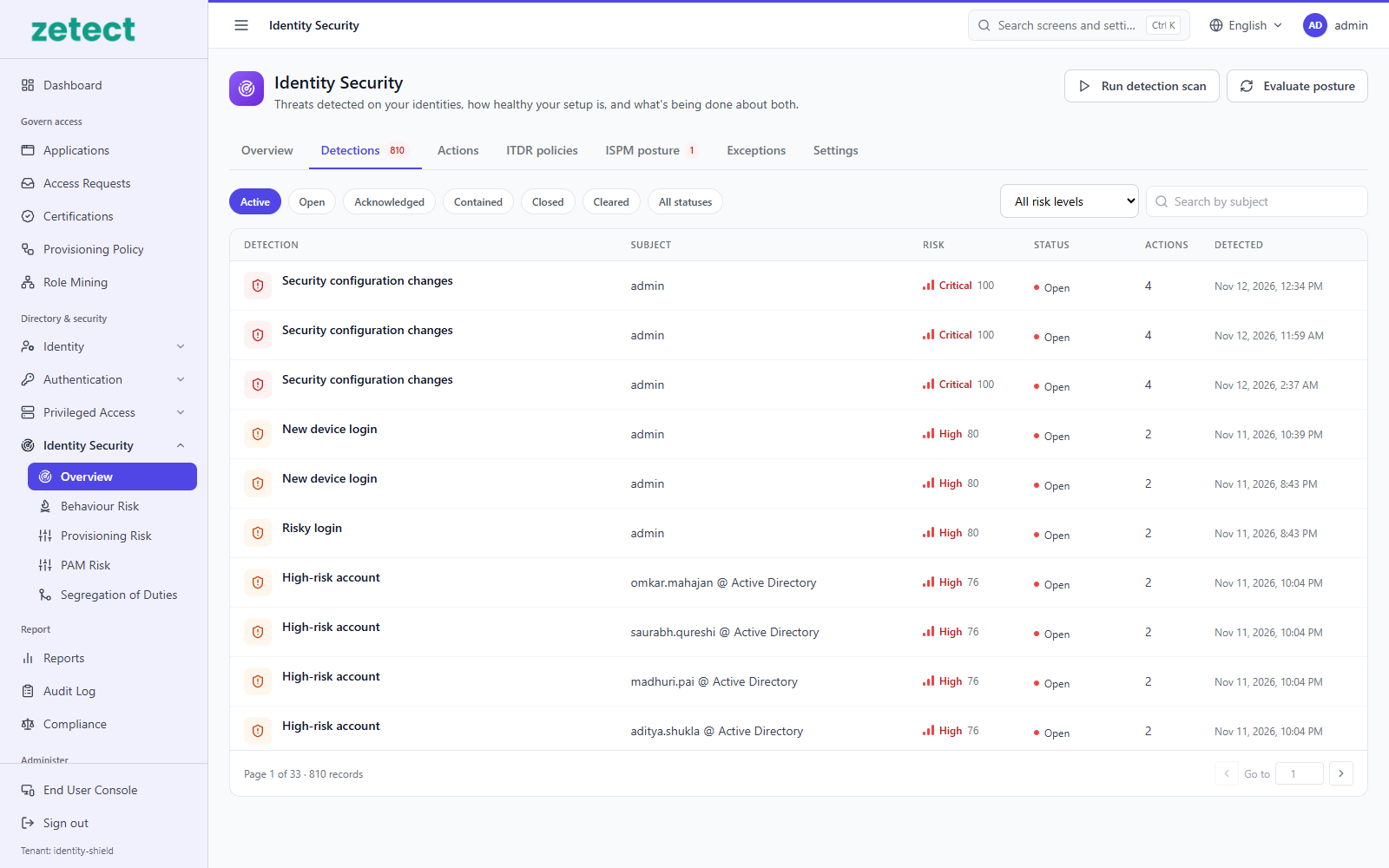
To find a detection:
- Go to Identity Security → Overview.
- Select the Detections tab. The tab shows how many detections are active.
- Filter by status with the pills. Active is the default and covers open, acknowledged and contained detections.
- To show one level, choose it in All risk levels.
- To find a user or account, type in Search by subject.
- Select a detection to open its details.
| Column | Description |
|---|---|
| Detection | The rule that fired, such as Risky login, New device login or High-risk account. Before first scan marks results from the first scan's 30-day look-back. No policy acts on those. |
| Subject | The user or account involved. An account shows as name @ application. |
| Risk | The risk level and score, up to 100. |
| Status | See Detection statuses. |
| Actions | How many actions are recorded for the detection. |
| Detected | When the detection was raised. |
Investigating a detection
The detection opens in a drawer. Work through its sections from top to bottom.
| Section | Description |
|---|---|
| What happened | The subject and whether it is privileged, the number of events, the first event, when it was detected, the policy applied, the MITRE ATT&CK technique, what the rule sees (Rule sees) and Regulator reporting guidance. |
| How the risk was calculated | Each factor, its points and the total. Behaviour Risk adds the points of each rule that fired, up to 100. Provisioning Risk combines signals into the account's score, so its total isn't a simple sum. |
| Related risk | The user's riskiest sign-in in the same period, and the provisioning risk of the identity or account. |
| Actions | Each action with its mode, status, result and who decided it. |
| Take an action | Runs one action now. Only actions that fit the detection are offered. For example, user actions need a user. |
| Playbook | Suggested steps for investigating and responding. |
| Evidence | The raw details the rule recorded. |
Acting on a detection
To run an action from a detection:
- Open the detection.
- Under Actions, review what the policy proposed. To decide a proposed action, select Approve or Run, or Reject or Dismiss.
- To start an action yourself, choose it under Take an action.
- Select Run.
- In Run this action?, confirm.
The action takes effect immediately. It is recorded in the action log as Started by a person and in the audit log.
Triaging and closing a detection
To triage and close a detection:
- Open the detection.
- Select Acknowledge while you investigate.
- When you finish, close it with one of:
- Close: real threat
- Close: expected activity
- Close: false positive
Closing a detection as expected activity or a false positive removes its effect on the user's next sign-in. To work on a closed detection again, open it and select Reopen.
Detection statuses
| Status | Meaning |
|---|---|
| Open | Raised and not yet looked at. |
| Acknowledged | Someone is investigating. |
| Contained | A containing action succeeded. |
| Closed | Closed by a person, with an outcome. |
| Cleared | The condition no longer holds. For example, the account now has an owner. |
What raises a detection
Scans run every 5 minutes, or when you select Run detection scan. Activity rules, such as password spray, repeated MFA failures and unusual report exports, are set on Behaviour Risk. A sign-in raises Risky login when its total risk reaches the minimum risk score there. An application or PAM account raises High-risk account when its risk reaches the level in Raise a detection at on Provisioning Risk.
Troubleshooting
Security configuration changes keeps firing. Expect it while you set up Identity Security. Changing policies and settings is what it watches for. Close these detections as expected activity.