
Managing Request Configurations
A request configuration makes something requestable. It publishes an application, a privileged asset, shared privileged accounts or a new identity to the Access Catalog, and decides the approval policy, who may request it and how reminders work. Nothing appears in the catalog until an active configuration publishes it.
The application or privileged asset is onboarded and its entitlements or groups are aggregated. For shared-account access, the accounts are marked as shared on the asset's Accounts tab.
Access Requests – View in an administrator group to see configurations. Access Requests – Add or – Edit to create or change them.
Creating a request configuration
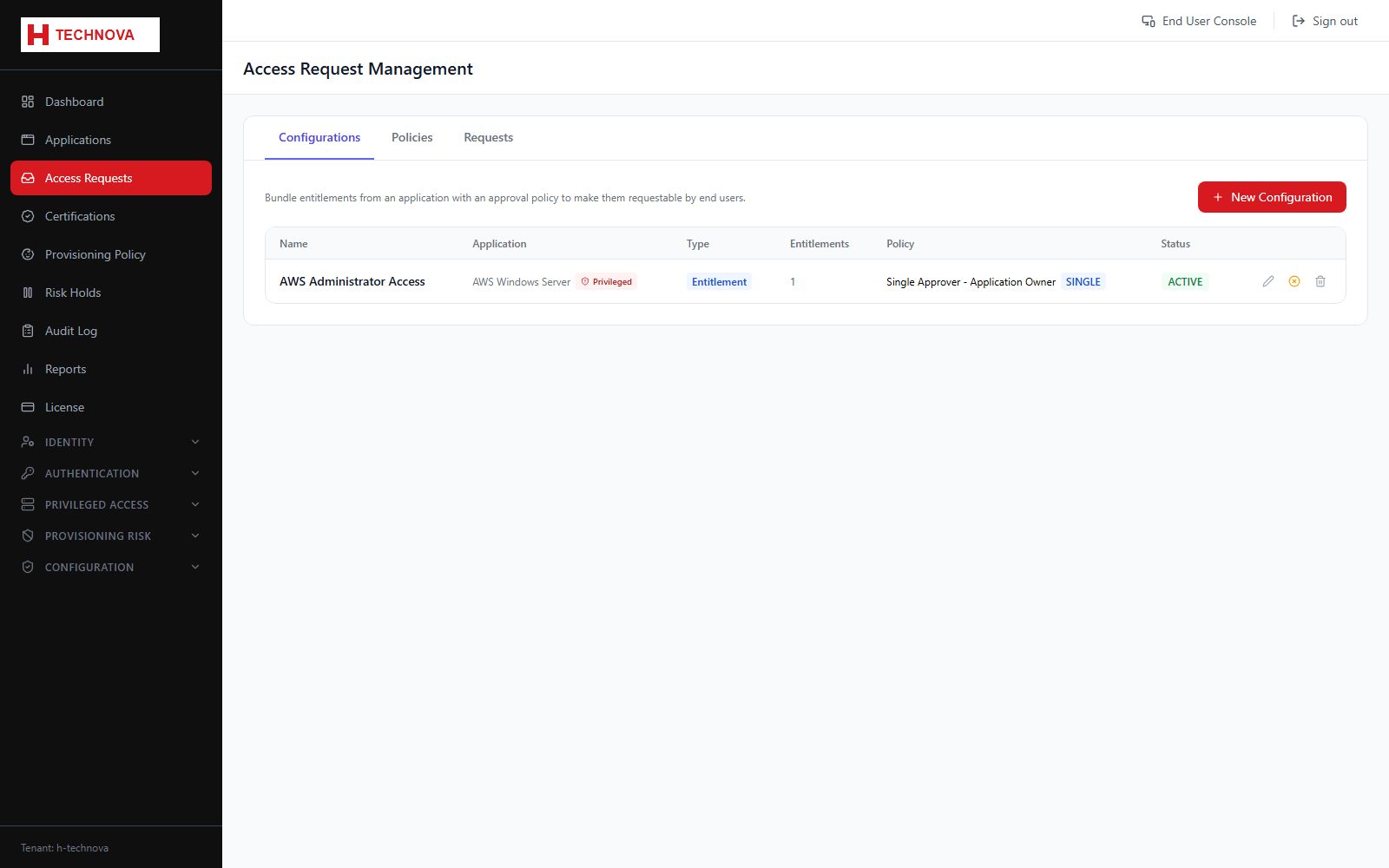
To create a request configuration:
- Go to Govern access → Access Requests and select the Configurations tab.
- Select New Configuration.
- In Name & App, enter the Configuration Name.
- Choose the Resource Type: Application, Privileged Asset or New Identity.
- Select the application or asset, then the Request Type.
- In Entitlements or Shared accounts, tick what people may request. For shared accounts, also set the duration choices.
- In Policy, choose the approval policy:
- Pick an existing policy.
- Choose No policy (auto-approve) to approve every request automatically.
- Choose + Create new policy… to create one here.
- In Requestors, add rules for who may request, or leave it empty to allow anyone.
- Select Activate.
The configuration is active and its access appears in the Access Catalog for everyone who meets the Requestors rules.
Request configuration fields
| Field | Description |
|---|---|
| Configuration Name | The name shown in the list and to requesters. |
| Resource Type | Application – access to a provisioning application. Privileged Asset – an account, group or shared account on a privileged asset. New Identity – approving the request creates a new identity, so no application or asset is selected. |
| Request Type (application) | Application Access – the requester asks for the application itself, with no entitlement choice. Entitlement Access – the requester picks a specific entitlement (group or role). |
| Request Type (privileged asset) | Asset Access – an account on the asset. Entitlement Access – a specific privileged group. Shared account access – time-limited use of a shared privileged account in recorded sessions; nothing is changed on the asset. |
| Entitlements / Shared accounts | What people can request. The selected items are listed at the top, with Clear all and Show selected only. An item used by another configuration is marked In use and can't be selected. |
| Durations | Shared accounts only. The time choices offered to requesters (up to 10, in hours or days) and the Maximum duration. Longer requests are refused. If you set no choices, requesters get 1 h, 4 h, 8 h and 1 d, with a maximum of 7 days. |
| Approval Policy | The approval policy for requests made under this configuration. The drawer shows the policy's approver, justification rule, access expiry and stages, with Open policy. With no policy, requests are approved automatically. |
| Requestors | Who may request. Each rule is a Specific User, a Group Member, or an Attribute condition (Equals, Not equals, Contains, Starts with). A person who matches any one rule can request. Leave it empty to allow anyone. |
| Request for others | Lets selected people request on behalf of someone else. Edit only. See Enabling Requests for Others. |
| Reminders | Reminder emails to approvers of this configuration's requests. Edit only. See Setting reminders for a configuration. |
| Status | Active, Draft or Inactive. Only active configurations appear in the catalog. |
Example: time-limited root access
| Configuration Name | Linux - Shared Root |
| Resource | Privileged Asset · prod-db-01 · Shared account access |
| Shared accounts | root |
| Durations | 1h, 4h, 8h, up to 1 day |
| Approval Policy | Application Owner · Single Approver |
| Requestors | Members of DB-Operations |
Editing a configuration
To edit a configuration:
- Go to Govern access → Access Requests and select the Configurations tab.
- Select Edit on the configuration's row. The Edit Configuration drawer opens with a collapsible section for each setting and a summary of its current value.
- Expand the section to change, and make the change.
- Select Save changes.
Filter the list with All, Privileged, Regular and Auto-approved, or search it.
Setting reminders for a configuration
To set reminders for a configuration:
- Open the configuration with Edit and expand Reminders.
- Choose one:
- Use global settings – the schedule from Configuration → Reminders & Alerts.
- Turn off for this request configuration.
- Custom – set this configuration's own schedule and recipients.
- Select Save reminders.
Reminder settings are saved with their own button, not with Save changes. The section summary shows Global settings, Off, Custom or Mixed. See Configuring Reminders and Alerts.
Deactivating and deleting a configuration
To deactivate, activate or delete a configuration:
- Go to Govern access → Access Requests and select the Configurations tab.
- Open the ⋮ menu on the configuration's row.
- Select Deactivate, Activate or Delete, and confirm.
A deactivated or deleted configuration no longer appears in the catalog.
Troubleshooting
- A privileged configuration is flagged. It has no human approver. A notice counts these configurations, and Show them filters the list to Privileged and auto-approved. Anyone who qualifies gets that access with no check, so consider a policy with a human approver.
- An entitlement can't be selected. It is marked In use by another configuration.
- A shared account isn't offered. Mark it as shared on the asset's Accounts tab first. See Managing Shared Accounts.
- People don't see the access in the catalog. Check that the configuration is Active and that they match a Requestors rule.