
Managing Shared Accounts
Lend privileged accounts that several people use, such as root or a local administrator. People get time-limited, approved grants and use the account one person at a time. Zetect fills in the stored password in a recorded session, so users never see it. Shared-account sessions are always recorded, and only one person can use the account at a time; neither can be turned off.
An onboarded asset with synced accounts. See Managing Asset Accounts.
Privileged Assets – View to make accounts shared, Shared accounts – View for the Shared accounts page, and Access Requests – Edit to make them requestable, in an administrator group.
Making an account shared
Zetect must hold the account's password. A shared account is never matched to one person.
To make an existing account shared:
- Open the asset and select Accounts in the left menu.
- Open the account.
- In the Sharing card, select Make shared.
- Fill in the shared-account settings. Leave Password empty to keep the password Zetect already holds.
- Save.
To add a shared account that sync doesn't return:
- Open the asset and select Accounts in the left menu.
- Select Add shared account.
- Enter the Username, for example
root, and a Description. - Enter the Password.
- Fill in the other settings and save.
Shared account settings
| Setting | Description |
|---|---|
| Description | What the account is for, for example "Break-glass administrator". |
| Password | Stored in the vault and never shown again, to administrators or users. It is filled in on the server when a session starts. |
| Owner | A User and/or a Group that receive alerts, such as failed rotations or the account becoming unavailable. Not an approver: approvals come from the request configuration. Empty means the asset owner. |
| Maximum session length | Between 5 minutes and 24 hours. When it is reached, the session ends and the account is released. |
| Reason required at launch | Users must say why they open each session. The reason is shown in the session list and the usage report. |
| Rotate password after each use | Sets a new password through the agent when each session ends. |
Making a shared account requestable
Until a shared account is in an active access request configuration, nobody can request it.
To make shared accounts requestable:
- Go to Access Requests and create a configuration.
- Set the Resource Type to Privileged Asset and select the asset.
- Set the Request Type to Shared account access.
- Select the shared accounts users can request.
- On Durations, add the choices people can pick, in hours or days, and set the Maximum duration.
- Choose the approval policy, then save and activate the configuration.
Approval works like any other request; see Managing Request Configurations. An account can be in only one configuration. Shared-account access always ends; there is no permanent option.
How grants and sessions work
- Grants are always time-limited. An approved request becomes a grant at once; nothing changes on the server. The grant ends at the requested time. A session still open then is closed, and the user is warned 10 minutes and 1 minute before. Users can ask for more time from My Access, or give up access early.
- One person at a time. While someone uses the account, others with a grant see who has it and since when. They can choose Notify me when free to be emailed when it becomes free; they count as Waiting.
- Rotation after use. With Rotate password after each use on, new sessions wait until the password change is confirmed. If a rotation fails, the old password stays in effect, the account stays usable, and the owner is alerted.
- Connect as. A user who has both their own account and a shared grant on an asset, or several shared grants, chooses the account when they launch it. See How people launch a session.
Reminder emails before a user's shared access ends are set in Configuring Reminders and Alerts.
Monitoring shared accounts
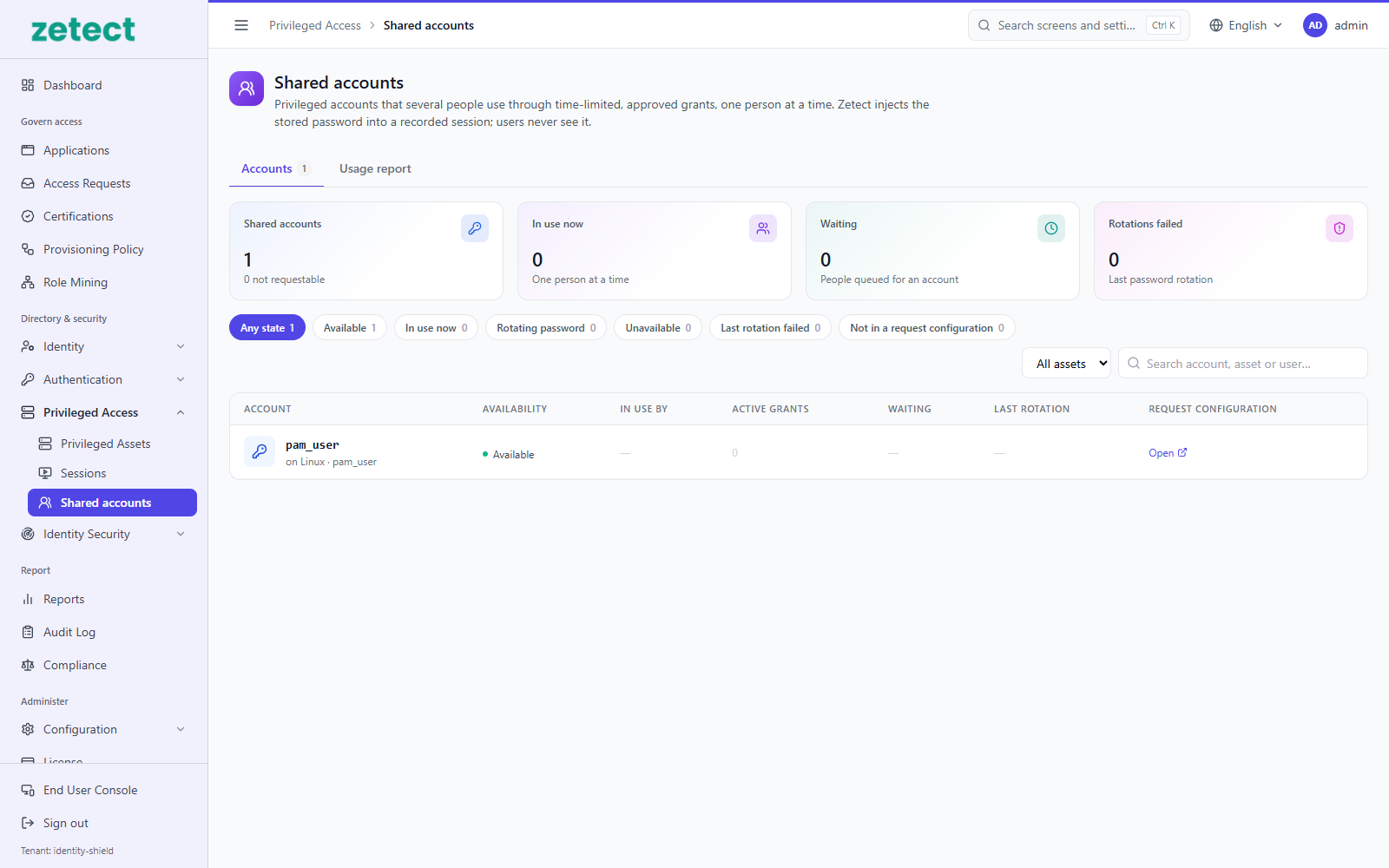
To review shared accounts:
- Go to Privileged Access → Shared accounts. The Accounts tab opens first.
- Read the tiles for the number of shared accounts, how many are in use now, how many people are waiting, and how many last rotations failed.
- Filter by state, by asset with All assets, or search for an account, asset or user.
- Select a row to open the account. Its panel has three tabs: Overview, Grants and Usage history.
| Column | Description |
|---|---|
| Account | Account name, its asset and description. No password stored means nobody can start a session with it until you set one. |
| Availability | Available, Rotating password or Unavailable. |
| In use by | Who is using the account and since when. |
| Active grants | Number of people with a current grant. |
| Waiting | People who asked to be notified when the account is free. |
| Last rotation | Result of the last password rotation. |
| Request configuration | Open goes to the configuration that offers the account. Not requestable when there is none. |
Managing grants
To revoke a grant:
- Go to Privileged Access → Shared accounts and open the account.
- Select the Grants tab.
- Select Revoke on the grant.
- Optionally enter a Reason; it is kept in the audit log.
- Confirm.
A session the user has open as the account is ended. Tick Show ended grants to see grants that have expired or been revoked.
Using account actions
The account panel's Overview tab has these actions:
| Action | Description |
|---|---|
| Edit settings | Changes the shared-account settings. |
| Change password | Stores a new password for the account. |
| Rotate now | Changes the password on the server now, for example after an emergency retrieval from the vault. Not possible while the account is in use or already rotating. |
| Force release | Ends the current user's session and releases the account. Their work in the session is interrupted. |
| Stop sharing | Makes it a normal account again. It is removed from its request configuration and its settings are deleted. Not possible while someone holds an active grant or uses it. |
Running the usage report
To see every use of shared accounts in a period:
- Go to Privileged Access → Shared accounts and select the Usage report tab.
- Choose From and To.
- Choose an Account, or All shared accounts.
- To download the report, select Export CSV.
The report lists every session: account, user, Started, Duration, Ended by, Reason and a link to the recording. A summary shows the number of sessions, people and total time.
Example
| Account | root on lnx-db-01 |
| Description | Break-glass administrator |
| Owner | Group: Database Admins |
| Maximum session length | 2 hours |
| Reason required at launch | On |
| Rotate password after each use | On |
| Request durations | 1 hour, 4 hours, 1 day; maximum 1 day |
Troubleshooting
- The account shows Not in a request configuration. No active configuration offers it, so nobody can request it. Add it to one.
- The account shows No password stored. Select Change password and set one.
- The account shows Last rotation failed. The previous password is still in effect. Check the asset's connection, then select Rotate now.
- The account shows Unavailable. Sync no longer finds it on the server, or it is disabled there. Grants are kept.