
Managing Who Can Access Rules
An application's Who can access rules decide who can see and use it. With no rules, everyone who can sign in can. For an application with provisioning set up, the same rules also create a person's account, and remove it, when no provisioning policy covers them.
The application is onboarded. For the rules to provision accounts, it must be active and have provisioning set up.
Applications – View in an administrator group to open the application. Changing the rules needs administrator access to the console.
Adding Who can access rules
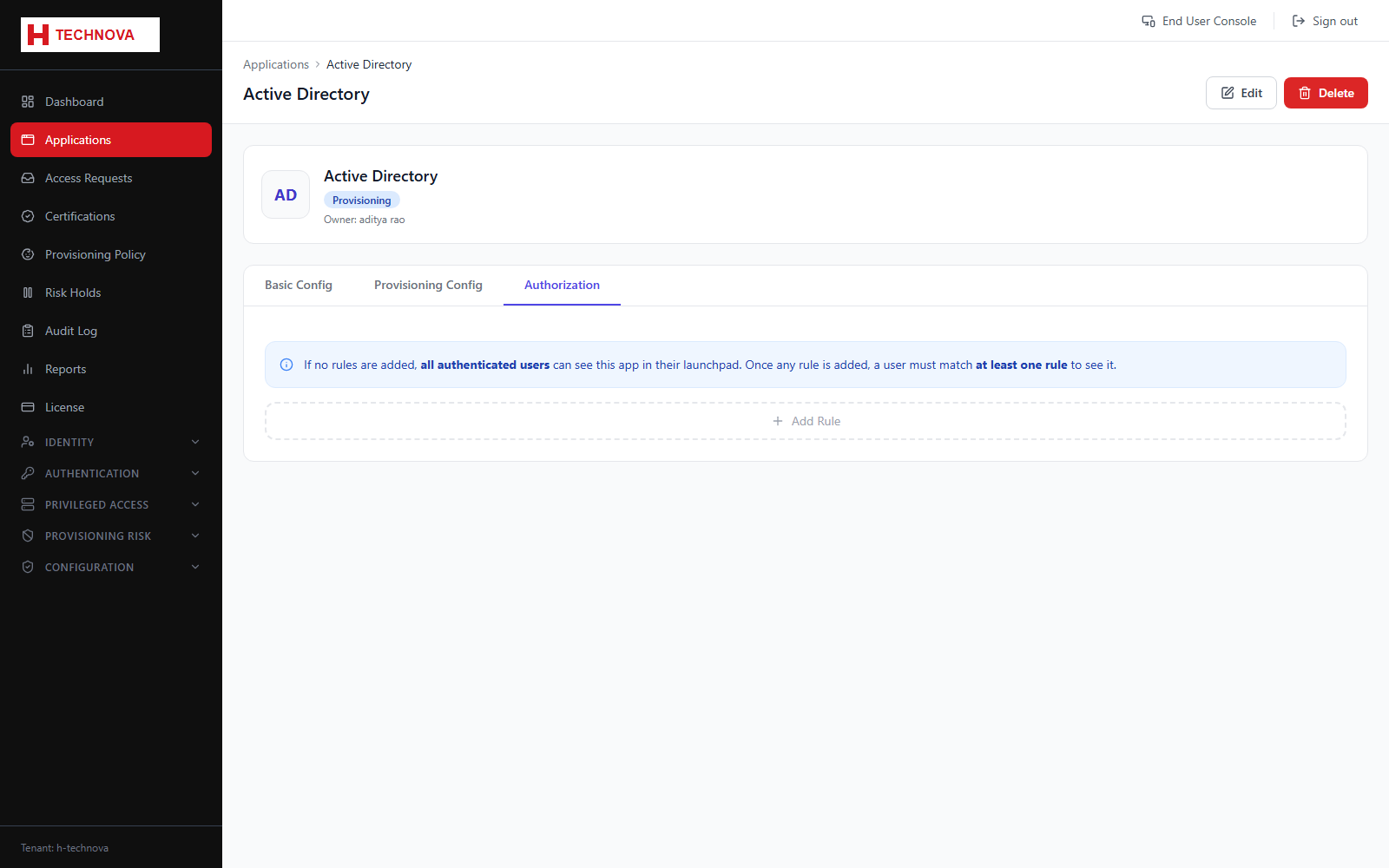
To add Who can access rules:
- Go to Govern access → Applications and open the application.
- Under Govern, select Who can access.
- Select Add rule.
- Choose the Condition type:
- User – pick one person.
- Group – pick a group.
- Attribute – choose an identity attribute, an operator and a value.
- To add another condition to the same rule, select Add alternative. A person needs to match only one of a rule's conditions.
- To add another rule, select Add rule again and choose how it combines with the rules before it: All of these or Any of these.
- Read In plain words to check the result.
- Select Save Rules in the bar at the bottom. Select Discard to drop your changes.
From now on, people who don't match the rules no longer see the application on their launchpad. If the application has provisioning, the rules also take part in provisioning at each person's next update. See How the rules provision accounts.
Who can access fields
| Field | Description |
|---|---|
| User | One named person. |
| Group | Members of a group. Platform Control groups, which grant administrator permissions, are not offered. |
| Attribute | An identity attribute compared with a value using equals, not equals, contains, not contains, starts with or not starts with. |
| Add alternative | Adds an "or" condition inside the rule. |
| All of these / Any of these | How a rule combines with the ones before it: the person must also match it, or matching it is enough. |
| In plain words | The rules as a sentence. With no rules it reads "Everyone who can sign in can see and use …". |
How the rules provision accounts
If the application has provisioning set up, the rules also decide who gets an account there:
- When no provisioning policy for the application matches a person and these rules let them in, Zetect creates their account.
- When they no longer match, for example after leaving a group, Zetect deletes the account, unless a provisioning policy or an approved access request still grants it.
- When a provisioning policy for the application matches the person, the policy decides what they get, not these rules.
- Changes apply at each person's next create, update or group change, including identity-source group syncs. Saving the rules doesn't re-provision existing users.
The rules govern the account only. While they keep an account, Zetect neither adds nor removes its groups. Only active applications with at least one rule are affected, so an application with no rules provisions nobody. Accounts an administrator suspended are not re-created.
Example: Finance only
| Rule 1 | Group: Finance, or Attribute: department equals Treasury |
| Rule 2 | All of these · Attribute: employeeType not equals Contractor |
| In plain words | Finance ERP is available to people who are in Finance or department equals "Treasury" and also employeeType not equals "Contractor" |
Privileged assets
A privileged asset can have its own Who can access section under Govern, with the same user, group and attribute rules. On an asset, the rules only create and remove accounts, in the same way as on an application. They don't change who sees the asset: people see it when they have an account on it or a grant to one of its shared accounts. Automatic grants on assets still respect segregation-of-duties policies.