
Signing In
Every Zetect session starts at your tenant's sign-in page. Sign-in takes two steps: you enter your username first, and Zetect then decides how you prove who you are. This is why the password box only appears after you select Continue.
An active user account in the tenant, and the tenant's sign-in address, which ends in /<tenant>/login.
None to sign in. To land in the admin console you must be a member of an active administrator (Platform Control) group.
Signing in to the console
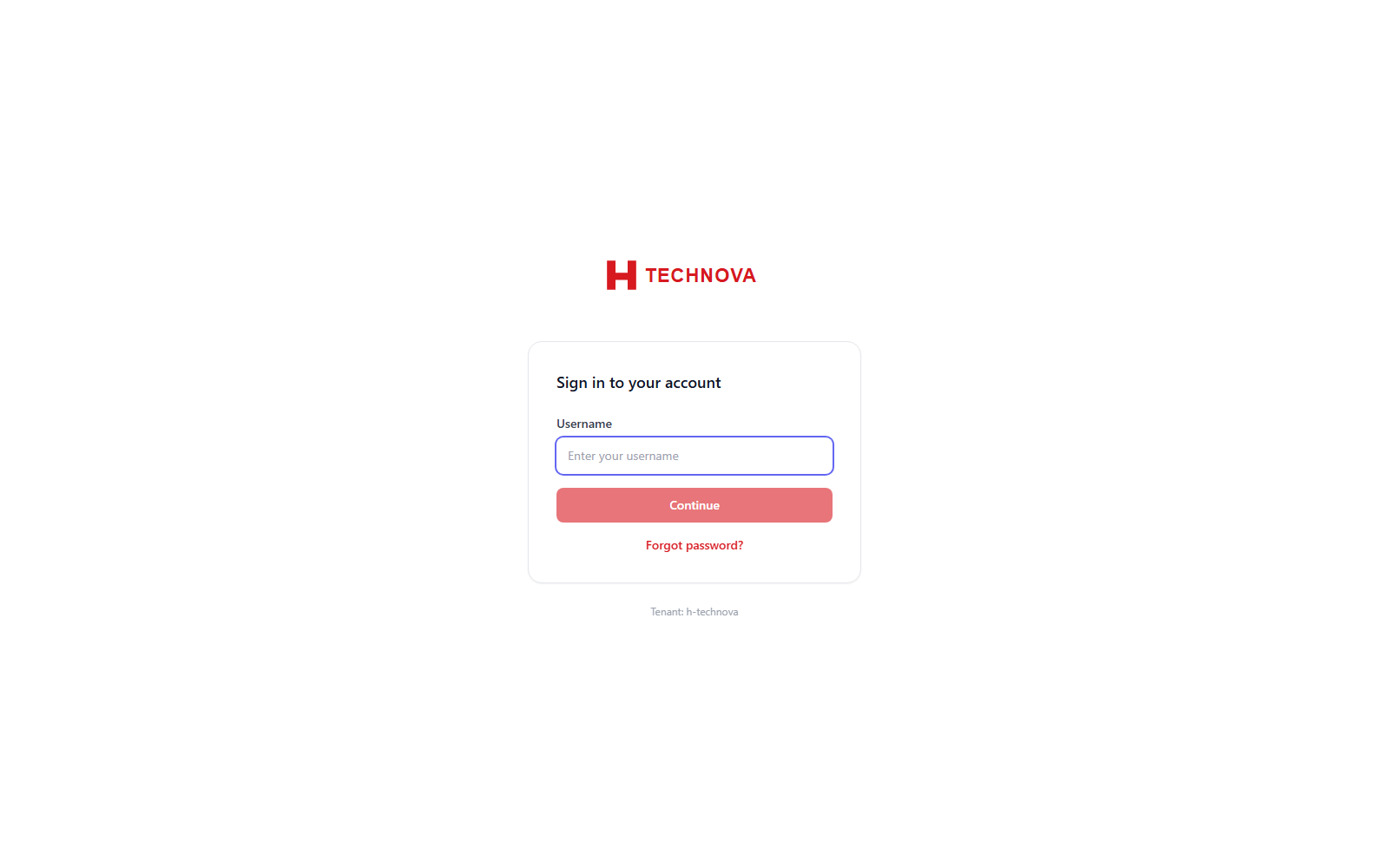
To sign in:
- Browse to your tenant's sign-in address, for example
https://app.zetect.in/identity-shield/login. - Optionally, pick your language with the selector in the top-right corner.
- Enter your username and select Continue.
- Enter your password on the Enter your password step and select Sign in.
- Select the eye icon to show what you typed.
- Select Back to change the username.
- If the Two-factor authentication step appears, enter the code or use your passkey.
- Select Try another way to switch to another registered method.
- Select Resend code when a code has not arrived.
- If the Change your password step appears, set a new password.
Members of an active administrator group land on the admin Dashboard. Everyone else lands in the End User Console.
What decides the sign-in steps
After you enter your username, Zetect checks the authentication rules for that user. The matching rule decides where the password is checked (the Zetect store or an external directory), whether you are sent to an external identity provider instead, and whether a second factor is required. See How Sign-In Is Evaluated.
The username you enter is matched against the identity attribute set as the Login ID Attribute. See General Configuration.
Sign-in page fields
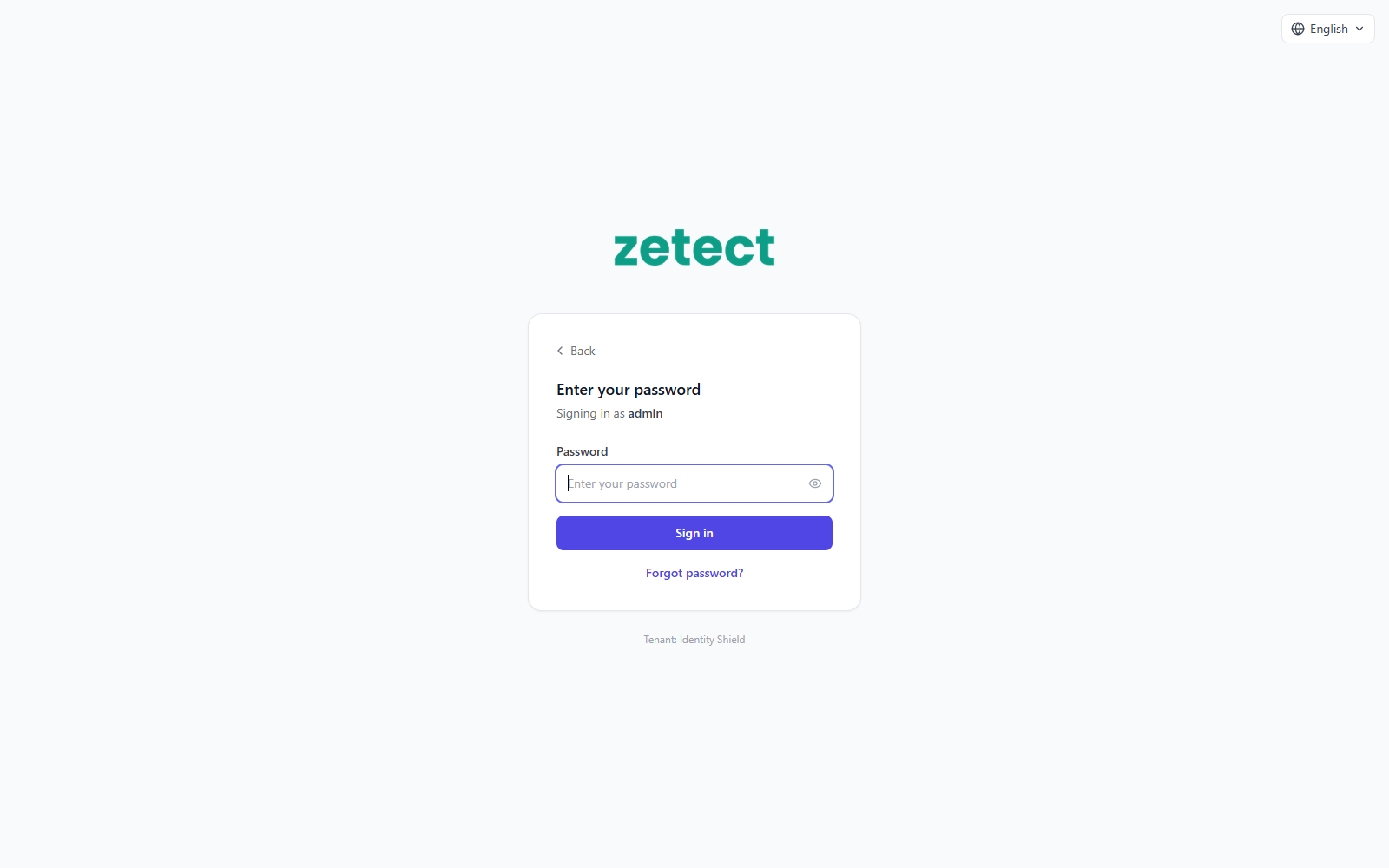
| Field | Description |
|---|---|
| Username | Your Zetect username. Matched against the Login ID Attribute. |
| Password | Checked against the provider chosen by the matching authentication rule. |
| Verification code | The code sent by email or SMS, or shown in your authenticator app. Emailed and texted codes expire, and a countdown shows how long is left. |
| Authenticate with passkey | Uses a registered passkey, fingerprint or hardware security key instead of a code. |
| Forgot password? | Starts the self-service reset. You verify your identity with a registered method and then set a new password. |
| Tenant | The footer shows the name of the tenant you are signing in to. |
| Language | Changes the language of the sign-in page and the consoles. |
Signing in for the first time
The first administrator account of a new tenant is created by your Zetect provider. If the provider generated its password, you must change it at your first sign-in.
| Address | https://app.zetect.in/identity-shield/login |
| Username | priya.nair |
| Second factor | Authenticator app |
| Lands on | Dashboard (administrator) |
Troubleshooting
- "Invalid username or password." An unknown username and a wrong password show the same message on purpose, so that nobody can find out which usernames exist. Repeated failures count towards the lockout limit in the global auth policy. See Configuring the Global Auth Policy.
- No code arrives. Email and SMS codes need email and SMS delivery to be set up. See Configuring Email and Configuring SMS.
- You land in the End User Console. You are not a member of an active administrator group. Ask an administrator to add you. See Managing Administrator Access.