
Configuring Identity Security
Set the guardrails for automatic actions, the context that detection rules and controls rely on, and the tags that say what an identity is for. Risk points and levels aren't set here. They're set on Behaviour Risk, Provisioning Risk and PAM Risk.
Required permission
ITDR – View or ISPM Posture – View to see the Settings tab. ITDR – Edit to change guardrails and context. ISPM Posture – Edit to add and remove tags.
Setting guardrails and context
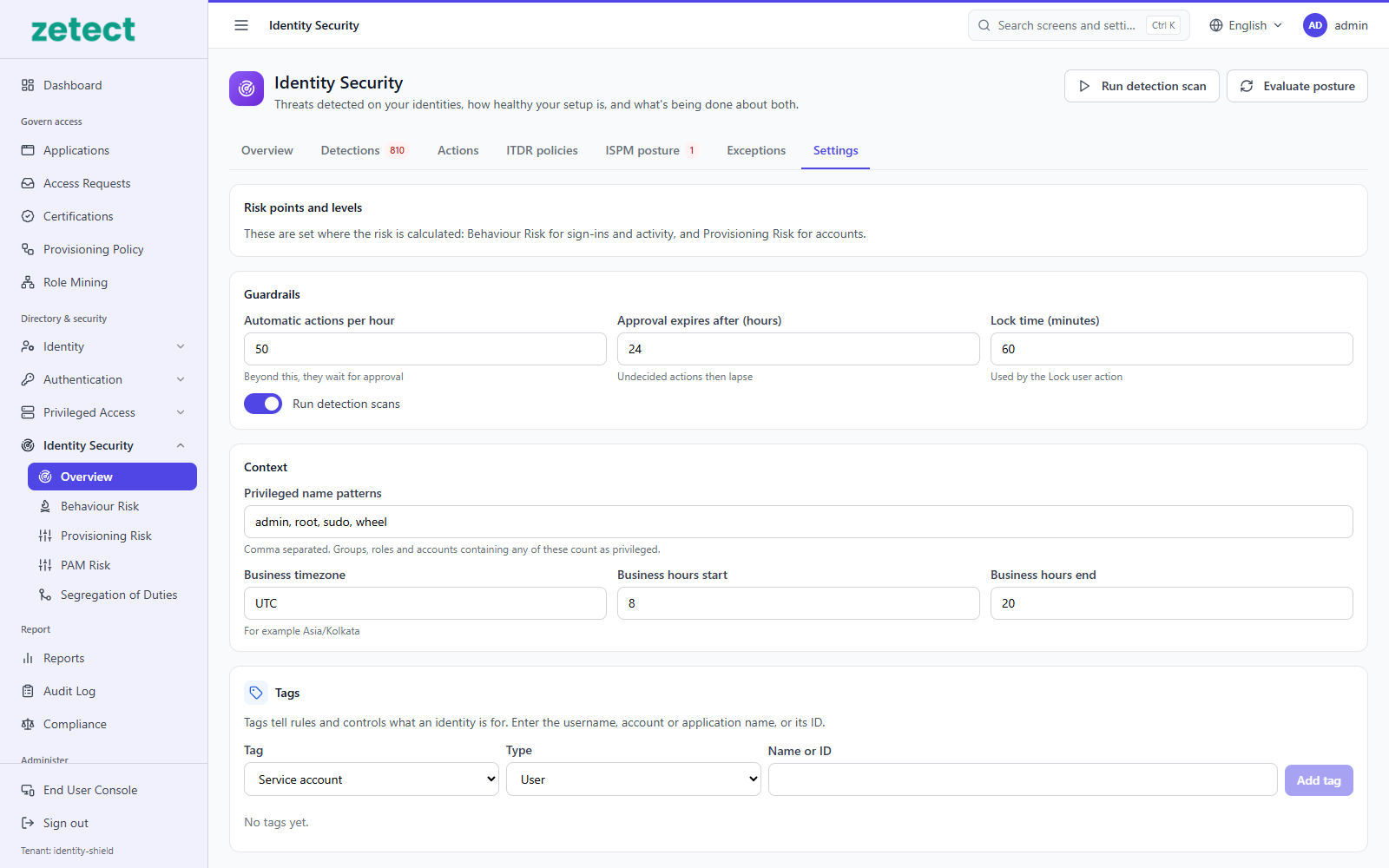
To set guardrails and context:
- Go to Identity Security → Overview and select the Settings tab.
- Under Guardrails, set the hourly limit, approval expiry and lock time.
- Check that Run detection scans is on.
- Under Context, review the Privileged name patterns.
- Set your Business timezone and business hours.
- Select Save on the bar that appears, or Cancel to discard your changes.
Changes apply to the next scan and the next actions. Saving also raises a Security configuration changes detection.
| Field | Description |
|---|---|
| Automatic actions per hour | Beyond this, automatic actions wait for approval. Default 5. |
| Approval expires after (hours) | Undecided actions then lapse as Expired. Default 24, up to 720. |
| Lock time (minutes) | How long the Lock user action blocks sign-in. Default 60. |
| Run detection scans | Turns the scheduled detection scan on or off. |
| Privileged name patterns | Comma separated. Groups, roles and accounts whose names contain any of these count as privileged. Used by the privileged access risk signal, policies that apply to privileged subjects, and several controls. Default admin, root, sudo, wheel. |
| Business timezone | A timezone name, for example Asia/Kolkata. Default UTC. |
| Business hours start / end | Whole hours from 0 to 24. PAM sessions outside these hours can raise an After-hours PAM session detection. Default 8 to 20. |
Tagging identities and assets
To add a tag:
- On the Settings tab, go to Tags.
- Choose a Tag.
- Choose a Type.
- Enter the Name or ID: the username, account name or application name, or its ID.
- Select Add tag.
Tags are saved at once. To remove one, select its bin icon.
| Field | Values |
|---|---|
| Tag | Service account, Decoy, Break-glass, Vendor, Regulator, Auditor or Risk tier reviewed. |
| Type | User, Application account, PAM account, Application or PAM asset. |
What tags do
| Tag | Effect |
|---|---|
| Service account | Service account rules and controls watch it, for example an interactive sign-in or PAM session by it. |
| Decoy | Any sign-in activity on it raises a critical Honeytoken / decoy account touched detection. Create the decoy account first, then tag it. |
| Break-glass | Automatic actions against it always wait for approval. |
| Vendor / Regulator / Auditor | Brings the vendor and regulator access controls into the ISPM posture. |
| Risk tier reviewed | Use on an application or PAM asset left at the standard risk tier, to record that its tier was reviewed. The critical asset tagging control then counts it as tagged. |
Example — Decoy account
| Tag | Decoy |
| Type | Application account |
| Name or ID | svc-backup-old |