
Configuring the Global Auth Policy
Set the lockout, token, session and sign-in code settings that apply to everyone in the tenant, whichever auth rule matched. A summary line at the top restates the current settings in plain words.
Global Auth Policy – View in an administrator group to see the page, and Global Auth Policy – Edit to change it.
Every sign-in to the tenant, whichever auth rule matched.
Changing the global auth policy
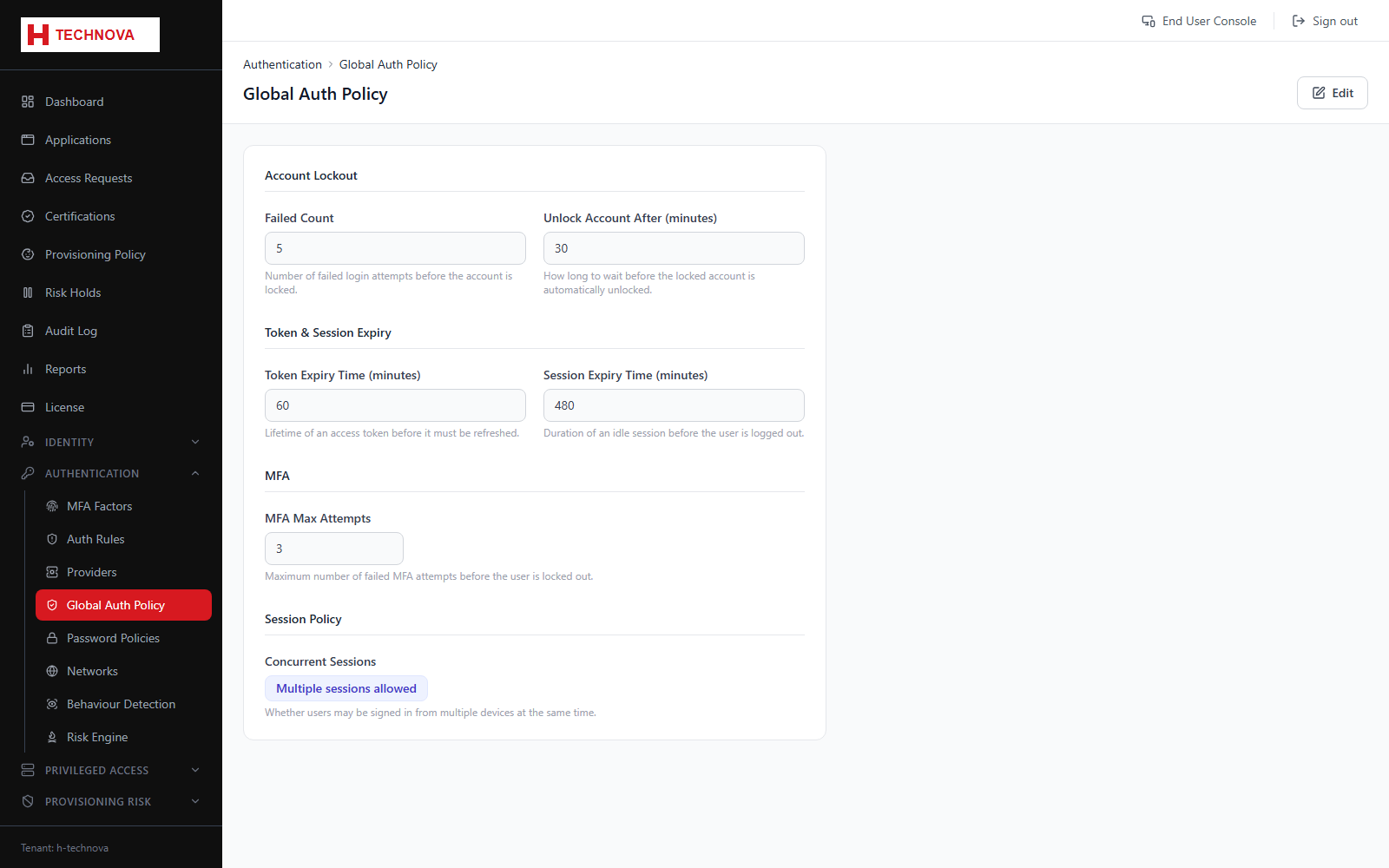
To change the global auth policy:
- Go to Authentication → Global Auth Policy.
- Under Account Lockout, set how many failed sign-ins lock an account and how long the lock lasts.
- Under Token & Session Expiry, set the access token lifetime and the idle session timeout.
- Under Second-factor codes, set how many wrong codes are allowed and how long an emailed or texted code stays valid.
- Under Session Policy, choose Multiple sessions or Single session.
- For Single session, choose what happens When a new session is created.
- Select Save changes on the bar that appears, or Discard to go back.
The new settings apply to the next sign-in. If the page says the defaults aren't saved for this tenant yet, select Save changes to store them.
Global auth policy fields
| Field | Description |
|---|---|
| Failed sign-ins before the account locks | Number of failed sign-in attempts before the account is locked. |
| Unlock the account after (minutes) | How long the lock lasts. The account unlocks automatically afterwards. |
| An access token lasts (minutes) | Lifetime of an access token before it must be refreshed. |
| End an idle session after (minutes) | How long a session can sit idle before the user is signed out. |
| Wrong codes allowed before locking | Maximum number of failed MFA attempts before the user is locked out. |
| MFA code timeout (seconds) | How long an emailed or texted sign-in code stays valid, from 30 to 3600 seconds. The default is 300. |
| Concurrent Sessions | Multiple sessions lets users be signed in from several devices at once. Single session allows one. |
| When a new session is created | Shown for Single session. Either Remove existing session and allow new login, or Block new login while a session is active. |
How sign-in codes behave
The verification page shows a countdown, and a code can't be used once it expires. Resend code becomes available 30 seconds after each send, up to 5 times per sign-in. Each resend issues a new code with a fresh timeout. A wrong code doesn't reset the timer.
The MFA code timeout applies to sign-in codes only. Password-reset and unlock codes use the access token lifetime.
Example — Strict single session
| Failed sign-ins before the account locks | 5 |
| Unlock the account after (minutes) | 30 |
| End an idle session after (minutes) | 15 |
| MFA code timeout (seconds) | 180 |
| Concurrent Sessions | Single session |
| When a new session is created | Remove existing session and allow new login |