
Configuring Behaviour Risk
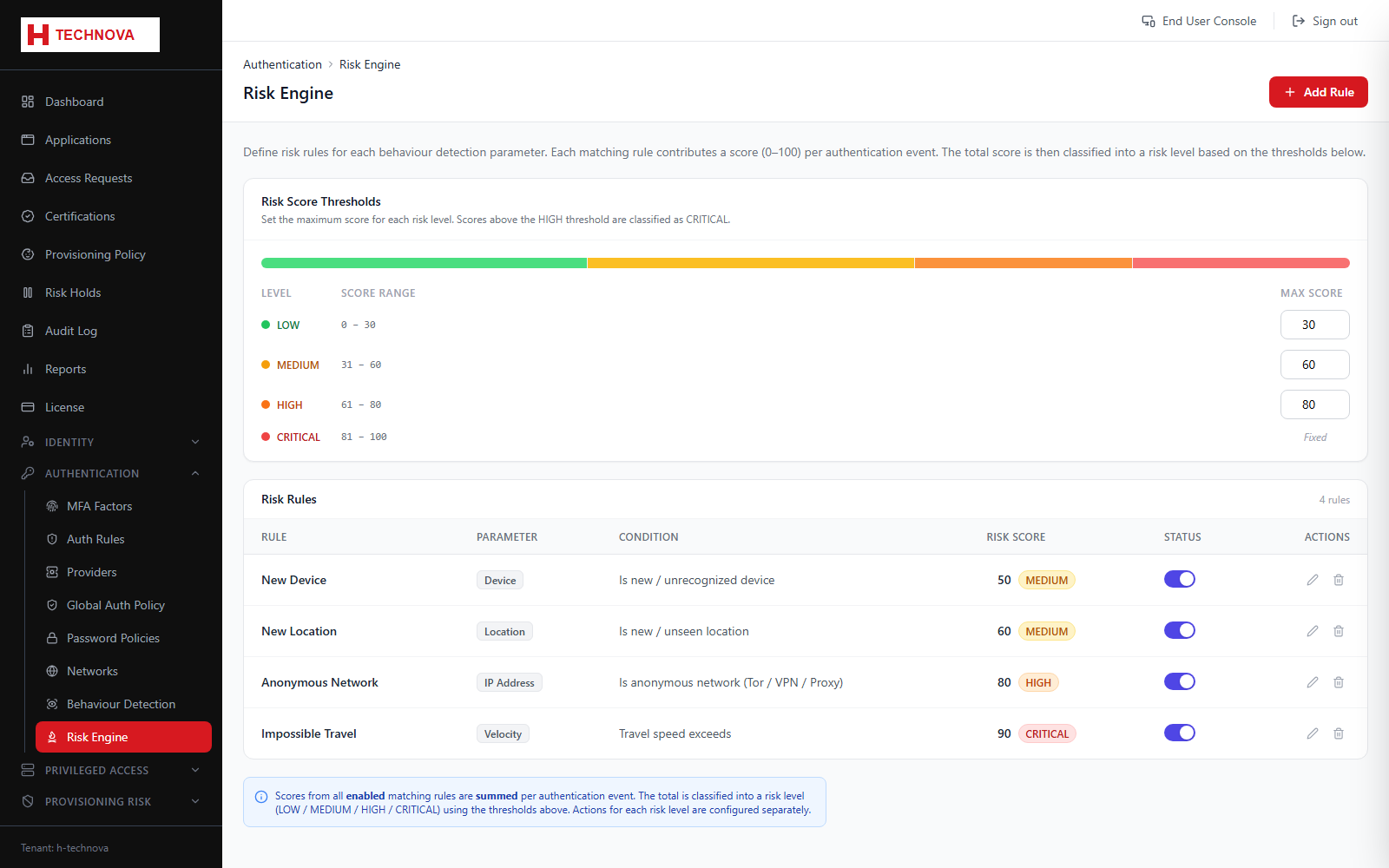
Set how much each sign-in and activity signal adds to a person's risk score, and the score bands for each risk level. Authentication rules can then act on the level, for example asking for MFA only when risk is raised. The same points give Identity Security detections their score. The four sign-in signals can be switched off but not added or deleted.
Networks you want to filter on, defined in Defining Networks. Impossible Travel needs the location database to be installed.
Behaviour Risk – View in an administrator group. The detection controls and activity signals also need ITDR – View, and ITDR – Edit to change them.
Setting sign-in signals
Sign-in signals are checked at every sign-in. The points of each signal that fires are added together to give the sign-in its risk level. Changes save as soon as you leave the field.
To set a sign-in signal:
- Go to Identity Security → Behaviour Risk. The Risk signals tab opens.
- Under Sign-in signals, set the signal's Points, from 0 to 100. The level shown next to the points is what that signal alone would score.
- Switch the signal on or off.
- To change what the signal compares against, expand its row and select Edit.
- Change the setting or the network filter, then select Save Changes.
| Field | Description |
|---|---|
| New Device | The sign-in comes from a new or unrecognised browser or device, compared with the user's recent sign-ins. |
| New Location | The sign-in comes from a location not seen in the user's recent sign-ins. |
| Impossible Travel | The travel speed between two sign-ins exceeds the limit. |
| New IP Address | The sign-in comes from an IP address not seen in the user's recent sign-ins. |
| Evaluate against last N authentications | How many recent sign-ins the device, location and IP signals compare with. Default 5. |
| Maximum allowed travel speed | For Impossible Travel, in km/h. Default 100. |
| Network filter (optional) | No filter always evaluates. Exclude skips the signal when the sign-in IP is in the selected networks, for example trusted offices. Only when evaluates it only from those networks. |
Raising detections for risky sign-ins
To open detections for risky sign-ins:
- Go to Identity Security → Behaviour Risk.
- At the top of Sign-in signals, turn Raise detections on.
- Set the Minimum risk score: the total sign-in score at which a sign-in counts as a risky login. Default 50.
Zetect then opens a detection in Identity Security for each risky login and each new-device login. See Investigating Detections.
Setting activity signals
Activity signals are found by the Identity Security scan, which runs every 5 minutes. Each adds its points and raises a detection, and your ITDR policies decide what happens next. Each row shows what the signal sees, its MITRE ATT&CK technique and how often it fired in the last 10 days.
To set an activity signal:
- Go to Identity Security → Behaviour Risk.
- Under Activity signals, set the signal's points.
- Switch the signal on or off.
- To change its thresholds, such as the time window, number of failures or dormant days, expand the row.
| Signal | Default points |
|---|---|
| Password spray / brute force | 70, or 90 when a password attack is followed by a successful login. The row has a points field for each. |
| Repeated MFA failures | 50 |
| Server logon without a PAM session | 70 |
| Login after long inactivity | 40 |
| Service account misuse | 70 |
| Honeytoken / decoy account touched | 90 |
| Security configuration changes | 30 |
| After-hours PAM session | 40 |
| Mass destructive provisioning | 85 |
| Self-approval attempts | 30 |
| Unexplained profile changes | 50 |
| Unusual report exports | 50 |
Setting risk levels
To set the behaviour risk levels:
- Go to Identity Security → Behaviour Risk and select the Risk levels tab.
- Enter the highest score for LOW, MEDIUM and HIGH. Anything above the High threshold is CRITICAL.
- Select Save Thresholds.
The defaults are Low up to 30, Medium up to 60 and High up to 80. To act on a level, write an authentication rule with a Risk Level condition. See Managing Authentication Rules.
How scores add up
A sign-in's score is the total of the sign-in signals that fired. Each activity signal that fired for a user in the last 24 hours also adds its points at their next sign-in, once per signal. This can change which authentication rule they get. Closing the detection as expected activity or a false positive removes its effect.
A detection's score is the total, up to 100, of the signal that fired, any other activity signals for that user from 24 hours before to 1 hour after, and the user's riskiest sign-in in that period. A detection with no single user, such as a spray across many usernames, scores its own signal's points only.
| New Device | 50 points |
| Security configuration changes (same day) | 30 points |
| Total | 80, which is High with the default levels |