
Running Source Syncs
A sync reads an identity source through the agent and brings its changes into Zetect: new people, changed details, leavers and group memberships. Run a sync by hand, schedule it, follow each run's results, and review group removals that the safeguard held back.
A source with its connection and attribute mapping set up. See Configuring Identity Sources.
Identity → Identity Sources – View in an administrator group.
Running a sync now
To run a sync now:
- Go to Identity → Identity Sources and open the source.
- Select Run Now at the top of the page.
The status bar shows Sync in progress while the agent reads the source. When the run finishes, it appears in the run history in Sync with the trigger Manual. If the sync can't start, a message appears under the status bar.
Scheduling syncs
Joiners, movers and leavers only reach Zetect when the source is read, so the schedule decides how quickly changes take effect. With a daily sync, a departure can take up to a day to remove access. Group import runs as part of the same sync.
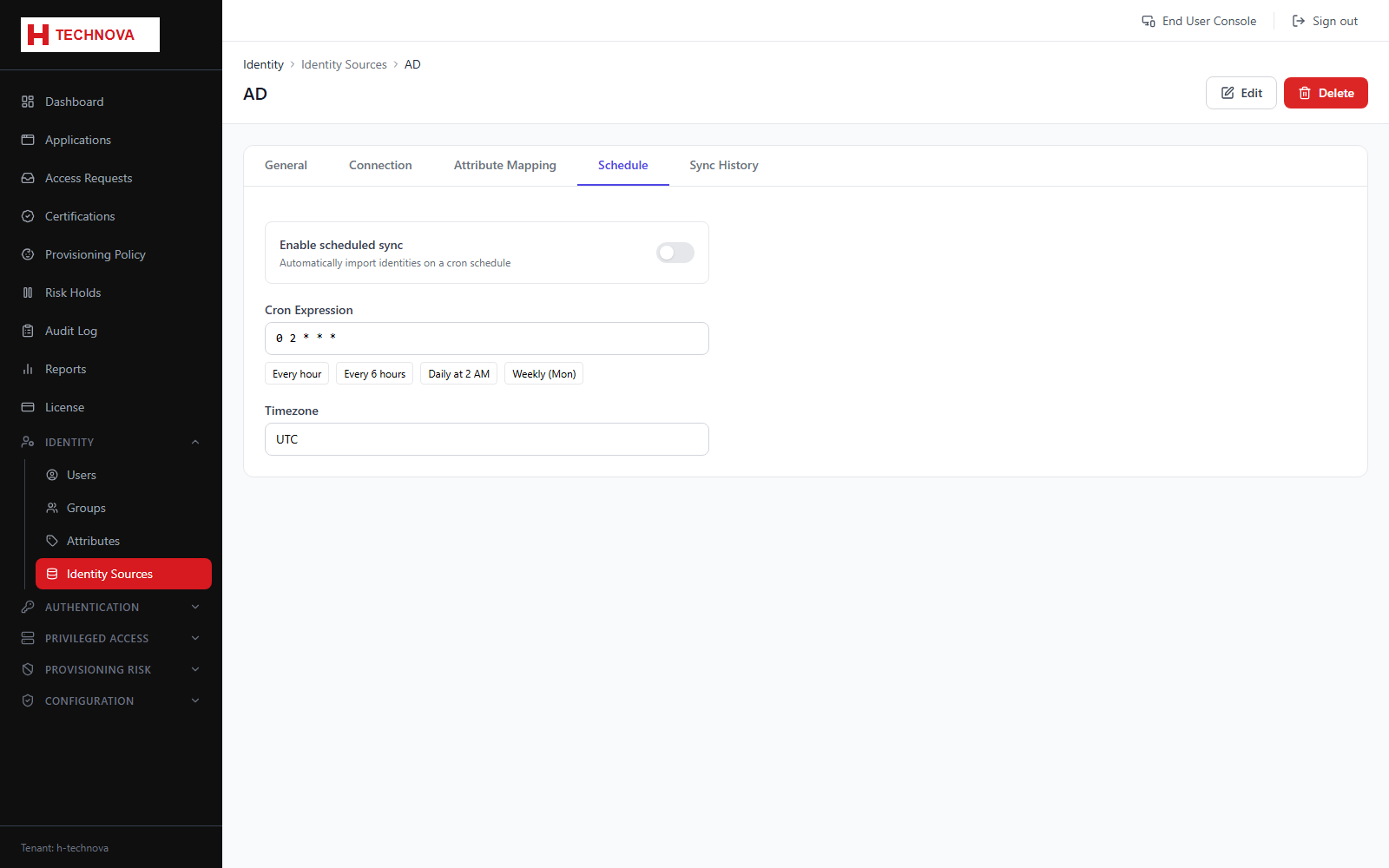
To schedule syncs:
- Open the source and select Schedule.
- Turn on Enable scheduled sync in the card header.
- Select a preset, or type a Cron Expression.
- Enter the Timezone the schedule runs in.
- Select Save Schedule, or Discard to undo your changes.
| Field | Description |
|---|---|
| Enable scheduled sync | On: identities are imported automatically on the cron schedule. Off: syncs run only when someone selects Run Now. |
| Cron Expression | A cron expression in the same form as the presets, for example 0 2 * * * for 02:00 every day. |
| Presets | Every hour, Every 6 hours, Daily at 2 AM or Weekly (Mon) (02:00 on Mondays). |
| Timezone | The timezone the cron expression is read in, such as UTC or Asia/Kolkata. |
| Last run / Next run | When the schedule last started a sync and when it starts the next one. |
For example, to sync twice a day at 06:00 and 18:00 India time, turn on Enable scheduled sync, enter 0 6,18 * * * and set Timezone to Asia/Kolkata.
Reviewing sync results
The Sync section shows how the source's syncs are going and a record of every run.
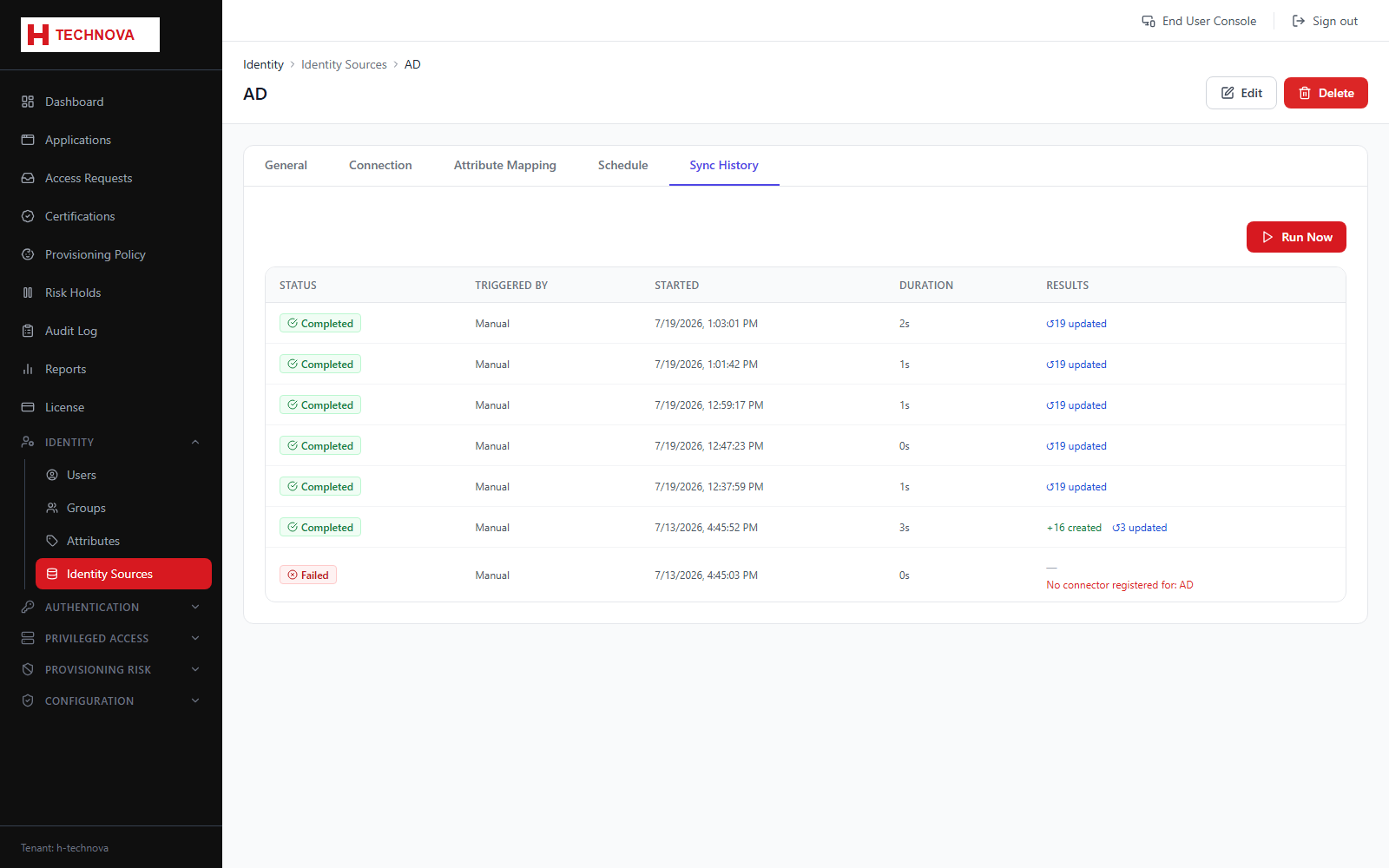
To review sync results:
- Open the source and select Sync. This is the section the page opens on.
- Read the three tiles: Last sync, Next sync and Records read. If the last sync failed, a red notice shows the error.
- Review the run history, and look into any Partial or Failed run.
| Field | Description |
|---|---|
| Last sync | How long ago the last real sync started, or Not synced yet. Previews don't count. |
| Next sync | When the schedule runs next, or Not scheduled if syncs only run by hand. |
| Records read | How many records the last sync read, with its status. |
| Started | When the run began. |
| Results | People created, updated, suspended and deleted, and errors, or No changes. A run error message appears under the counts. |
| Groups | Groups created, taken over, updated and removed, member additions and removals, name conflicts skipped and removals held. Shows Group import off when the source doesn't import groups, and Preview only — no changes for a preview. |
| Triggered By | Manual, Scheduled or Preview. |
| Duration | How long the run took, in seconds. |
| Status | The run status. See Sync run statuses. |
The same run outcomes, across every source, are in the Identity Sync History report. See Running Reports.
Reviewing held removals
When a sync would remove more than the safeguard's share of synced group memberships, Zetect adds the new memberships but holds the removals. The run ends Partial, and a yellow banner in Sync explains why. The safeguard's threshold is set in the source's Groups section. See Importing Source Groups.
To review held removals:
- Open the source and select Sync.
- In the yellow banner, select Review removals. Each held change is listed: a member to remove, or a whole group that has left the source.
- Decide what to do:
- Apply removals – removes those memberships now and runs the provisioning policies again for the affected people, so access they no longer qualify for is revoked.
- Discard – removes nothing. If the source still lacks those memberships, the next sync holds them again, so fix the source first.
- Confirm.
A newer sync replaces held removals that haven't been dealt with. The run history then shows them as replaced by a newer sync.
Troubleshooting
- The run is Failed. Read the error in the red notice and under the run's counts. Common causes are an offline agent, a connector name that doesn't match the agent, or wrong connection details.
- The run is Partial with errors. Some records failed. Records with no identifier value, and new people beyond your licensed number of users, are counted as errors.
- Attribute changes didn't change anyone's access. A sync re-runs the provisioning policies only when it makes a person inactive or changes their source groups. Use Process Identity on the person. See Processing an identity.