
Running and Monitoring Campaigns
Start a run of a campaign, follow its progress, decide items on behalf of reviewers when needed, and close the run. A campaign has at most one open run at a time.
A campaign with a review policy. See Creating a Campaign.
Certifications – View in an administrator group.
Starting a run
Starting a run builds the review list from the access held right now, and sends each item to its first reviewer.
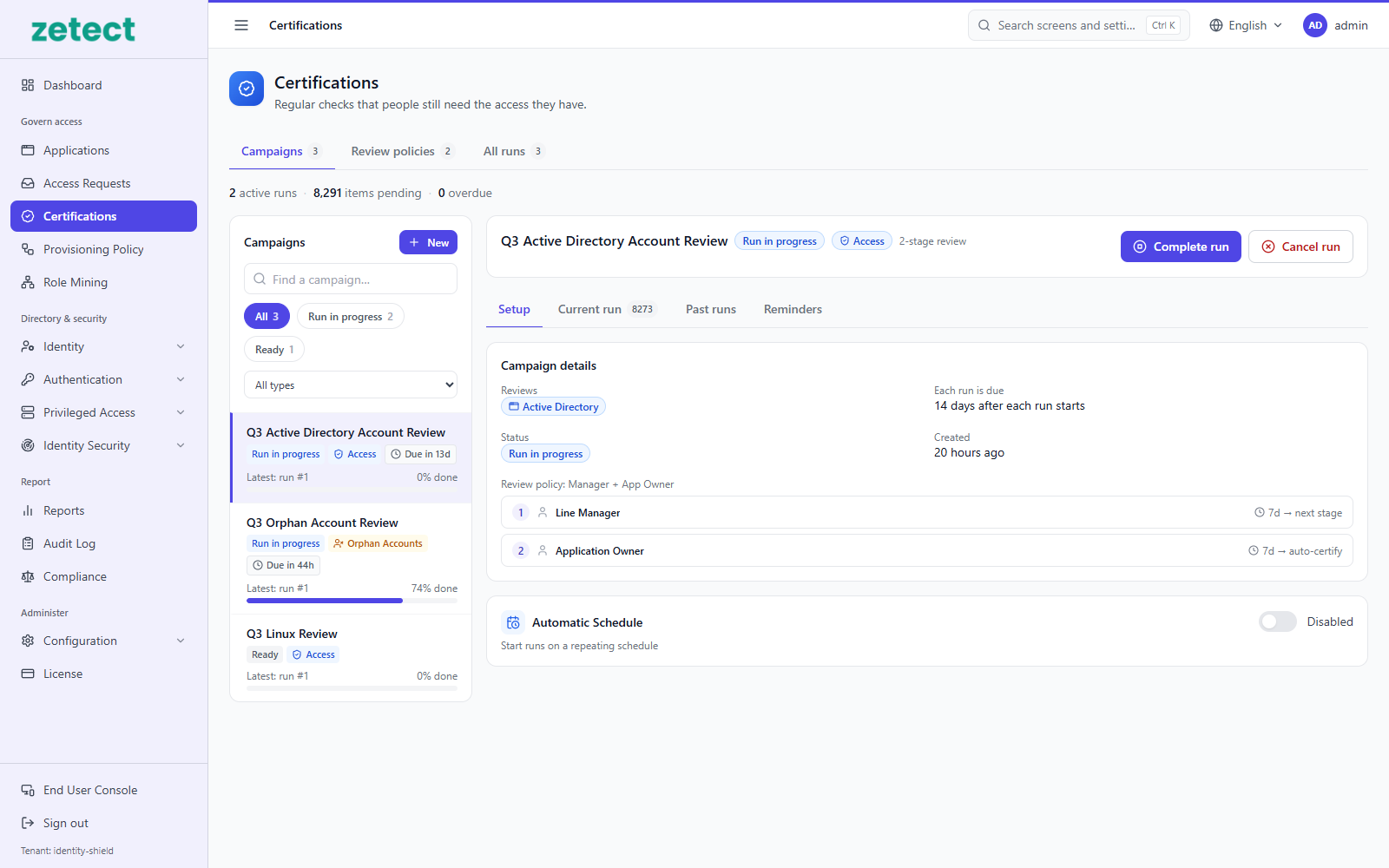
To start a run:
- Go to Govern access → Certifications.
- Select a campaign with the status Ready. Its detail opens on the right.
- Select Start run #N.
- Read What will happen, then select Start run.
The run is built in the background. The campaign shows Preparing run #N… and the page updates by itself until the run is active. Large campaigns can take a few minutes, and you can leave the page meanwhile. First-stage reviewers then receive one email each with the number of items assigned to them.
If preparation fails, the campaign shows Run #N couldn't start. with the reason, and the run is marked Failed. Start the campaign again.
Following the current run
To follow a run:
- Select the campaign in the list.
- Open the Current run tab.
- Read the tiles: Total, Pending, Certified and Revoked, with the run number, status, due badge and progress bar.
- In List, filter items by All, Pending, Certified, Revoked or Skipped, or turn on Sort by risk.
- Select a row to expand it.
Each row shows the subject and the access, its risk, the reviewer with stage progress and due badge, and the decision. A Whole identity chip marks identity items, and a Shared account chip marks shared privileged accounts. A Rubber-stamp? chip next to a reviewer means they certify nearly everything they review.
| Expanded section | Description |
|---|---|
| Final outcome | The decision, when it was made, and the note. For a revoke, Access removal shows whether the access was removed. See Handling Review Results. |
| Stage Reviewer Actions | A timeline of every stage: the reviewer, who decided and when, notes, escalations, member votes for group stages, and forwards ("Forwarded by … → …"). A stage decided by a timeout shows the system as the decider. |
| Risk If Revoked | For an application entitlement, the account's current risk next to what it would be with this entitlement removed. |
Reviewers work in the end-user portal. They can forward items to another active user with an optional note; the due date doesn't change. See Completing Certification Reviews.
Deciding items in bulk
As an administrator you can decide pending items yourself, for example when a reviewer has left.
To decide items in bulk:
- On the Current run tab, select Bulk decide.
- For access items, which are grouped by entitlement, select Certify All or Revoke All for a group.
- For orphan accounts and identities, tick the rows, then select Certify Selected or Revoke Selected.
- Confirm.
A bulk decision is final. It closes every remaining stage of each item and sets the outcome at once, without waiting for the other reviewers or counting earlier stage votes.
Completing or cancelling a run
A run completes by itself when its last item is decided. You can also close it early:
- Complete run – closes the run at once. Pending items are marked Skipped: not reviewed, and the access is left as it is.
- Cancel run – asks for confirmation, then cancels the run. Pending items are not decided. Decisions already made, and access already removed, stand.
Either way the campaign returns to Ready, and you can start the next run.
Reviewing past runs
The campaign's Past runs tab lists every closed run with its status (Completed, Cancelled or Failed), progress, outcome (certified, revoked, skipped), start time and close time. Expand a run to see its decisions.
Setting campaign reminders
Reminder emails go to reviewers who still have pending items.
To set reminders for one campaign:
- Select the campaign and open the Reminders tab.
- Choose one:
- Use global settings – follow the tenant's reminder policy.
- Turn off for this campaign – send no reminders for this campaign.
- Custom – use this campaign's own schedule and recipients.
- Check the timeline, which shows the first reminder, the due-soon notice, the due date and the overdue reminders for a run.
- Select Save reminders.
The global reminder policy is set under Configuring Reminders and Alerts.
Monitoring all runs
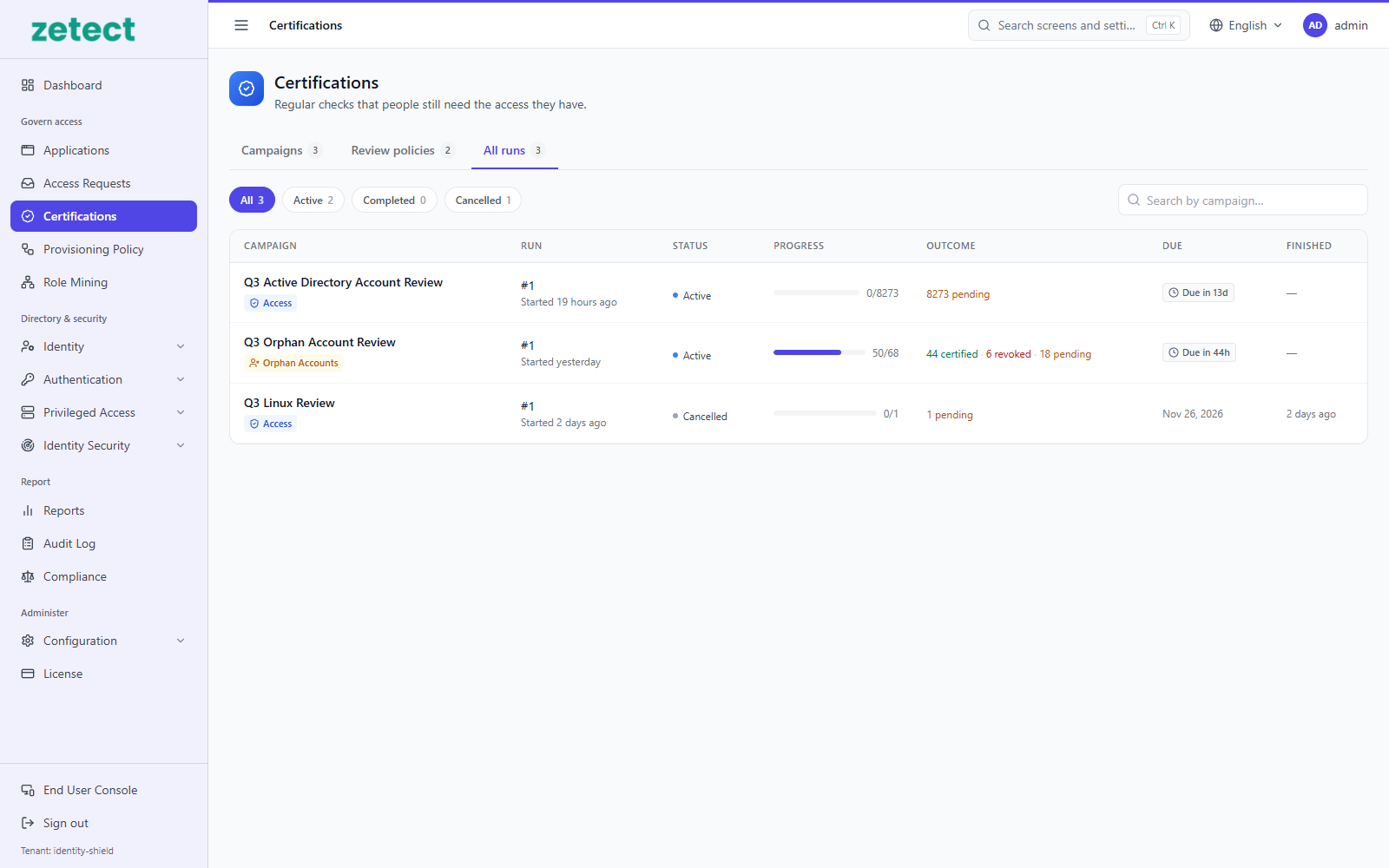
To see every run of every campaign:
- Go to Govern access → Certifications and select All runs.
- Filter by All, Active, Completed or Cancelled, or search by campaign name.
- Select a row to open its campaign.
An active run opens on the campaign's Current run tab. A closed run opens on Past runs with that run selected. The columns are described in All runs columns.
Troubleshooting
- Run #N couldn't start. – read the reason shown, correct it (for example, a review policy with no stages) and start the campaign again.
- A run stays Preparing – a run left preparing for more than an hour, for example because the server restarted, is marked Failed with the reason "Interrupted while preparing". Start the campaign again.
- A scheduled run didn't start – a scheduled start is skipped while the previous run is still open. Complete or cancel it.