
Aggregating Accounts and Entitlements
Sync brings an application's accounts and groups into Zetect, on demand or on a schedule, so Zetect knows who has an account where and what each account can do. Then use Accounts and Entitlements to see what was read, find accounts nobody owns, and suspend, restore or delete an account.
The application's connection test succeeds and an agent is online. See Connecting a provisioning application.
Applications – View in an administrator group.
Provisioning applications.
Syncing accounts
Accounts and groups are synced separately. The switch at the top right of Sync chooses which one you are working with; each has its own schedule, batch size and history.
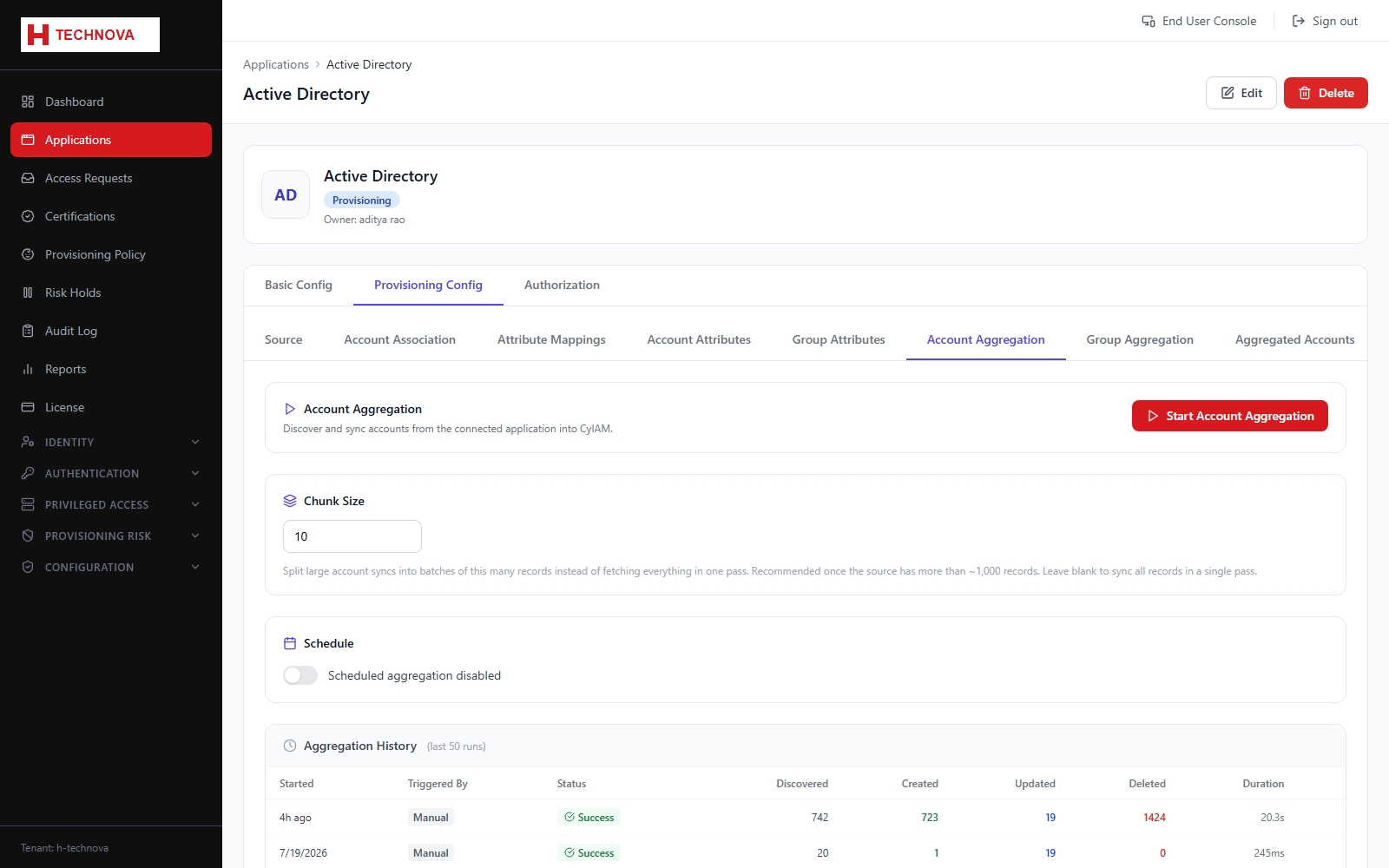
To sync accounts now:
- Open the application and select Sync under Data.
- Make sure Accounts is selected in the switch at the top right.
- Select Sync accounts.
A message confirms the sync started, and its progress shows in History. Sync now in the application's header does the same from any section. When the run finishes, Zetect marks accounts the run didn't see as Inactive, works out each account's risk, and works out group membership again.
Scheduling a sync
Zetect expects each provisioning application to sync at least every 24 hours. Turn on a schedule for accounts and another for groups.
To schedule a sync:
- On Sync, select Accounts or Groups.
- Switch Schedule on.
- Choose a Frequency:
- Every hour, Every 6 hours, Every 12 hours, Daily at 2 AM or Weekly (Sun 2 AM).
- Custom – type a Cron expression with minute, hour, day, month and weekday, for example
0 2 * * *for 02:00 daily.
- Select Save Schedule in the bar at the bottom, or Discard.
The schedule shows how long ago the scheduled sync last ran. When a sync is overdue, a notice says so. With no schedule it offers Turn on schedule; with a schedule it asks you to check the recent runs and that an agent is online.
Setting a batch size
For a large application, split each sync into batches. A batch size is recommended once the application has more than about 1,000 records.
To set a batch size:
- On Sync, select Accounts or Groups.
- Open Advanced.
- Enter a Batch size, for example 500. Leave it blank to sync everything in one pass.
- Select Save.
Syncing groups
Group sync brings in the groups, roles and other entitlements, and resolves who belongs to them from the Group membership rules.
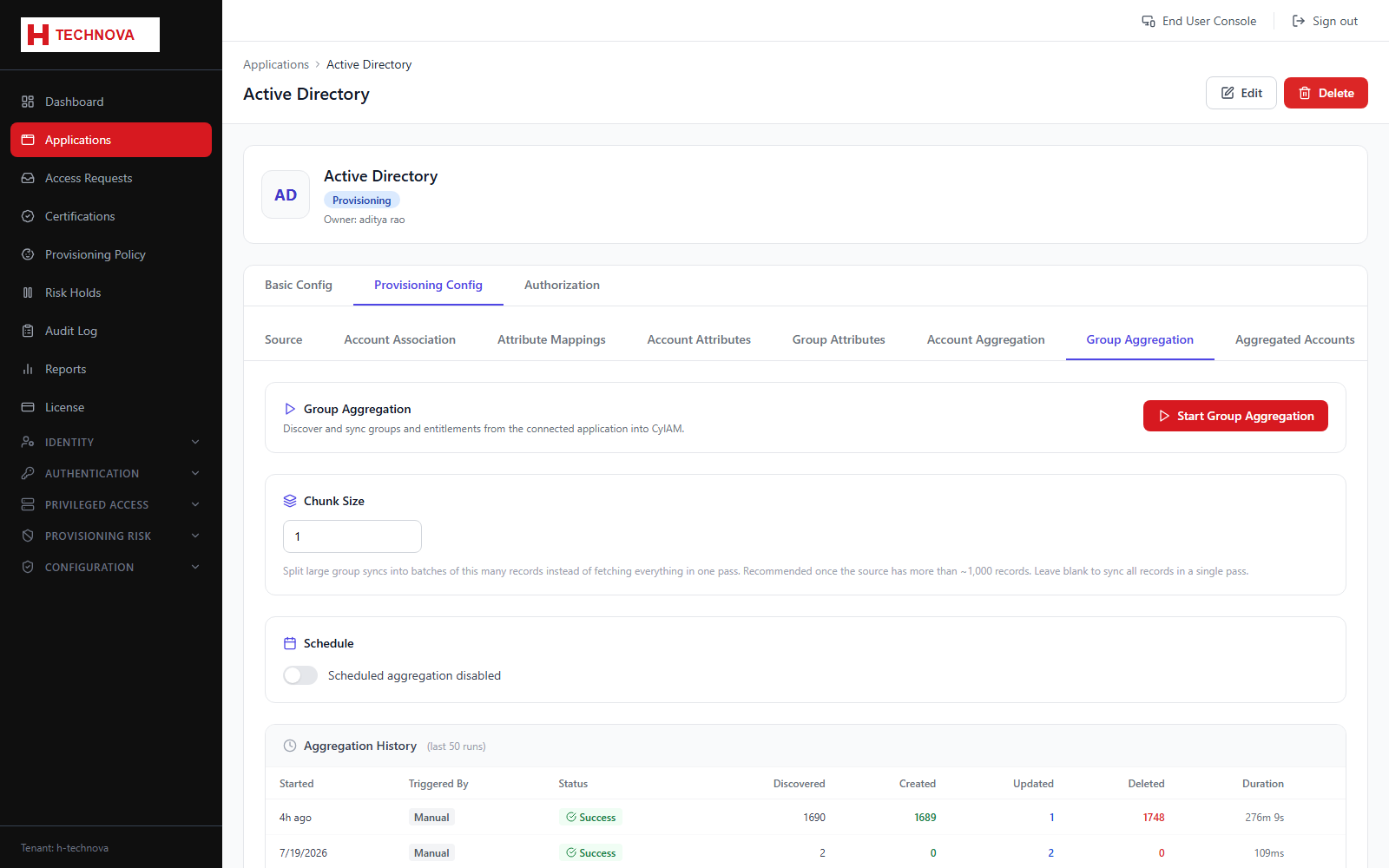
To sync groups:
- Open the application, select Sync under Data, and select Groups in the switch at the top right.
- Select Sync groups.
- When the run finishes, check that the groups you expect appear under Entitlements, with their members.
If groups arrive with no members, add or fix a rule under Group membership and sync groups again. See Setting up group membership.
Reading the sync history
History lists the last 50 runs of the selected kind: when each started, whether it was Manual or Scheduled, its status, how many records were discovered, created, updated and deleted, and how long it took. Deleted records are those the run didn't see; they are marked Inactive, not removed. For the statuses, see Sync run statuses.
- To read why a run failed, select the arrow on the run.
- To stop a running sync, select the stop button on the run and confirm with Stop Run.
Viewing accounts
Accounts lists every account read from the application, and who owns it. The menu shows how many there are.
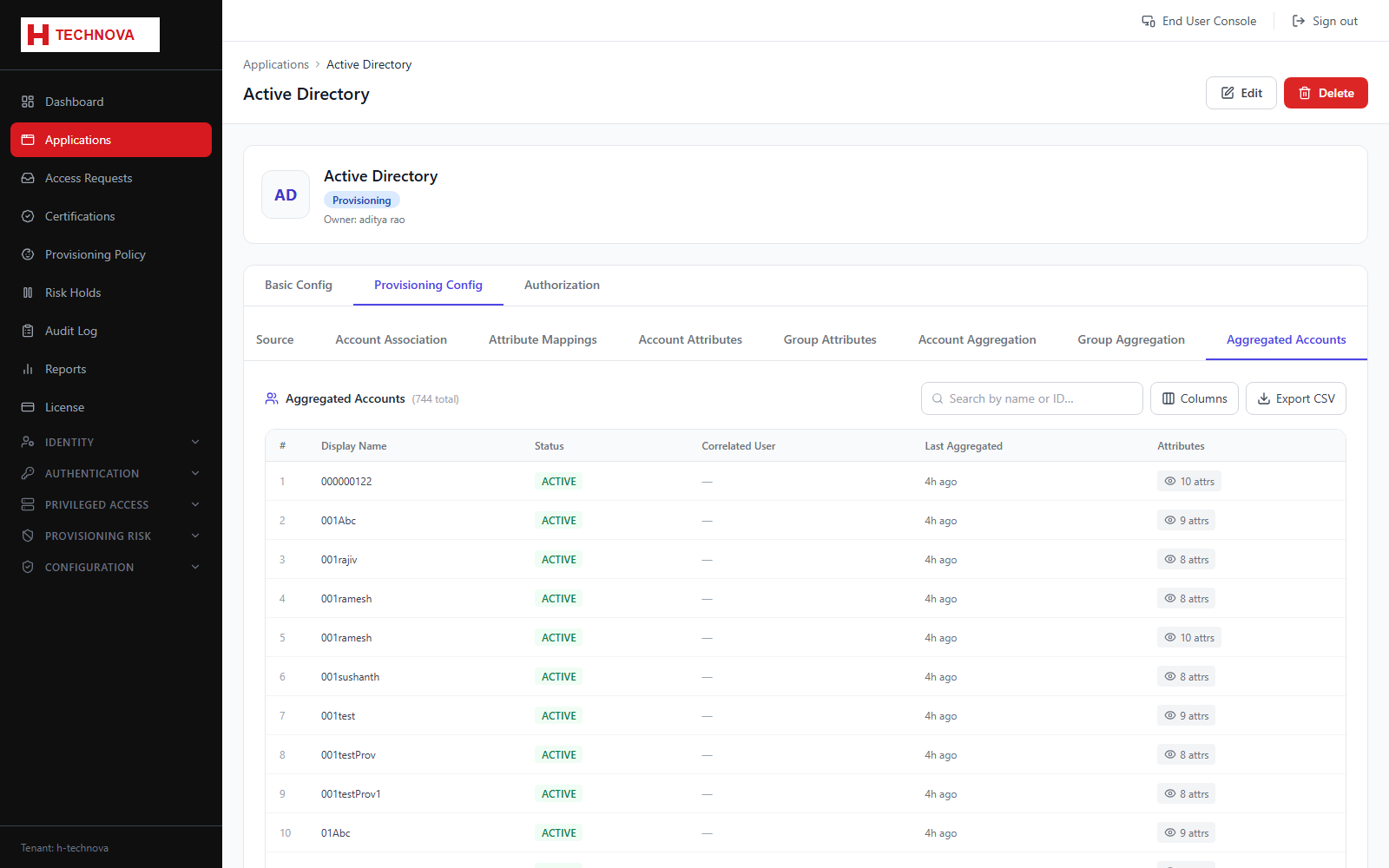
To find and inspect an account:
- Open the application and select Accounts under Data.
- Narrow the list with All, No owner, Matched or Inactive, or type in Search by name or ID….
- To add account attributes as extra columns, select Columns.
- Select View, or the row, to open the account's drawer.
- Read the drawer's tabs:
- Overview – the owner and risk.
- Access – the groups and entitlements the account holds, with Direct and Via nested groups filters.
- Attributes – the values read from the application. Hover over a converted value, such as a date, to see the raw value.
To download every account that matches your search as a CSV file, select Export. To find accounts nobody owns, select No owner; then add a rule under Identity matching, or delete accounts that are no longer needed.
Suspending, restoring or deleting an account
To act on an account:
- Open the account's drawer from Accounts.
- At the foot of the drawer, select Suspend, Restore or Delete.
- Read what will happen and confirm.
- Suspend – suspends the account on the application. Zetect keeps the account and its entitlements, and provisioning policies won't re-create it while it is suspended. How the account is suspended depends on the connector.
- Restore – restores a suspended account with the entitlements it had.
- Delete – deletes the account on the application. A provisioning policy or access request may create a new account later.
The request is sent through the agent, and the status changes to Suspended, Active or Inactive once the application confirms. The request may instead be held for provisioning risk review or blocked by a provisioning risk rule; the message after you confirm says which. A button is disabled when its operation is switched off under Allowed operations.
Viewing entitlements
Entitlements lists the groups and permissions read from the application, with their members.
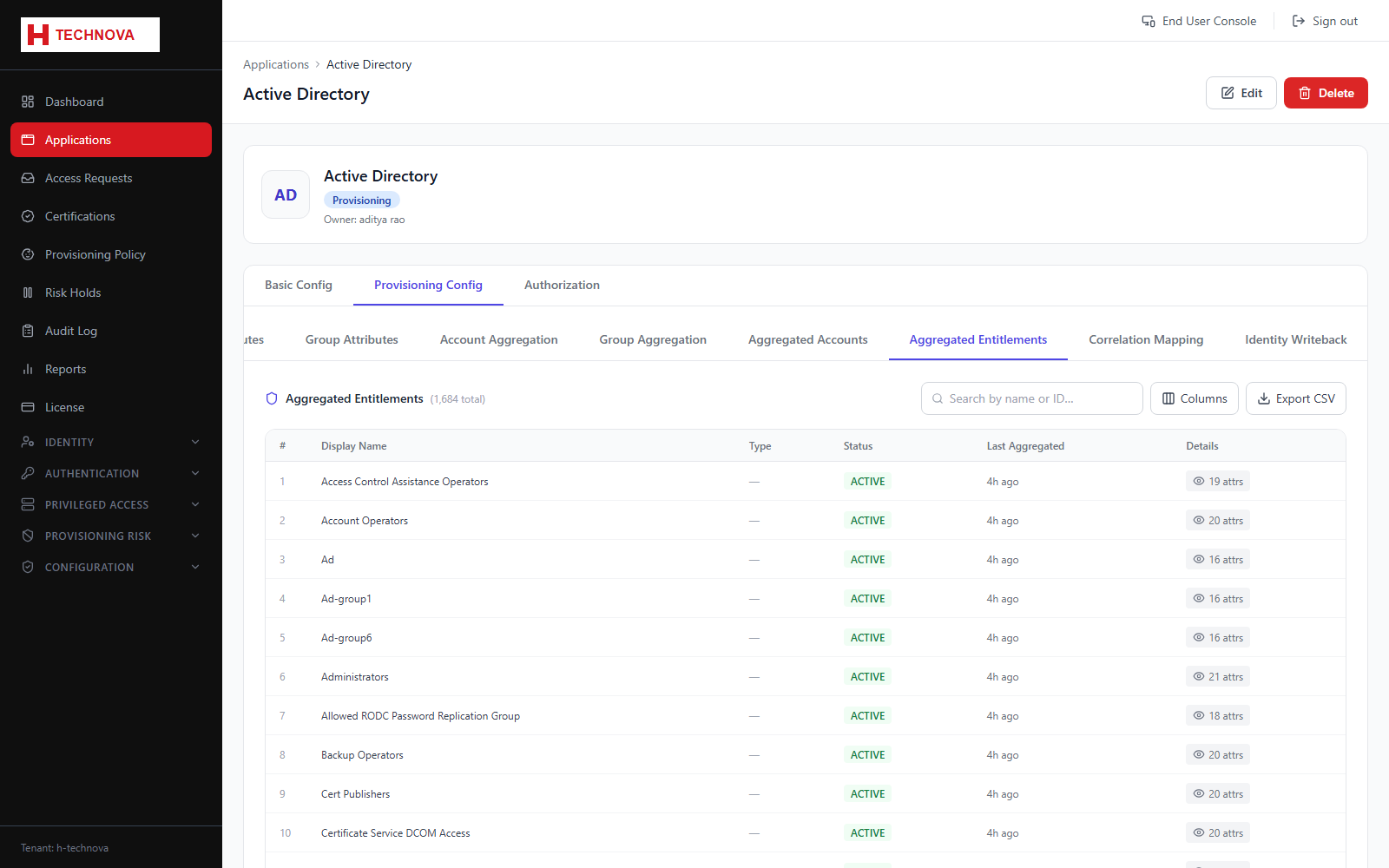
To inspect an entitlement:
- Open the application and select Entitlements under Data.
- Narrow the list with All, Active or Inactive, or type in Search entitlements.
- To add entitlement attributes as extra columns, select Columns.
- Select View, or the row, to open the entitlement's drawer.
- On Members, search the members and filter by Accounts, Linked entitlements or Unresolved. Tick Direct only to hide members that come through nested groups.
- On Attributes, check the values read from the application.
The members summary shows how many members were resolved to an account or entitlement, how many could not be resolved, and the total. Linked entitlements are other entitlements that are members of this one, such as nested groups. Unresolved members are values that match no account or entitlement in Zetect. To download the matching entitlements as a CSV file, select Export.
Troubleshooting
- The sync is overdue even though a schedule is on. Check the recent runs in History and that an agent is online under Configuration → Agents.
- An entitlement shows no members. Add a rule under Group membership and sync groups again.
- Many members are unresolved. The group membership rule probably matches on the wrong attribute.
- Accounts or entitlements show data more than a day old. A notice says when they were last synced, with a Fix sync button.