
Handling Policy Violations
For each violation, either remove one side of the conflicting access, or accept the risk for a limited time with an exemption. Removals go to the target through provisioning; exemptions end on a date you choose, and the violation then reopens by itself.
To revoke from Zetect, provisioning on the application or privileged asset, with the removal operation allowed. See Controlling Allowed Operations.
Segregation of Duties – Edit in an administrator group. Policy owners act on their own policies' violations from the end-user portal.
An exemption ends between tomorrow and 365 days from today.
Finding a violation
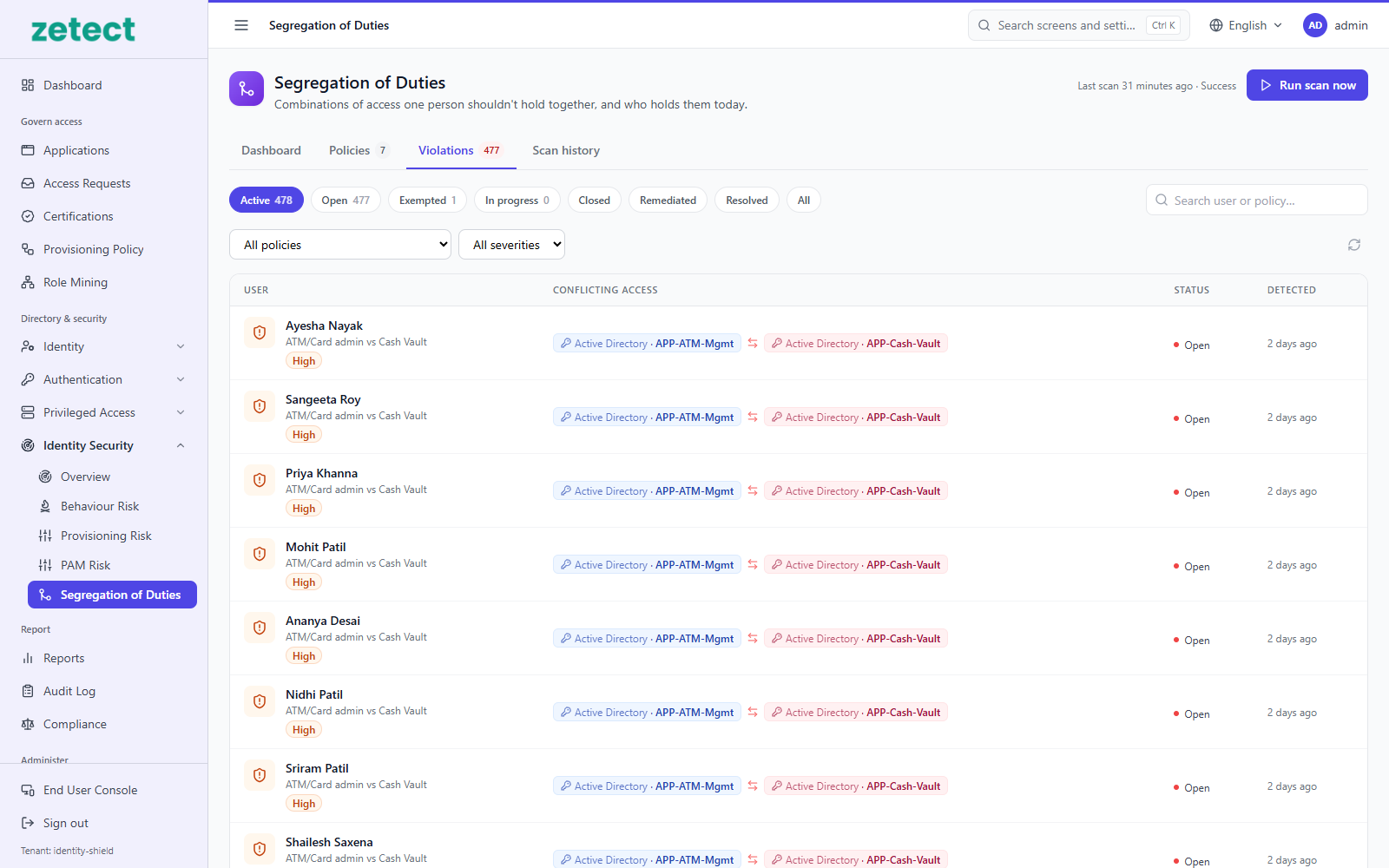
To find a violation:
- Go to Identity Security → Segregation of Duties and select Violations. The tab shows how many violations are open.
- Filter by status with the pills. Active is the default.
- Narrow further with All policies, All severities or Search user or policy….
- Select a violation to open it.
The list shows the User, Policy, Severity, Conflicting access and when it was Detected. In the violation, Why was this flagged shows the Set A and Set B access the person holds, and Entity details shows the policy, when the violation was detected and last seen, and when it closed.
Revoking conflicting access
To revoke conflicting access:
- Open an Open violation.
- Select Revoke access.
- Tick the items to remove. Removing either side resolves the conflict.
- Select the button that confirms the count, for example Revoke 1 item.
The violation shows Revocation in progress, and each removal is listed under Revocations as Pending, Removed or Failed. When all removals finish, a scan checks the access and closes the violation as Remediated. If a removal fails, the violation returns to Open.
An entitlement is removed from the person's account; an application account or asset account is deleted. An item can't be removed automatically if the application has no provisioning, the person no longer has the account or entitlement, the asset no longer exists, or the connector doesn't support removing it. Such items can't be ticked, and the dialog says why. If nothing can be removed, remove the access in the application, or grant an exemption.
Granting an exemption
To grant an exemption:
- Open an Open violation.
- Select Grant exemption.
- Enter a Justification: why the combination is acceptable and what compensating controls are in place.
- Choose the date the Exemption ends on.
- Select Grant exemption.
The violation becomes Exempted. The Exemption section shows the justification, the end date, and who granted it and when. The people chosen in the policy's event alerts receive the Exemption created email.
Extending or revoking an exemption
To change an exemption:
- Open an Exempted violation.
- Choose one:
- Extend exemption – change the justification or the end date, then select Save.
- Revoke exemption – confirm, and the violation becomes Open again.
When an exemption ends
When the end date passes, the next scan returns the violation to Open and records Exemption expired in its Activity. Scans run every hour, so the violation reopens within about an hour of the end date. If the conflicting access is gone by then, the violation closes as Resolved instead.
Following a violation
The Activity section lists the violation's history: Violation detected, Conflicting access changed, Exemption granted, Exemption extended, Exemption revoked, Exemption expired, Revocation requested, Access removed, Revocation failed, Violation reopened, Violation remediated and Violation resolved. Statuses are described in Violation statuses.
Example: exemption
| Justification | Covering branch checker duties during audit week. Every transaction is reviewed daily by the branch manager. |
| Exemption ends on | Two weeks from today |