
Deploying Agents
Agents run close to your applications and carry out Zetect's requests on them: connection tests, syncs and every provisioning change. Generate the tenant's agent API key, configure it on each agent, and check that the agents stay online.
Agent API Key – View in an administrator group to see the key, and Agent API Key – Edit to generate, regenerate or revoke it. Agents – View to see the agents, and Agents – Delete to deregister one.
Tenants licensed for provisioning or privileged access.
Each tenant has one active agent API key. An agent counts as online if it sent a heartbeat in the last 2 minutes.
Generating the agent API key
Agents connect to your tenant with its agent API key. They send the key when they register and with every heartbeat.
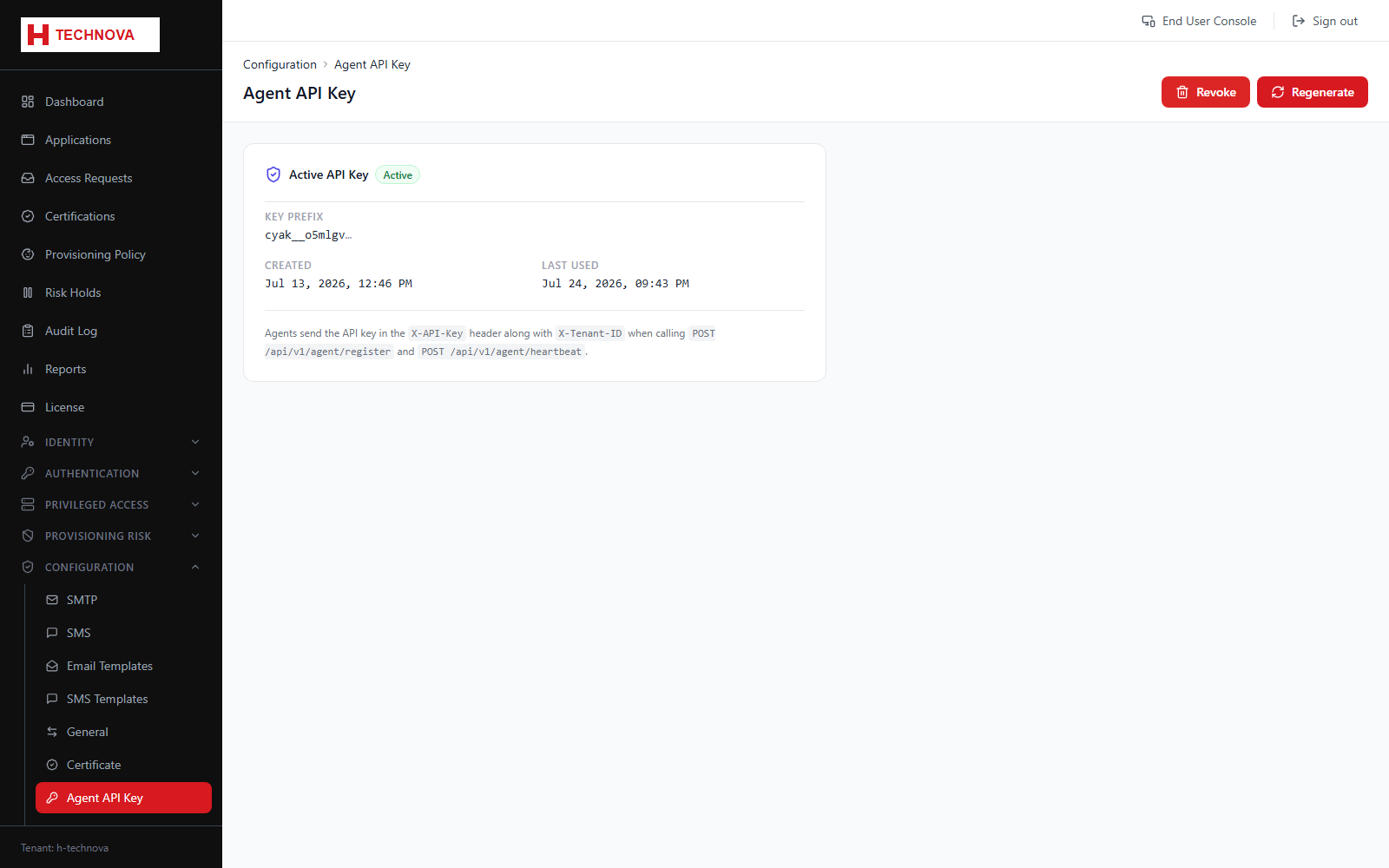
To generate the agent API key:
- Go to Configuration → Agent API Key.
- Select Generate API Key. This button shows when no key is configured.
- Copy the key from Your API Key. It is shown only once.
- Select I've copied the key.
The page then shows the Active API Key with its Key Prefix, so you can tell which key an agent uses, and when it was created and last used. How agents use it shows the headers an agent sends the key and tenant in.
Connecting an agent
To connect an agent:
- Install the agent on a host that can reach your applications. See Deploying a Connector.
- Put the agent API key and your tenant ID in the agent's configuration.
- Start the agent.
- Go to Configuration → Agents and check that the agent appears and is Online.
The agent registers itself when it starts, then sends a heartbeat while it runs. No agent appears until one has registered; the empty page links to Agent API Key.
Monitoring agents
The Provisioning Agents page lists every agent registered for the tenant.
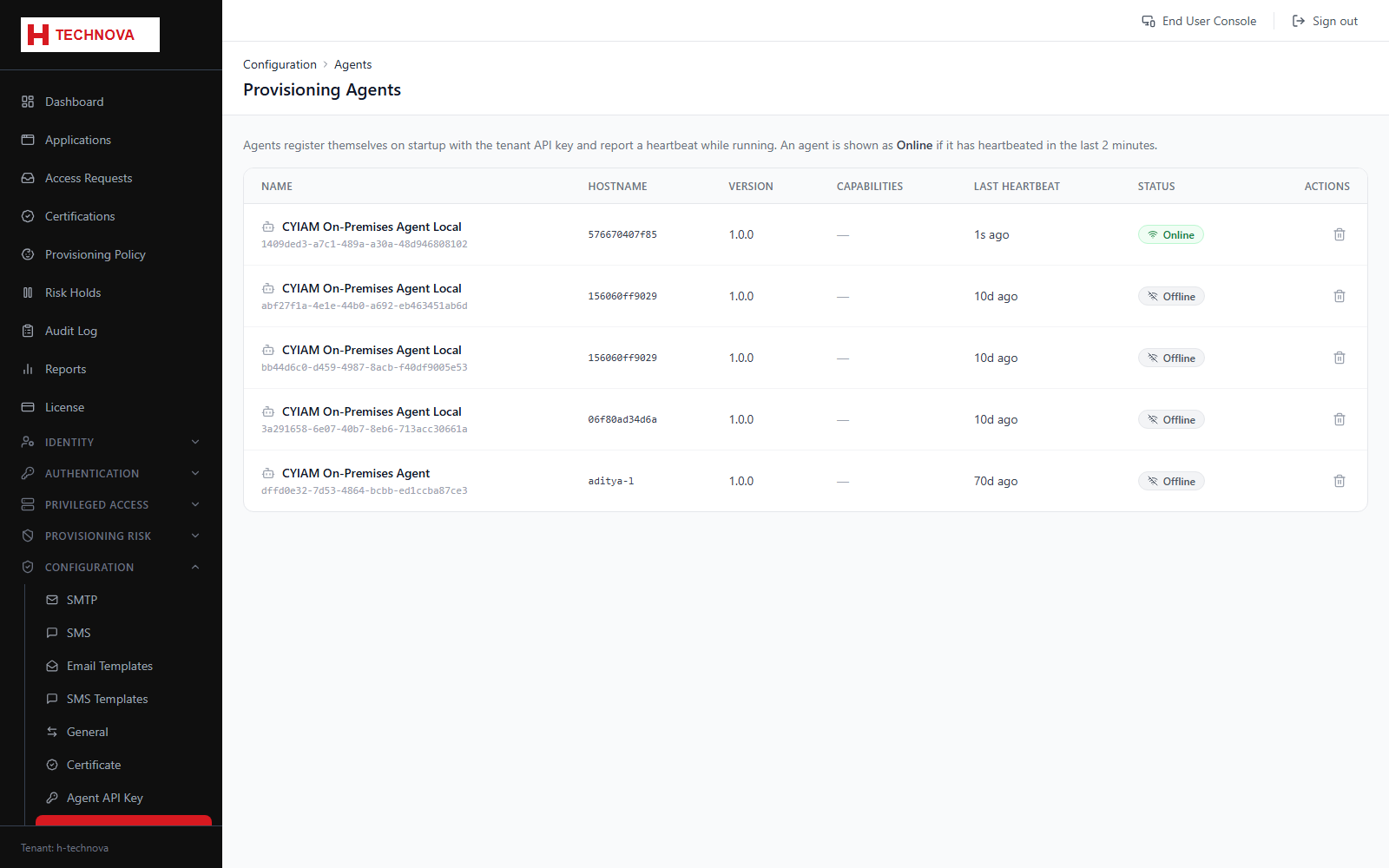
To check your agents:
- Go to Configuration → Agents.
- Filter with All, Online or Offline, or type in Search by name or hostname….
- Check that each expected agent is Online and was seen recently.
- Select an agent to see its details: hostname, IP address, version, last heartbeat, registration time, agent ID and capabilities.
The list shows each agent's name and ID, Version, Last seen and Status. If every agent is offline, a banner warns that provisioning that depends on an agent can't run until one reconnects. When an agent stops sending heartbeats, platform administrators who can manage agents receive the Agent Offline Alert email; see Configuring Email.
Deregistering an agent
To remove an agent that is no longer used:
- Go to Configuration → Agents and select the agent.
- Select Deregister agent.
- Select Deregister in the confirmation.
A deregistered agent comes back on its next registration if its API key is still valid. To keep it out, stop the agent or replace the key.
Regenerating or revoking the key
To replace or revoke the key:
- Go to Configuration → Agent API Key.
- Choose what to do:
- Regenerate – revokes the current key and creates a new one.
- Revoke, under Revoke this key – locks out every agent using the key straight away.
- Confirm.
- After regenerating, copy the new key and update every agent with it.
Troubleshooting
- Provisioning stays pending, or a connection test fails. Check Configuration → Agents before you look at the application. An offline agent fails connection tests and stops syncs and changes.
- An agent doesn't appear after it starts. Check that its configuration has the current key and the right tenant. A key that was regenerated or revoked is refused.