
Mining Roles
Run role mining over the access people hold, review the role candidates it proposes, and accept the good ones as provisioning policies. Accepting changes nobody's access straight away.
Accounts and entitlements are aggregated and matched to identities.
Role Mining – View in an administrator group to see runs and candidates. Role Mining – Add to start a run. Role Mining – Edit to accept or reject a candidate.
One run queued or running at a time. Up to 500 candidates per run.
Starting a role mining run
To start a role mining run:
- Go to Govern access → Role Mining.
- Select New run.
- Under Segments, choose what to mine on:
- Keep Include groups on to treat each resource group as a segment.
- Tick the Identity attributes to mine on. Each value of a selected attribute becomes a segment.
- Under Thresholds, set the Threshold, Minimum segment size and Minimum entitlements.
- Leave Exclude access already granted by provisioning policies on unless you want existing birthright access proposed again.
- Select Start run.
The run works in the background and usually starts within 15 seconds. Follow it on the Runs tab. When it completes, its candidates appear on the Role candidates tab.
Run settings
| Field | Description |
|---|---|
| Include groups | Treat each resource group as a segment. |
| Identity attributes | Each value of a selected attribute becomes a segment, for example every department. |
| Threshold | From 50% to 100% (default 80%). An entitlement is part of a role when at least this share of the segment's members hold it. |
| Minimum segment size | Smaller segments are skipped. Default 3. |
| Minimum entitlements | Candidates with fewer shared entitlements are skipped. Default 1. |
| Exclude access already granted by provisioning policies | On by default. Access that an existing provisioning policy already gives is not proposed again. |
Reviewing role candidates
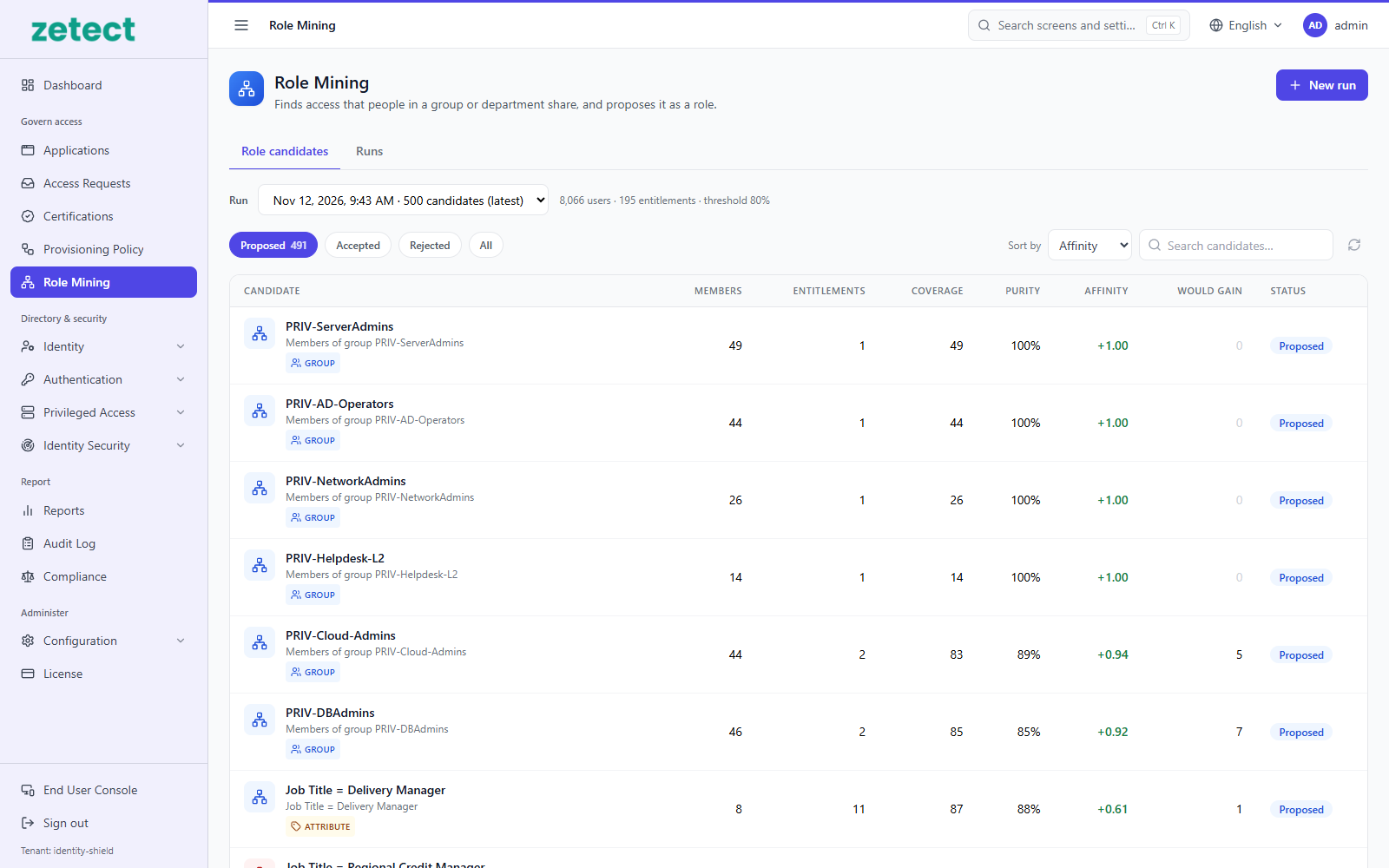
To review role candidates:
- Go to Govern access → Role Mining and select the Role candidates tab.
- Pick the Run. The latest run is selected first.
- Keep the Proposed filter, and sort by Affinity, Coverage or Members.
- Select a candidate to open it.
- Review its entitlements and members.
The candidate drawer lists each entitlement with its application or asset, the number of holders, and how common it is In segment and Outside. The members list shows who Has all the access and who is Missing some. If the role contains a segregation-of-duties conflict, the drawer says so.
Role candidate fields
| Field | Description |
|---|---|
| Candidate | The segment, such as "Members of group PRIV-DBAdmins" or "Job Title = Delivery Manager", with a Group or Attribute chip. An attribute candidate whose members match an existing group says "Matches group …". A badge counts any segregation-of-duties conflicts. |
| Members / Entitlements | People in the segment, and entitlements in the proposed role. |
| Coverage | The number of current user–entitlement holdings among the members that this role explains. |
| Purity | How consistently the members hold the role's entitlements. 100% means everyone holds all of them. |
| Affinity | From -1 to 1: how much more common this access is inside the segment than outside it. Higher is a better role. |
| Would gain | The number of entitlements that members who are missing some would receive if the role is accepted. |
| Status | Proposed, Accepted or Rejected. |
Accepting or rejecting a candidate
To accept a candidate as a role:
- Open the candidate.
- Untick any entitlement you don't want in the role. Use Select all or Clear selection as needed.
- Enter the Role name. It names the provisioning policy, and the new group if you create one.
- Choose where to Grant the access to:
- Everyone with this attribute value – the policy covers people whose attribute has this value, including people who join or move later.
- An existing group – the policy covers the selected group's members.
- A new resource group – Zetect creates a resource group with the segment's members and points the policy at it.
- If the drawer reports a conflict, tick I understand this role contains a segregation-of-duties conflict.
- Select Accept.
Zetect creates the provisioning policy, and the accepted candidate shows its Provisioning policy and Role group. Members get the access the next time their account or group membership changes. Find and edit the policy under Managing Provisioning Policies.
To turn a candidate down, open it and select Reject. Rejecting only marks the candidate.
Example: accepting a department role
| Candidate | Department = Treasury · 12 members · 4 entitlements |
| Metrics | Coverage 46 · Purity 92% · Affinity +0.81 · Would gain 2 |
| Role name | Treasury Analyst |
| Grant the access to | Everyone with this attribute value |
Reviewing runs
The Runs tab lists every run: when it was requested and by whom, what it mined on, the threshold, the number of users, entitlements and candidates, how long it took, and its status: Queued, Running, Completed or Failed. A new run replaces nothing, so earlier runs and decisions are kept.
Troubleshooting
- A run found no candidates. No segment had enough members sharing the same access. Try a lower threshold, a smaller minimum segment size, or more attributes.
- You can't start a run. Another run is still queued or running. Wait for it to finish.
- You can see a candidate but not accept it. You need Role Mining – Edit.