
Understanding the Console
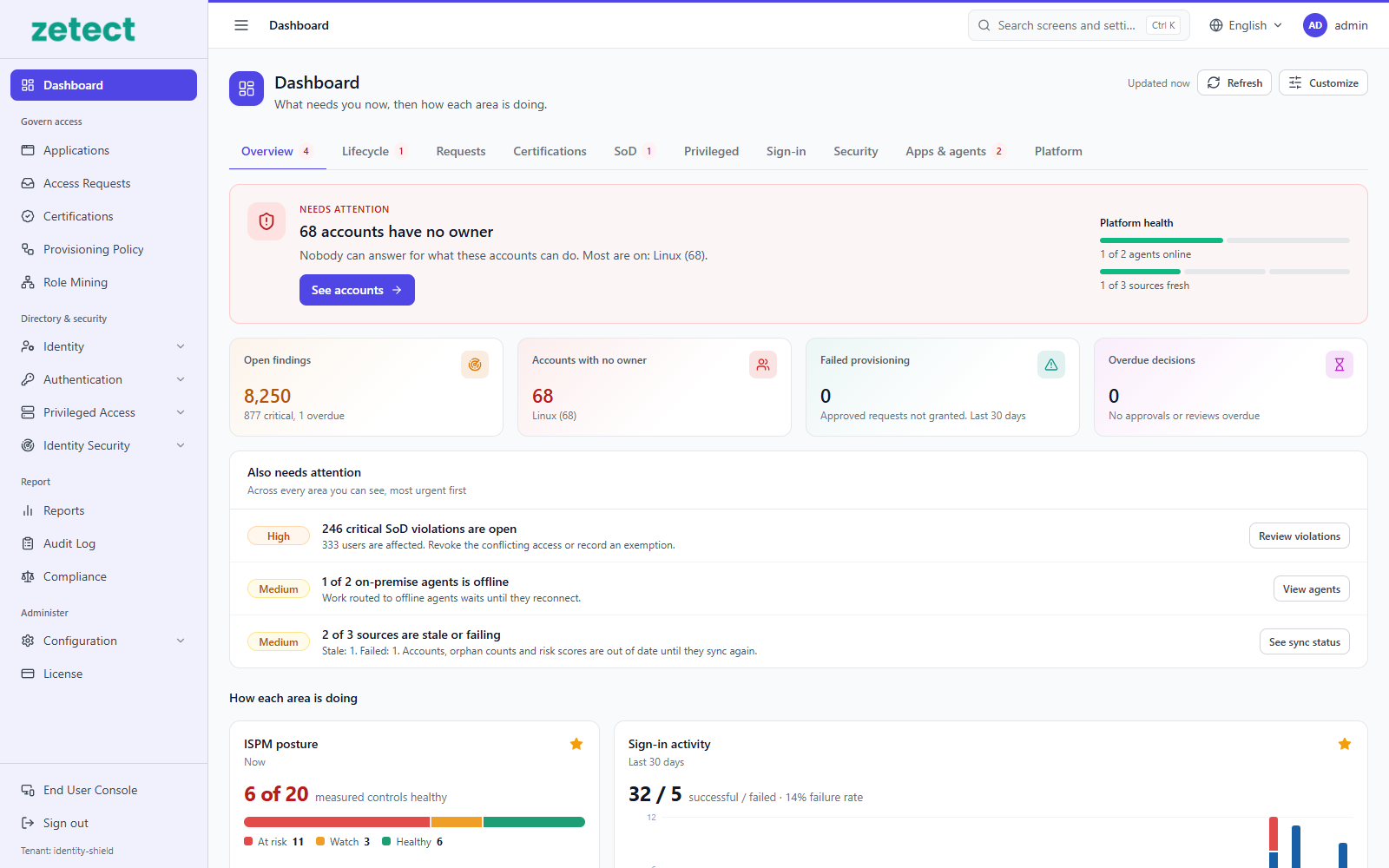
The admin console has a sidebar on the left, grouped by what you are doing, and a top bar with breadcrumbs, screen search, language and your name. What the sidebar shows depends on your permissions and on the modules your tenant is licensed for, so two administrators can see different menus.
How it works
The sidebar starts with Dashboard and then has four sections. A menu with an arrow, such as Identity, opens to show its pages. Only one menu is open at a time.
| Sidebar section | Menus and pages | Covered in |
|---|---|---|
| Dashboard | The admin dashboard. Every administrator sees it. | Using the Dashboard |
| Govern access | Applications, Access Requests, Certifications, Provisioning Policy, Role Mining | Applications, Access Requests, Certifications, Provisioning, Roles |
| Directory & security → Identity | Users, Groups, Attributes, Identity Sources | Identities |
| Directory & security → Authentication | MFA Factors, Auth Rules, Providers, Global Auth Policy, Password Policies, Password Blacklist, Networks | Authentication |
| Directory & security → Privileged Access | Privileged Assets, Sessions, Shared accounts | Privileged Access |
| Directory & security → Identity Security | Overview, Behaviour Risk, Provisioning Risk, PAM Risk, Segregation of Duties | Identity Security, Risk Management, Separation of Duties |
| Report | Reports, Audit Log, Compliance | Compliance and Reporting |
| Administer → Configuration | SMTP, SMS, Email Templates, Reminders & Alerts, SMS Templates, General, Certificate, Agent API Key, Agents, FIDO2 / Passkey, Branding, Dashboards | Dashboards and Notifications, Administration, Deploying Agents, Managing MFA Factors |
| Administer → License | License | License |
The foot of the sidebar has End User Console, which opens the self-service portal as yourself, Sign out, and the name of the tenant you are administering.
What decides which menus you see
- Permissions. A page appears only if one of your administrator groups grants View on it. A menu with no pages you can open is hidden, and so is a section with no menus. See Managing Administrator Access.
- License. Pages that belong to a module your tenant isn't licensed for are hidden, whatever your permissions. For example, Privileged Access pages need the PAM module and Role Mining needs IGA. See License.
The top bar
- Menu button
- Hides or shows the sidebar. On a phone it slides the menu over the page.
- Breadcrumbs
- Where you are, for example Applications › Active Directory › Connection. Earlier parts are links.
- Search screens and settings
- Press Ctrl K or select the box to jump to any page in your menu. Use the arrow keys and Enter to choose a result. It finds pages, not records such as users.
- Language
- English, Español, Español (México), Français, 简体中文 or 한국어.
- User
- Your initials and username.
Example
A helpdesk administrator whose only group grants View on Users and Audit Log sees Dashboard, the Identity menu with only Users, and the whole Report section, because Reports, Audit Log and Compliance share one permission. The Govern access and Administer sections are hidden because nothing in them is granted.
Limits and defaults
- The sidebar colours follow your tenant's branding, so your console may look different from the screenshots. See Branding.
- If a page you expect is missing, check your group's permissions first, then the License page.