
Monitoring Sessions
See which privileged sessions are running right now, observe one without taking part, end one immediately, and replay the recordings and SSH typescripts of sessions that have ended.
Sessions – View in an administrator group. The group editor describes Sessions – Edit as joining and terminating live sessions.
Recordings and typescripts exist only for sessions that ran while recording was on for the asset, or that used a shared account.
Watching live sessions
The Live tab lists every session in progress. Its count is the number of sessions running now.
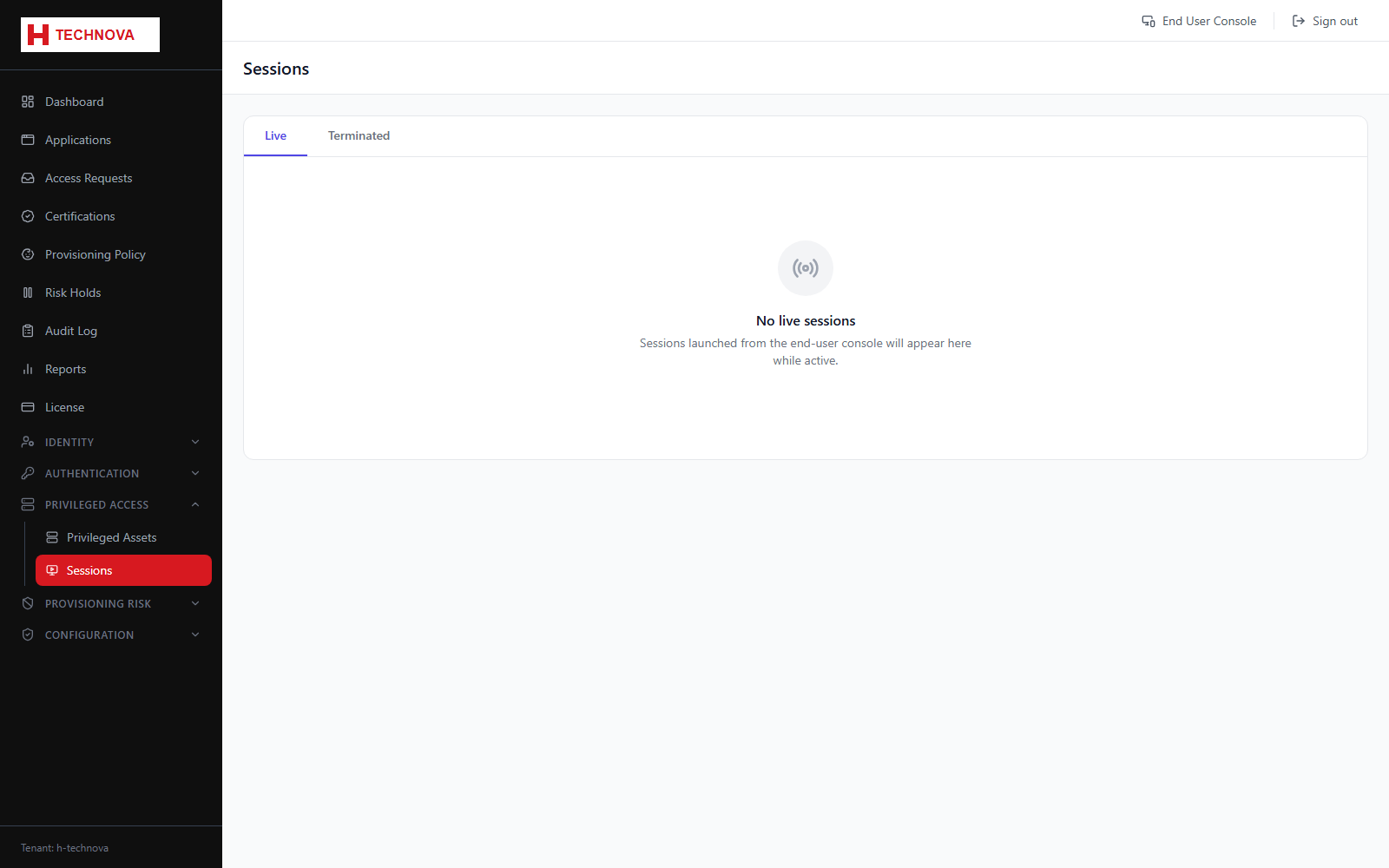
To observe a live session:
- Go to Privileged Access → Sessions. The Live tab opens first.
- Find the session by asset, account or user.
- Select Join. The session opens in a new tab.
Joining is observe-only: you see the user's screen as it changes, but nothing you type or click is sent to the session. The user's session carries on normally.
| Column | Description |
|---|---|
| Session | The asset and the account in use. A session as a shared account shows a Shared badge and the reason the user gave. |
| User | The person who launched the session. |
| Status | Live and how long the session has been running. |
| Started | When the session began. |
Terminating a session
To end a live session:
- Go to Privileged Access → Sessions.
- On the Live tab, select Terminate on the session's row.
- Select Terminate in the Terminate Session dialog.
The user is disconnected at once and the session moves to the Terminated tab, with your name under Terminated By. If the asset rotates passwords when a session ends, or the session used a shared account set to rotate after each use, the password is changed.
Replaying ended sessions
The Terminated tab lists sessions that have ended, with their recordings and SSH typescripts.
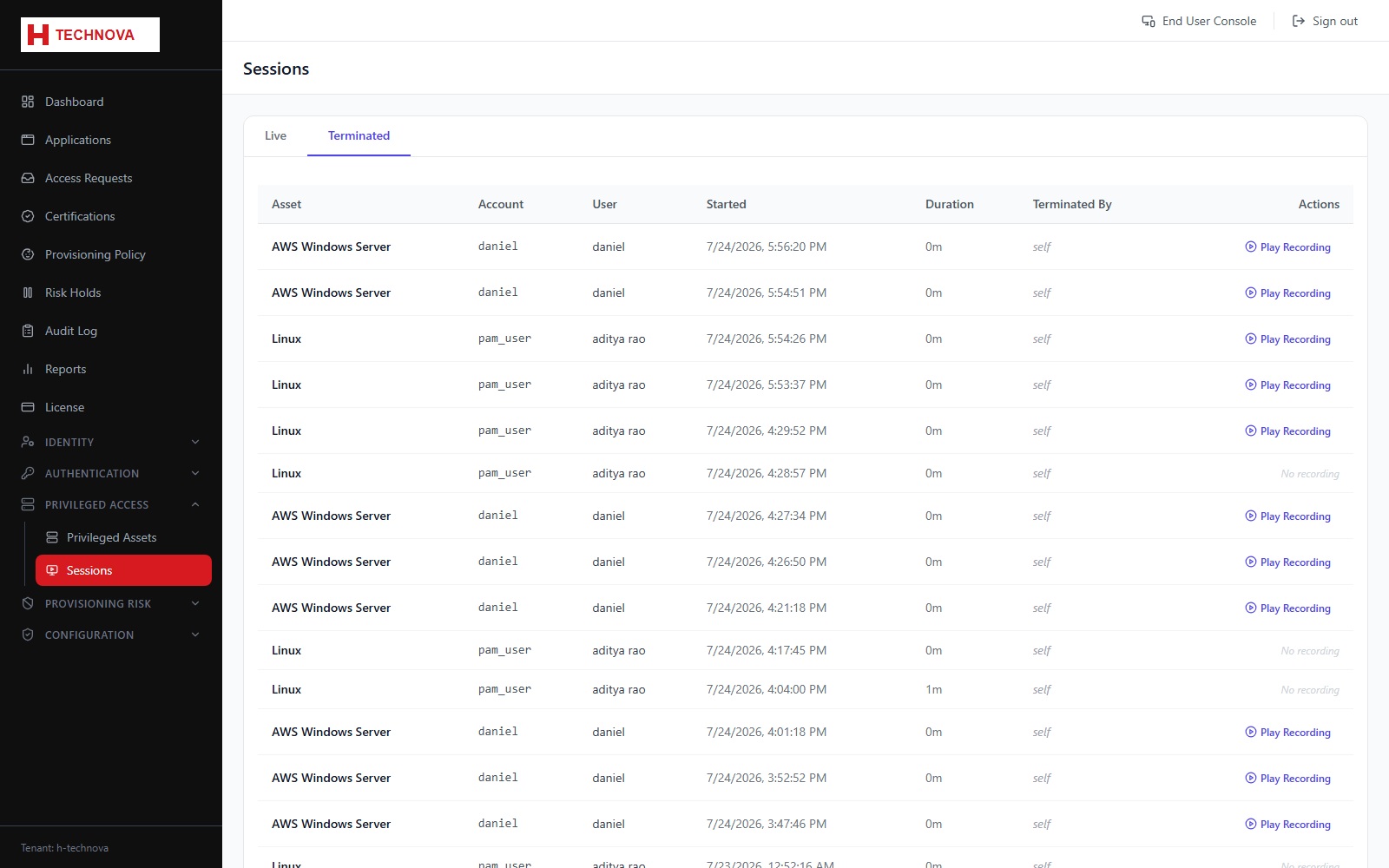
To replay a recording:
- Go to Privileged Access → Sessions and select the Terminated tab.
- Find the session by asset, user or start time. Use Rows per page and the pager for long lists.
- Select Play Recording. The recording opens in a new tab.
- Use Play, Pause and the scrubber to move through it.
A large recording streams as it plays, so its total duration keeps growing until it has fully loaded.
To read an SSH typescript:
- On the Terminated tab, select View Typescript on the session's row.
- Type in Filter lines… to find a command.
- To keep the full text, select Download raw typescript.
A very large typescript shows only its first part on screen; download it for the full content.
| Column | Description |
|---|---|
| Session | The asset and the account used, with the Shared badge and reason for a shared-account session. |
| User | The person who ran the session. |
| Started | When the session began. |
| Duration | How long it lasted. |
| Terminated By | The administrator who ended it, or self when it ended normally. |
| Actions | Play Recording when the session was recorded, View Typescript when a typescript was saved, or No recording when neither exists. |