
Configuring SMS
Connect the SMS service Zetect uses to send one-time codes and account messages, and edit the text of those messages. Zetect calls your SMS provider's HTTP API, so you describe the endpoint, how the message is passed and how to authenticate. Until this is set up, no text messages can be sent.
Required permission
SMS – View for the delivery settings and SMS Templates – View for the templates, under Configuration in an administrator group.
Prerequisite
An account with an SMS provider that offers an HTTP API.
Setting up SMS delivery
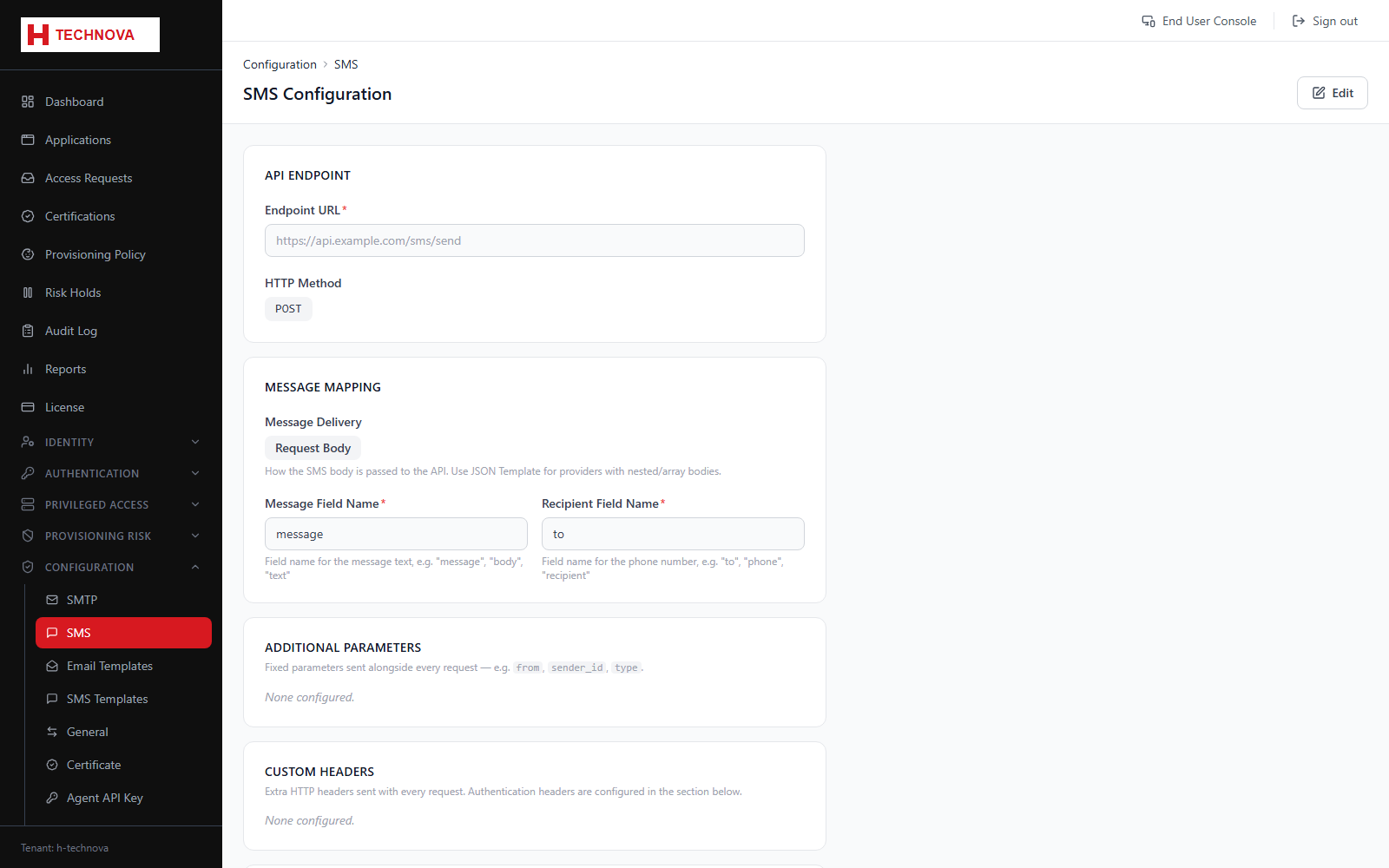
To set up SMS delivery:
- Go to Configuration → SMS.
- Select Set up on the banner, or Edit.
- Under API Endpoint, enter the Endpoint URL and choose the HTTP Method.
- Under Message Mapping, choose the Message Delivery and enter the field names, or a JSON body template.
- Add any Additional Parameters and Custom Headers your provider needs.
- Under Authentication, choose the Authentication Type and fill in its fields.
- Select Save Changes.
Text messages, including SMS one-time codes, go to the identity attribute chosen as the Mobile Attribute. See General Configuration.
SMS delivery fields
| Field | Description |
|---|---|
| Endpoint URL | The provider's send-SMS URL. Required. |
| HTTP Method | The HTTP method used to call the provider. |
| Message Delivery | How the message is passed: Request Body, Query Parameter or JSON Template. Use JSON Template for providers with nested bodies. |
| JSON Body Template | For JSON Template. The request body, with the placeholders {{to}} and {{message}}. |
| Message Field Name | The field for the message text, for example message, body or text. |
| Recipient Field Name | The field for the phone number, for example to, phone or recipient. |
| Additional Parameters | Fixed parameters sent with every request, for example from, sender_id or type. |
| Custom Headers | Extra HTTP headers sent with every request. Authentication headers go in the Authentication section. |
| Authentication Type | None, Basic Auth, API Key (with Header Name, for example X-API-Key, and an optional Key Prefix), Bearer Token or OAuth2 Client Credentials (Token URL, Client ID, Client Secret, Scope). |
Example: JSON template
{
  "to": "{{to}}",
  "message": "{{message}}",
  "sender": "Zetect"
}
Editing an SMS template
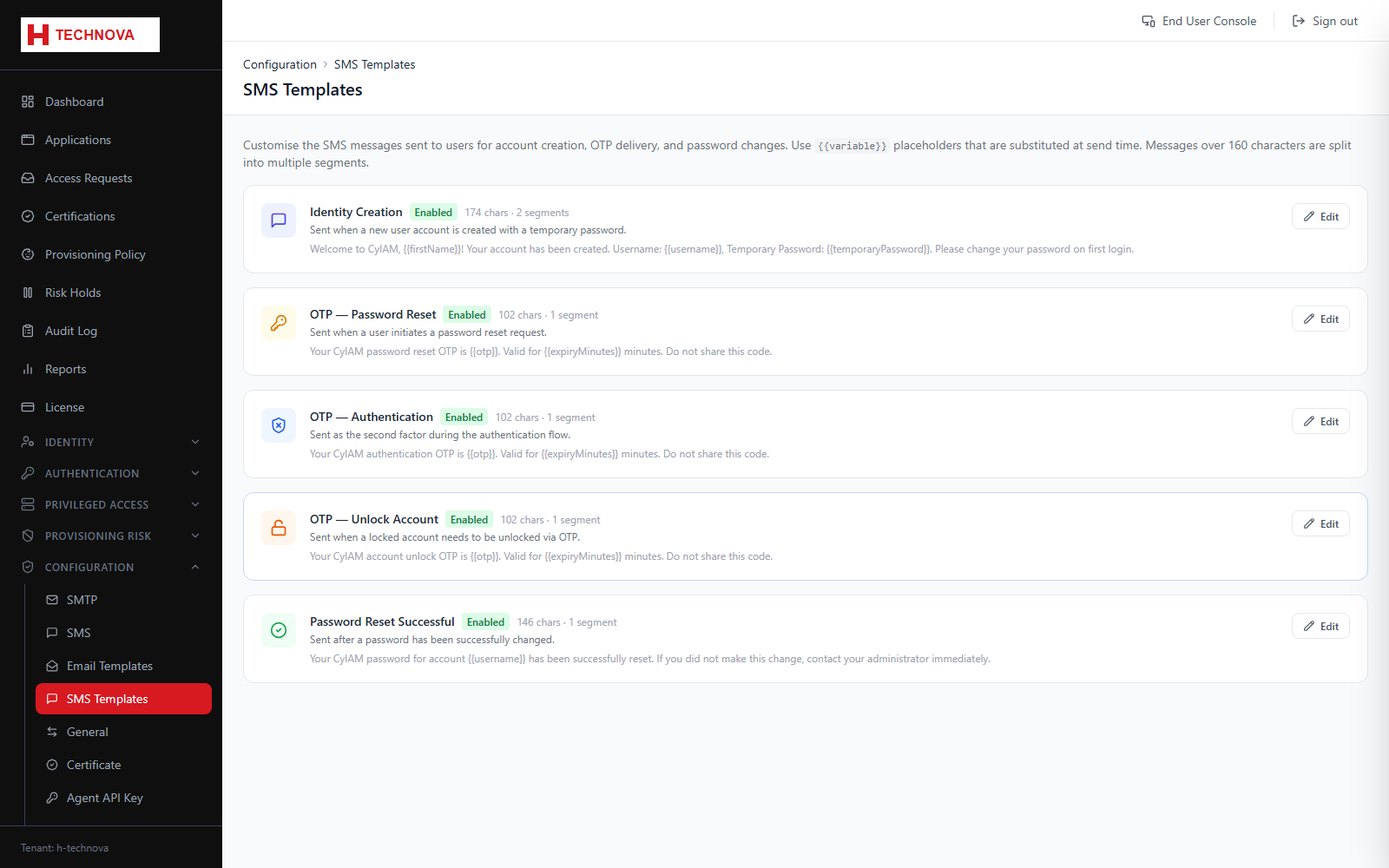
To edit an SMS template:
- Go to Configuration → SMS Templates.
- Find the template. Filter with All, Enabled or Disabled, or type in Search templates….
- Select Edit on the template.
- Change the Message Body. To insert a variable, select it under Available Variables.
- Optionally, turn Template enabled off if this message should not be sent.
- Select Save Template.
SMS templates
| Field | Description |
|---|---|
| Template | The message's name and when it is sent: Identity Creation, OTP — Password Reset, OTP — Authentication, OTP — Unlock Account or Password Reset Successful. |
| Character and segment count | The length of the message, and how many segments it is split into. |
| Message Body | Plain text only. Text like {{otp}} or {{username}} is replaced at send time. |
| Status | Enabled or Disabled. Disabled templates are not sent. |
An authentication code message:
Your Zetect authentication OTP is {{otp}}. Valid for {{expiryMinutes}} minutes. Do not share this code.Troubleshooting
- SMS codes aren't arriving. Check that Configuration → SMS is set up, that the template is enabled, and that the user's mobile number is held in the Mobile Attribute.
- The SMS factor can't be used. The SMS MFA factor needs SMS delivery to be set up. See Managing MFA Factors.