
Running SoD Scans
A scan checks everyone's current access against your active SoD policies. It opens new violations, refreshes existing ones and closes those that no longer apply. Scans run on their own; run one yourself when you want results now, and use the scan history to see what each scan found.
At least one active SoD policy. See Managing SoD Policies.
Segregation of Duties – Edit in an administrator group to run a scan. Segregation of Duties – View to see the history.
When scans run
- Scheduled – every hour, for a tenant with active policies or open violations.
- After aggregation – when an application or privileged asset aggregation finishes.
- Policy change – when a policy is saved.
- Remediation – when the removals requested for a violation have finished.
- Manual – when someone selects Run scan now.
Each scan also reopens exempted violations whose exemption has ended, and returns a violation to Open when its removals are done but the conflict is still there.
Running a scan now
To run a scan now:
- Go to Identity Security → Segregation of Duties.
- Select Run scan now at the top of the page.
The page confirms Scan requested — results will appear within about a minute. The time and status of the last scan show next to the button.
Reviewing scan history
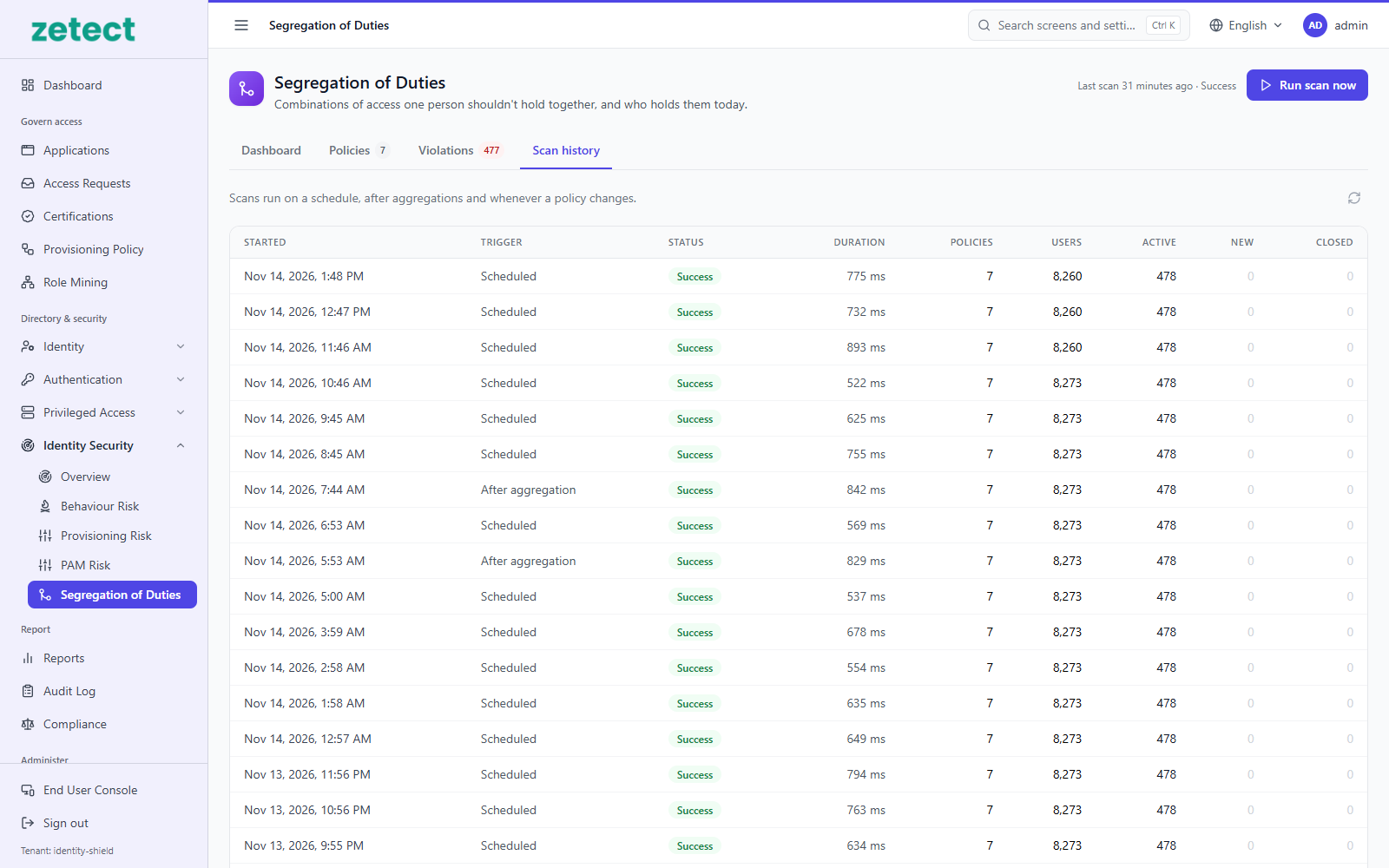
To review scan history:
- Go to Identity Security → Segregation of Duties and select Scan history.
- Check the latest scans. A failed scan shows its error next to the status.
- Use the refresh icon to reload the list.
| Column | Description |
|---|---|
| Started | When the scan started. |
| Trigger | Scheduled, After aggregation, Policy change, Manual or Remediation. |
| Status | Whether the scan succeeded or failed. |
| Duration | How long the scan took. |
| Policies | Active policies evaluated. |
| Users | Users whose access was checked. |
| Active | Active violations after the scan. |
| New | Violations the scan opened. |
| Closed | Violations the scan closed. |
Troubleshooting
- A person with conflicting access has no violation – only accounts matched to an identity are checked. Match the account, then run a scan. See Matching Accounts to Identities.
- A change on the target isn't reflected – scans read the access Zetect last aggregated. Aggregate the application or asset; a scan follows automatically.
- A scan failed – read the error on the Scan history tab. The next scheduled scan runs within the hour, or select Run scan now.