
Configuring Identity Sources
An identity source is a system that supplies your people, such as an HR system, a directory, a REST or SCIM service, or a file export. Add the source, tell the agent how to reach it, and map its fields to identity attributes. Syncs then create joiners, update movers and mark leavers inactive.
An agent that can reach the source system, with a connector for it installed. See Deploying Agents.
Identity → Identity Sources – View in an administrator group.
The source type can't be changed after the source is created.
Setting up a source
Setting up a source takes these steps, each described below:
- Add the source and choose its type.
- Fill in General, including the agent's connector name.
- Fill in Connection, including the status and manager fields.
- Map source fields to identity attributes in Attribute Mapping, with one field marked as the identifier.
- Optionally turn on group import in Groups. See Importing Source Groups.
- Select Run Now, check the result in Sync, and turn on a Schedule. See Running Source Syncs.
Adding a source
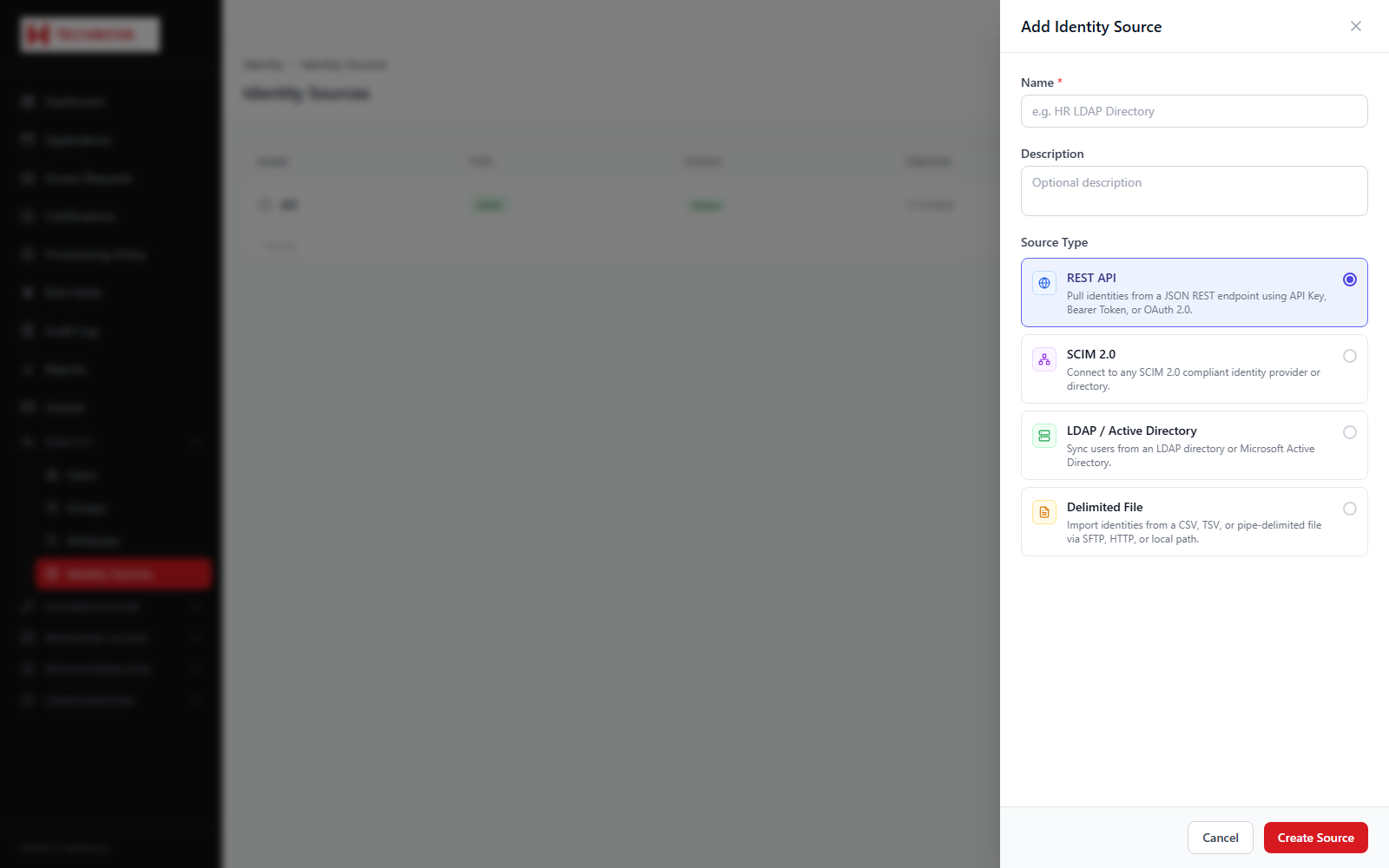
To add a source:
- Go to Identity → Identity Sources.
- Select Add Source. The Add Identity Source panel opens.
- Enter a Name, for example "Corporate Directory", and optionally a Description.
- Choose the Source Type:
- REST API – pulls identities from a JSON REST endpoint.
- SCIM 2.0 – connects to any SCIM 2.0 compliant identity provider or directory.
- LDAP / Active Directory – syncs users from an LDAP directory.
- Delimited File – imports identities from a CSV, TSV or pipe-delimited file over SFTP, HTTP or a local path on the agent's machine.
- Select Create Source.
The source is added to the list. Open it to finish the setup.
Opening a source
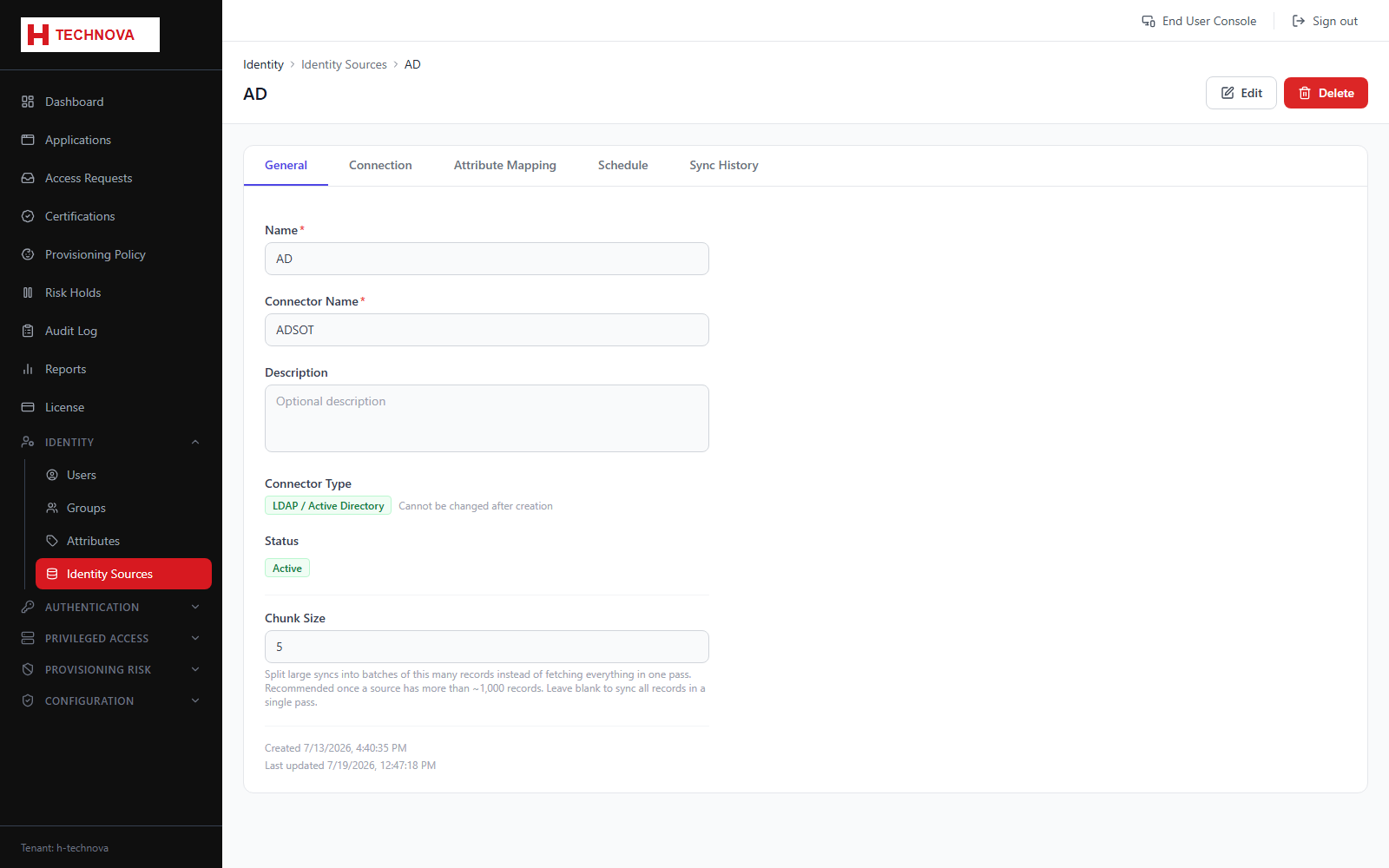
To open a source:
- Go to Identity → Identity Sources.
- Type in Search sources…, or select a type pill when sources of more than one type exist.
- Select the source's row, or select Configure from its ⋮ menu.
The page opens on the Sync section. The status bar under the title shows the source type, the last sync result (or Sync in progress) and whether the source is active. The sections on the left are Sync under Status; General, Connection, Attribute Mapping and Schedule under Setup; and Groups. A marker on Sync means the last sync failed or removals are waiting for review.
Configuring general settings
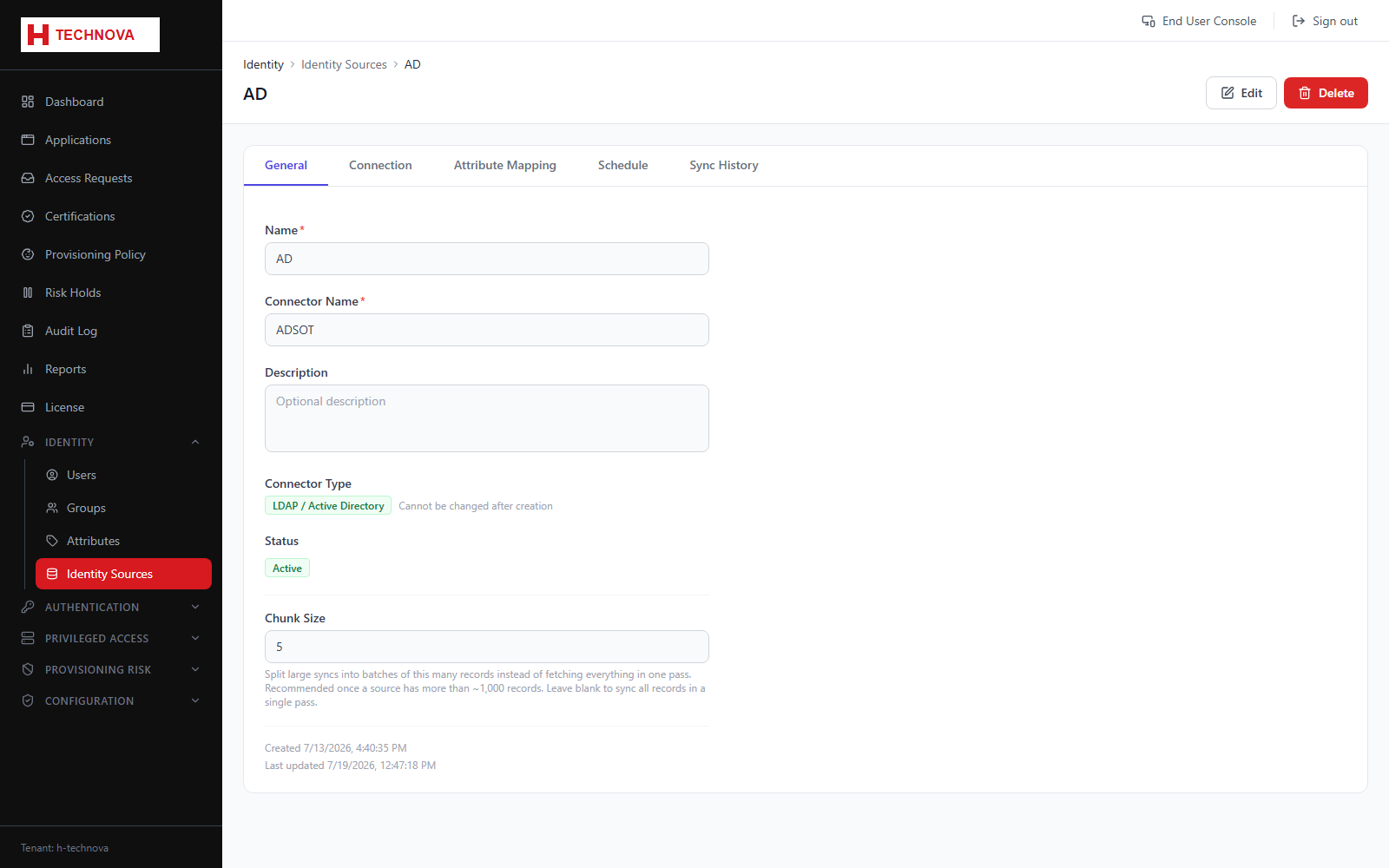
To configure general settings:
- Open the source and select General.
- Select Edit at the top of the page.
- Change the fields.
- Select Save changes, or Cancel to drop your edits.
| Field | Description |
|---|---|
| Name | Required. How the source appears in Zetect. |
| Connector Name | Required. The agent connector that runs this source's syncs. It is filled in from the name until you change it. Spaces aren't allowed. |
| Description | Optional. Shown under the source's name. |
| Connector Type | The source type. It can't be changed after creation. |
| Status | Active or Inactive. |
| Chunk Size | Under Advanced. Splits large syncs into batches of this many records. Recommended once a source has more than about 1,000 records. Leave it blank to sync all records in one pass. |
| Created / Last updated | When the source was added and last changed. |
Configuring the connection
The Connection section tells the agent how to reach the source, and which source fields set each person's status and manager. Its fields depend on the source type.
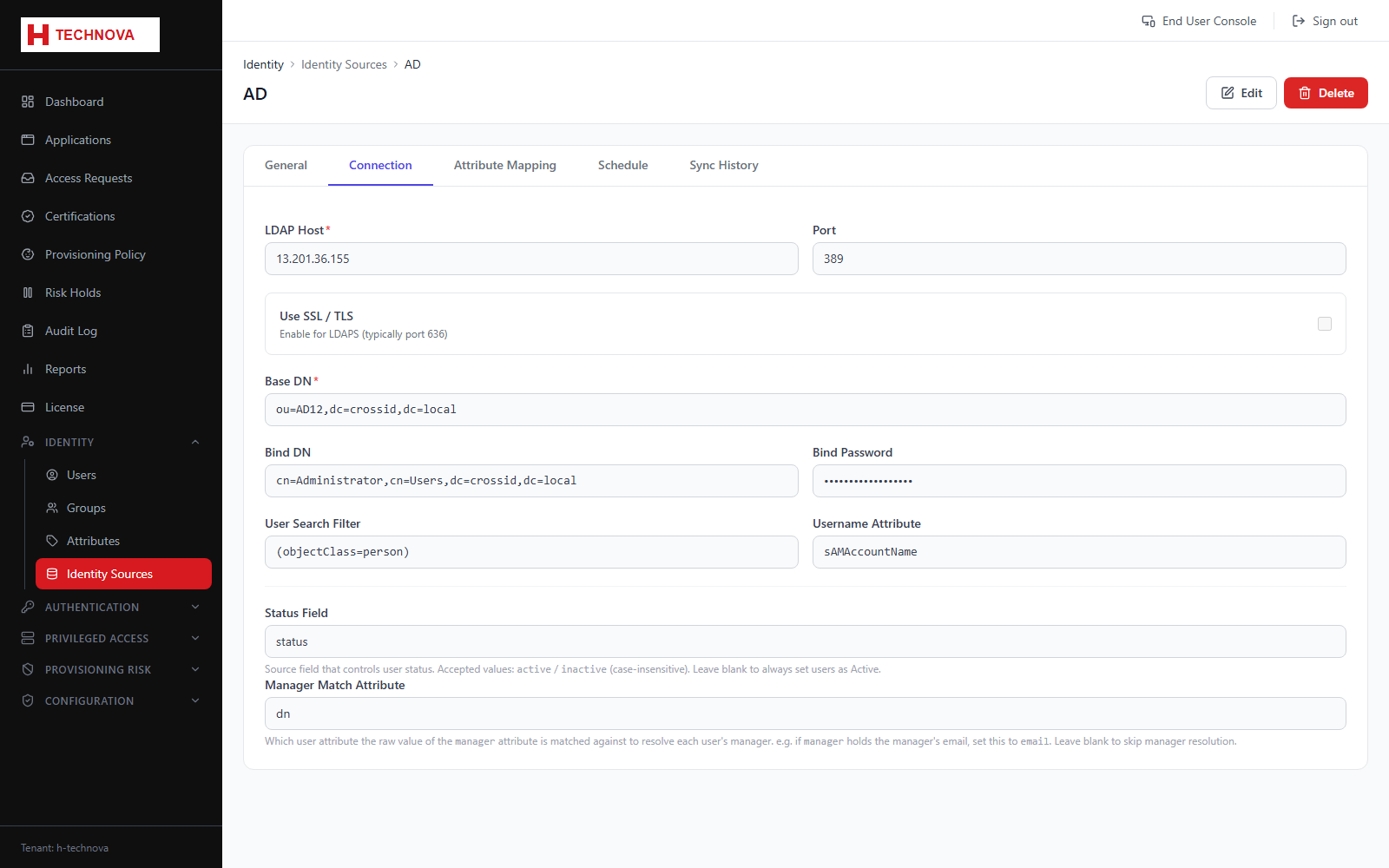
To configure the connection:
- Open the source and select Connection.
- Select Edit.
- Fill in the Connection card for your source type.
- In Status and manager, set Status Field and Manager Match Attribute if the source supplies them.
- Select Save changes.
Give the source account read-only rights. A sync only reads the source.
LDAP connection fields
| Field | Description |
|---|---|
| LDAP Host / Port | Required host name or IP address, and the port (389 by default). |
| Use SSL / TLS | Turn on for LDAPS, typically on port 636. |
| Base DN | Required. Where in the directory to search, for example OU=Staff,DC=example,DC=com. |
| Bind DN / Bind Password | The service account used to read the directory. |
| User Search Filter | Which objects count as people, for example (objectClass=person). |
| Username Attribute | The directory attribute that holds the login name, such as uid or sAMAccountName. |
REST API and SCIM 2.0 connection fields
| Field | Description |
|---|---|
| Base URL | Required. The service's address, for example https://api.example.com. For SCIM, people are read from /Users under this address. |
| Authentication Type | API Key (Header Name and API Key), Bearer Token (Token), OAuth 2.0 (Token URL, Client ID, Client Secret, Scope), Basic (username / password), or No authentication. |
| Users Endpoint | REST only. The path of the users list, relative to the base URL, for example /users. |
| Response Array Path | REST only. Where the list of people sits in the response, for example data. Leave it empty if the response is the list itself. |
| Pagination | REST only. None — one request, Page number, Offset / limit, Cursor or Next link URL. Each type shows the parameter names it needs and a line explaining when paging stops. |
| Page Size | How many records to ask for per request (100 by default). |
Delimited File connection fields
| Field | Description |
|---|---|
| File Source | SFTP, HTTP or Local Path on the agent's machine. |
| File Path / URL | Required. Where the file is, for example /exports/users.csv. |
| Host / Port / Username / Password | SFTP only. The server and account used to fetch the file. The port defaults to 22. |
| Delimiter | Comma (,), Semicolon (;), Tab or Pipe (|). |
| First Row | Tick Contains column headers if the first row names the columns. |
Status and manager fields
| Field | Description |
|---|---|
| Status Field | The source field that controls each person's status, for example status or isActive. Values such as inactive, false, disabled or terminated make the person inactive, in any case. See Source status values. Leave it blank and the sync never changes anyone's status; new people are created active. |
| Manager Match Attribute | The identity attribute that the value of the manager attribute is matched against to find each person's manager. For example, if manager holds the manager's email, set this to email. Leave it blank to skip finding managers. |
Mapping source fields
Attribute Mapping maps source fields onto identity attributes, for example sAMAccountName to username. It also says which field identifies a person, so each sync updates existing people instead of creating duplicates.
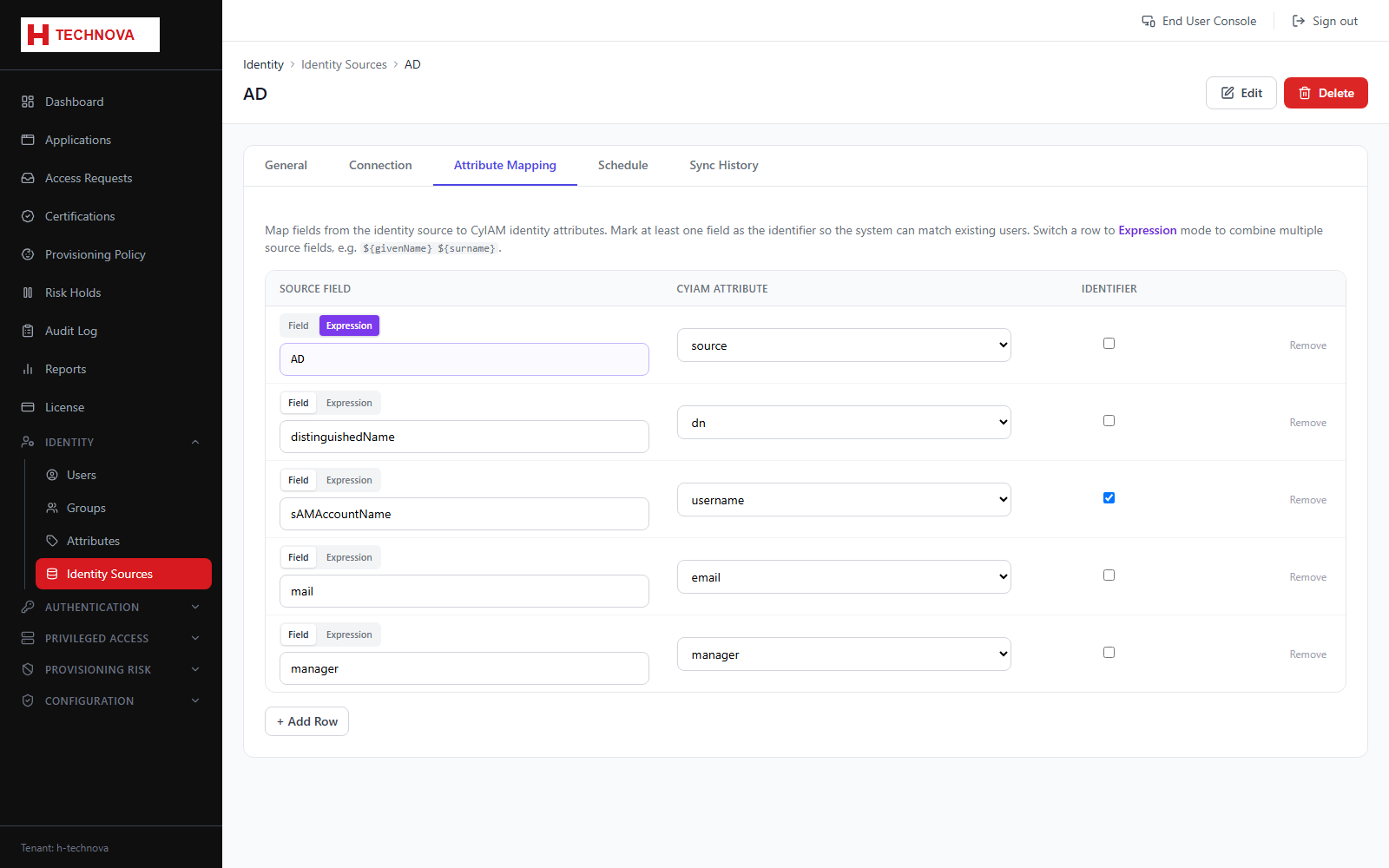
To map source fields:
- Open the source and select Attribute Mapping.
- Select + Add Row for each field you want to import.
- Enter the source field:
- Field – type the source field name.
- Expression – combine fields with
${fieldName}tokens, such as${givenName} ${surname}. Text without tokens is used as a fixed value.
- Choose the Zetect Attribute the value goes into.
- Tick Identifier on the field that uniquely identifies a person, such as the username or employee ID.
- Select Remove on any row you don't need.
- Select Save Mappings, or Discard to undo your changes.
The new mapping applies from the next sync. During a sync, a record whose identifier value matches an existing person updates that person. Otherwise a new identity is created. A record with no identifier value is counted as an error.
For example, a directory mapping:
| sAMAccountName | username (Identifier) |
| givenName | firstName |
| sn | lastName |
| ${givenName} ${sn} | displayName (Expression) |
| manager | manager |
Deleting a source
To delete a source:
- Go to Identity → Identity Sources.
- Open the ⋮ menu on the source's row and select Delete source.
- Confirm.
Troubleshooting
- Run Now can't start the sync. A message appears under the status bar. The sync runs on the agent, so check that the agent is online, can reach the source, and has a connector matching Connector Name.
- Every record fails. Check that a mapping is marked Identifier and that the source fills in that field for every record.
- New people are skipped. The licensed number of users may be reached. Each skipped person is counted as an error.