
Configuring Email
Choose how Zetect sends email, and edit the emails it sends: one-time codes, new-account messages, approvals, reminders and alerts. Email can go through your own mail server (SMTP) or through an email provider's HTTP API. Until this is set up, no email can be sent.
SMTP – View for the delivery settings and Email Templates – View for the templates, under Configuration in an administrator group.
A mail server or email provider account that accepts mail from your sender address.
Setting up email delivery
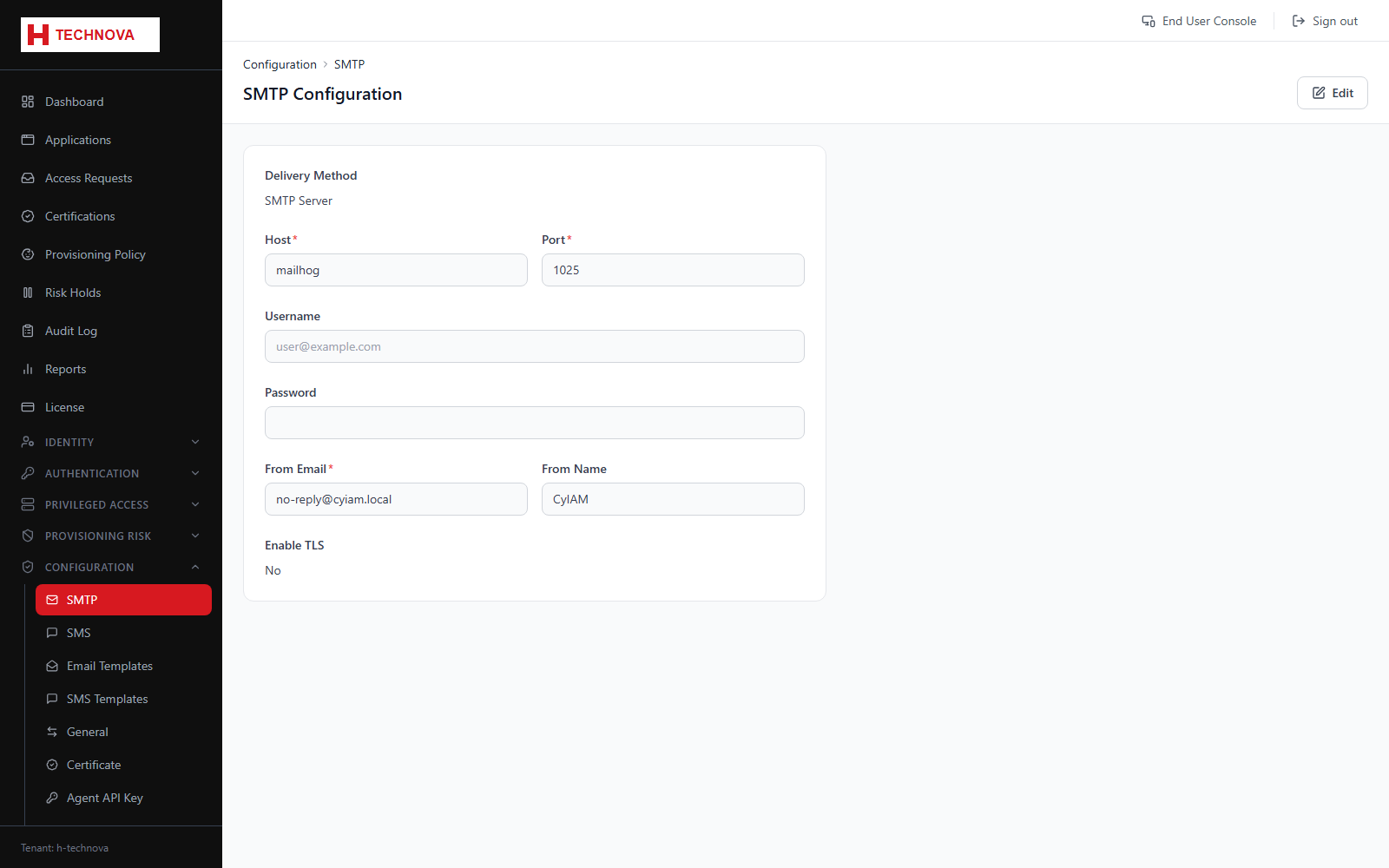
To set up email delivery:
- Go to Configuration → SMTP.
- Select Set up on the banner if email isn't set up yet. Otherwise select Edit.
- Under How email is sent, choose the Delivery Method:
- SMTP Server – fill in Mail server: host, port, username, password and Enable TLS.
- API – fill in Email provider, Request Configuration, any Additional Parameters and Custom Headers, and Authentication.
- Under Sender, enter the From Email and From Name.
- Select Save Changes.
Saved passwords and secrets are hidden and show as "Set, hidden".
Email delivery fields
| Field | Description |
|---|---|
| Host / Port | Mail server address and port, for example smtp.example.com and 587. Required for SMTP Server. |
| Username / Password | Credentials for the mail server. |
| Enable TLS | Encrypts the connection to the mail server. |
| Provider Name | API only. A name for your own reference. |
| API Endpoint URL | API only. The provider's send-mail URL. Required. |
| HTTP Method | API only. The HTTP method used to call the provider. |
| Message Format | API only. How the message is built: Simple Body, Query Param, Headers or JSON Template. Use JSON Template for providers that need nested values or lists. |
| JSON Body Template | For JSON Template. The request body, with the placeholders {{to}}, {{subject}}, {{body}}, {{from}} and {{fromName}}. |
| Recipient, Subject, Body, From Field Name | For the other formats. The provider's field names, for example to, subject, body and from. |
| Additional Parameters | Fixed parameters sent with every request, for example cc or type. |
| Custom Headers | Extra HTTP headers sent with every request. |
| Authentication Type | None, Basic Auth, API Key, Bearer Token or OAuth2 Client Credentials, with the matching fields. |
| From Email / From Name | The sender recipients see. The address must be one your mail server or provider accepts. |
Example: JSON template
{
  "personalizations": [{ "to": [{ "email": "{{to}}" }] }],
  "from": { "email": "{{from}}", "name": "{{fromName}}" },
  "subject": "{{subject}}",
  "content": [{ "type": "text/html", "value": "{{body}}" }]
}
Editing an email template
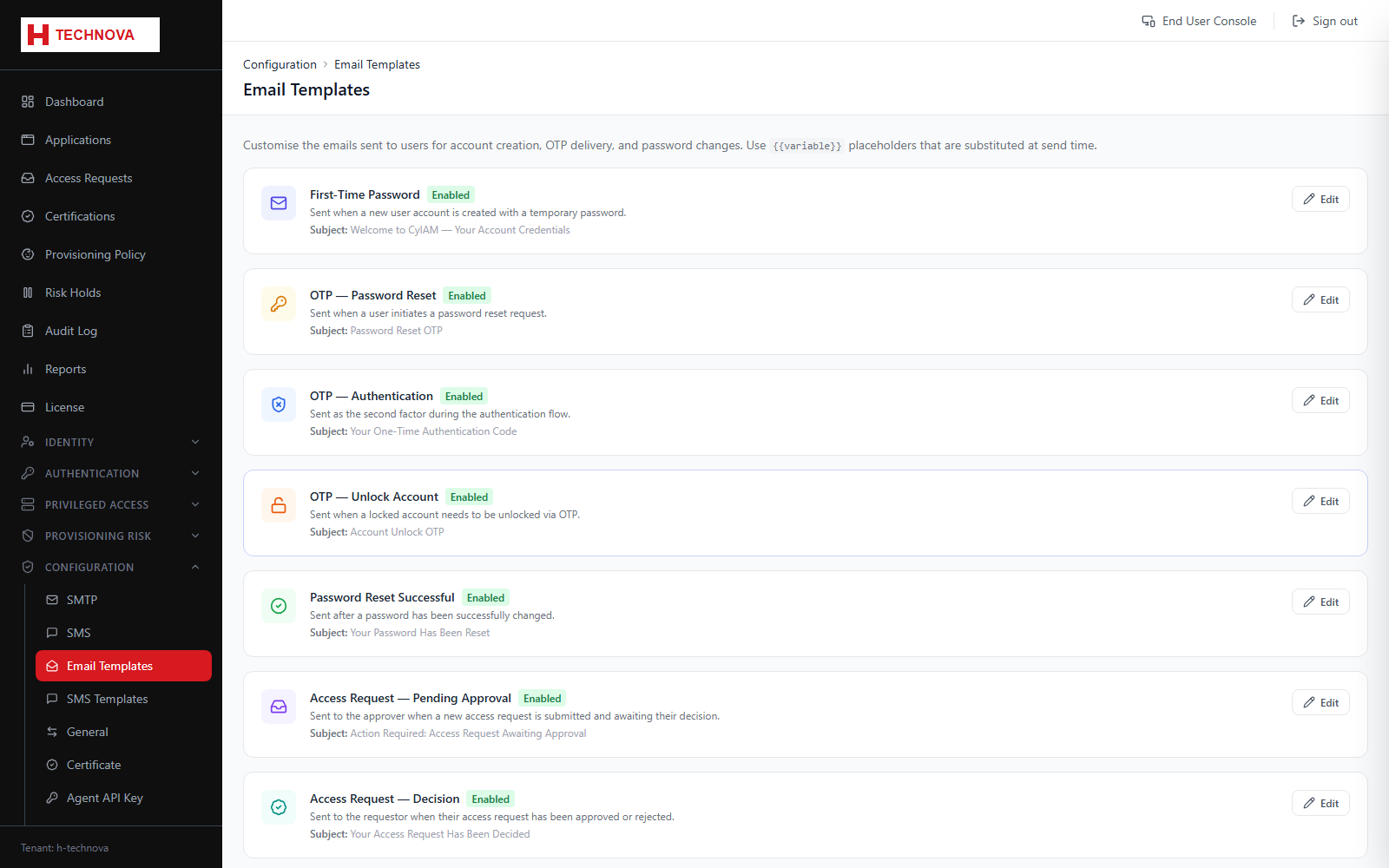
To edit an email template:
- Go to Configuration → Email Templates.
- Find the template. Filter with All, Enabled or Disabled, or type in Search templates….
- Select Edit on the template.
- Change the Subject and the Email Body. Use the toolbar to format text.
- To insert a variable, select its chip under Available Variables.
- Switch to Preview to see the email as it will look.
- Select Save Template.
The next email of this type uses the new text. Variables such as {{applicationName}} are replaced when the email is sent.
Turning an email off
To stop Zetect sending one kind of email:
- Go to Configuration → Email Templates and select Edit on the template.
- Turn Template enabled off.
- Select Save Template.
Disabled templates are not sent. This is also how you turn event alerts, such as SoD — Violation Detected, on or off.
Email templates
| Group | Templates |
|---|---|
| Account and sign-in | First-Time Password, OTP — Password Reset, OTP — Authentication, OTP — Unlock Account, Password Reset Successful |
| Access requests and provisioning | Access Request — Pending Approval, Access Request — Decision, Account Provisioned, Account Deprovisioned |
| Certification | Certification — Review Assigned, Certification — Review Submitted |
| Segregation of Duties | SoD — Violation Detected, SoD — Violation Status Changed, SoD — Exemption Created |
| Reminders | Reminder — Pending Approvals, Reminder — Pending Reviews, Reminder — Open SoD Violations, Reminder — SoD Exemption Ending, Reminder — Shared Account Access Ending. Their timing is set in Reminders & Alerts; see Configuring Reminders and Alerts. |
| Shared accounts | Shared Account Available, Shared Account Rotation Failed |
| Alerts | Agent Offline Alert, ITDR — Detection Alert |
In the OTP templates, {{expiryMinutes}} is the MFA code timeout from the global auth policy, rounded up to whole minutes.
Troubleshooting
- Password-reset codes, one-time codes or approval emails aren't arriving. Check Configuration → SMTP first: until it is set up, no email can be sent. Then check that the template is enabled.
- The provider rejects the sender. Use a From Email that your mail server or provider accepts.
- Emails reach the wrong address or none. Emails go to the identity attribute chosen as the Email Attribute. See General Configuration.