
Managing Review Policies
A review policy is a reusable set of review stages: who reviews, in what order, for how long, and what happens when time runs out. Campaigns pick a review policy instead of defining reviewers themselves, so one policy can serve many campaigns. Every stage must have a step duration.
For Group reviewers, an identity group with members. See Managing Groups.
Certifications – View in an administrator group.
Each stage lasts from 1 hour to 365 days. Move to next stage is not allowed on the last stage.
Creating a review policy
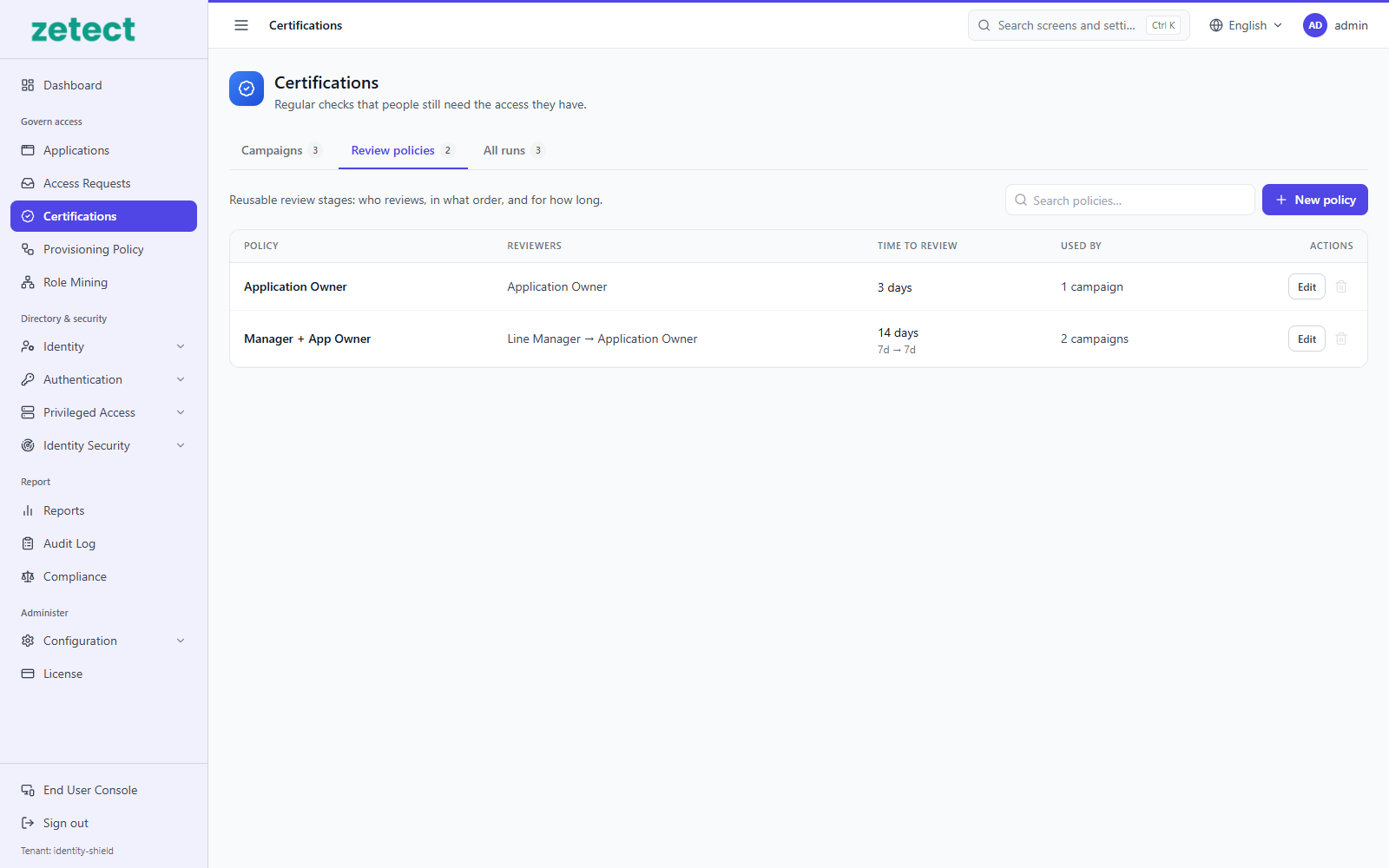
To create a review policy:
- Go to Govern access → Certifications and select Review policies.
- Select New policy.
- Enter the Policy Name.
- Under Review Stages, select Add Stage for each stage, in the order the reviews should happen.
- For each stage, choose the Reviewer. For Specific User, pick the person. For Group, pick the Reviewer Group and the Group decision.
- Set the stage's Step duration in days or hours.
- Choose what happens When the step duration runs out.
- Check the Run due date shown at the bottom.
- Select Create Policy.
The policy appears in the list and can be picked when you create or edit a campaign. You can also create one from the campaign wizard with New policy.
Review policy fields
| Field | Description |
|---|---|
| Policy Name | Required and unique. For example "Manager then app owner, 7 days each". |
| Reviewer | Line Manager – the subject's line manager; items without one, such as orphan accounts, go to the application or asset owner. Application Owner – the owner of the application or privileged asset. Specific User – one named reviewer reviews every item. Group – members of a group. |
| Group decision | Group reviewers only. Any one member – the first member to decide closes the stage. All members – every member must certify, and one rejection decides. |
| Step duration | Required. How long the stage may take, in days or hours. A stage's clock starts when the previous stage finishes. |
| When the step duration runs out | Escalate – reassign once to the reviewer's line manager (or the application or asset owner) with a fresh step duration; if that also lapses, the item moves on, or is revoked at the last stage. Move to next stage – close the stage without a vote. Auto-revoke – record a revoke vote. Auto-certify – record a certify vote. |
| Run due date | A run is due after the sum of the step durations, from when it starts. |
The list shows each policy's Reviewers in stage order (for example "Line Manager → Application Owner"), the Time to review with each stage's duration underneath, and how many campaigns use it.
Editing and deleting a review policy
To edit a review policy:
- On the Review policies tab, select Edit on the policy's row.
- Change the stages.
- Select Save changes.
Changes apply to the next runs of the campaigns that use the policy. Runs already in progress keep the stages they started with.
To delete a review policy:
- On the Review policies tab, select the delete icon on the policy's row.
- Select Delete to confirm.
A policy used by a campaign can't be deleted, and its delete icon is disabled. Move its campaigns to another policy first. Deleting can't be undone.
Example: manager, then app owner
| Policy Name | Manager + App Owner |
| Stage 1 | Line Manager · 7 days → Move to next stage |
| Stage 2 | Application Owner · 7 days → Auto-certify |
| Run due date | 14 days after the run starts |