
Monitoring Provisioning
Check that provisioning actions reached their targets, read why one failed, and send missing access again. Each person's Provisioning tab lists every action Zetect sent for them; access requests, certifications and the application's Accounts screen show the outcome of their own actions.
Users – View in an administrator group to read a person's provisioning history. Access Requests – View to see request outcomes. Applications – View to open an application's accounts.
Viewing a person's provisioning history
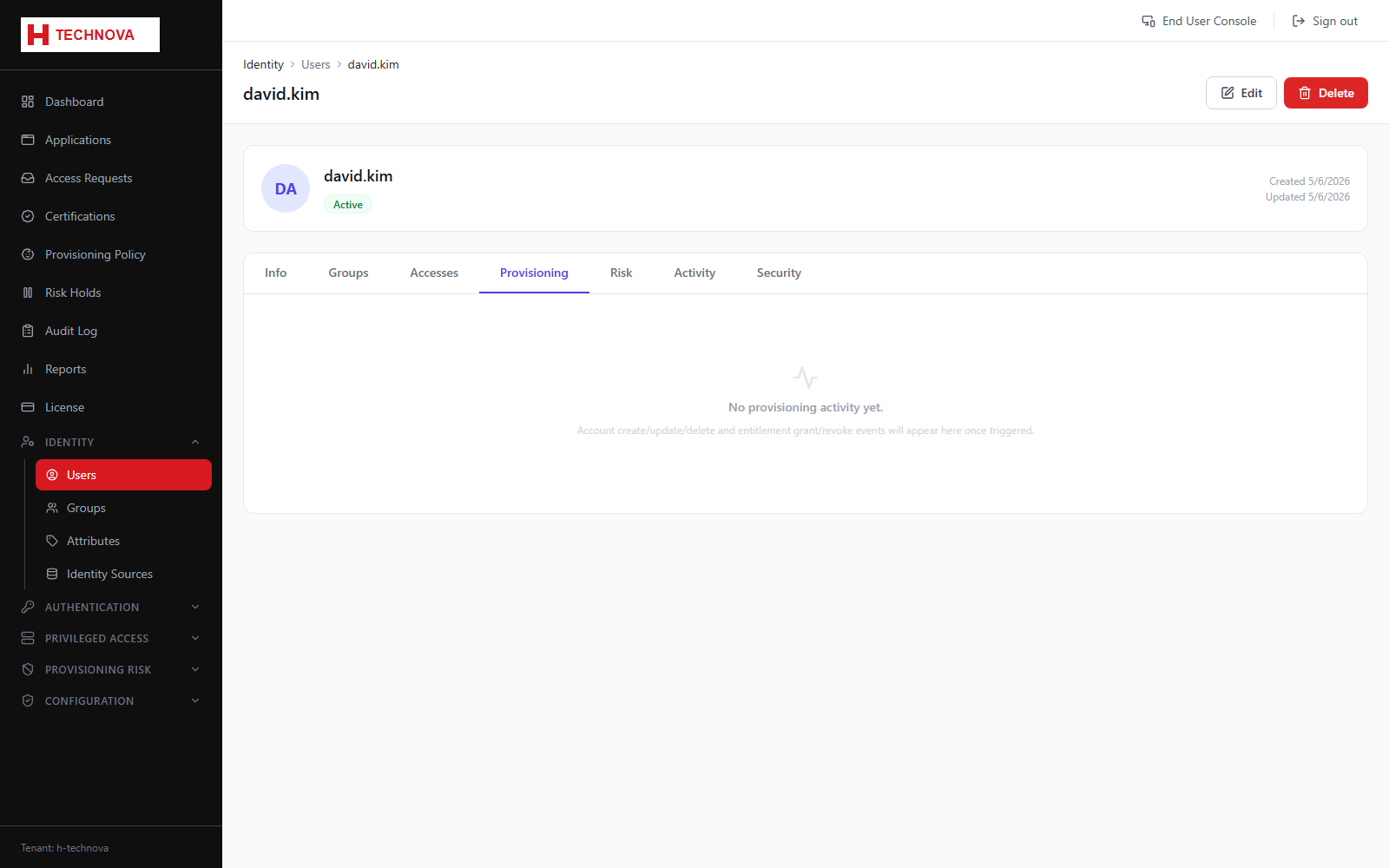
To view a person's provisioning history:
- Go to Identity → Users and open the person.
- Select the Provisioning tab. A marker next to the tab name means at least one action failed.
- Read the counts at the top: total events, then how many are pending, succeeded and failed.
- Select a failed row to show the error message returned by the target system.
A row appears as Pending as soon as an action is sent, and changes to Success or Failed when the agent replies. Rows cover applications and privileged assets, and every source of provisioning: policies, Who can access rules, access requests, certification and SoD revokes, and administrator actions.
Provisioning history fields
| Field | Description |
|---|---|
| Application | The application or privileged asset the action was sent to. |
| Action | The provisioning action, such as Create Account or Remove from Group. See Provisioning actions. |
| Account and connector | The account's identifier in the target system and the connector that handled it, when known. |
| Time | When the action finished, or when it was sent if it's still pending. |
| Status | Pending, Success or Failed. See Provisioning statuses. |
Retrying missing or failed access
Process Identity re-checks one person against the provisioning policies and Who can access rules, the same check a user update runs, across applications and privileged assets.
To process an identity:
- Go to Identity → Users and open the person.
- Open the ⋮ menu at the top of the page and select Process Identity. You can also select it from the person's ⋮ menu in the users list.
- Read what will happen, then confirm.
Access the person should have but doesn't is provisioned. Access that nothing grants any more is removed, except access from approved access requests. The result lists each action sent, or says that nothing needed to be sent. Results arrive on the Provisioning tab as the agent completes each action.
Other places to watch provisioning
| Where | What you see and can do |
|---|---|
| Access Requests → Requests | Each request's outcome, such as "Approved, but adding to the group failed". The Failed filter lists requests whose access never reached the target. Select Retry to send them again. See Tracking Requests. |
| Certifications | For each revoked item, the access removal status: Removing…, Access removed, Removal failed or Not removed. See Handling Review Results. |
| Application → Accounts | After you suspend, restore or delete an account, its status changes to Suspended, Active or Inactive once the agent confirms. See Aggregating Accounts and Entitlements. |
| Dashboard | The Provisioning failures widget shows failed provisioning by application, and approved requests that were not granted. See Using the Dashboard. |
| Reports | The Access Requests report includes provisioning status. The Leaver / Deprovisioning report shows inactive people who still hold access, including failed deprovisioning. See Running Reports. |
Troubleshooting
- A row stays Pending. The agent never replied. Check the agent's status under Configuration → Agents before looking at the target system. See Deploying Agents.
- A row failed with "Could not deliver the request to the agent". Zetect couldn't hand the action to the agent. Check that the agent is running, then run Process Identity or retry the request.
- An expected action never appears. The application may not allow that action. Check Controlling Allowed Operations. Also check that the person matches the policy or rules, and that their account isn't suspended.
- Creating an account fails on the target. A required attribute may have no mapping. See Mapping Attributes.