
Enabling Requests for Others
Let chosen people, such as managers or a service desk, submit requests under a configuration for someone else. You turn this on per configuration, with rules for who can request and for whom. The person who receives the access stays the requester of record.
Prerequisite
A request configuration for an application or privileged asset exists. Requests for others are not available for New Identity configurations.
Required permission
Access Requests – Edit in an administrator group.
Allowing requests for others
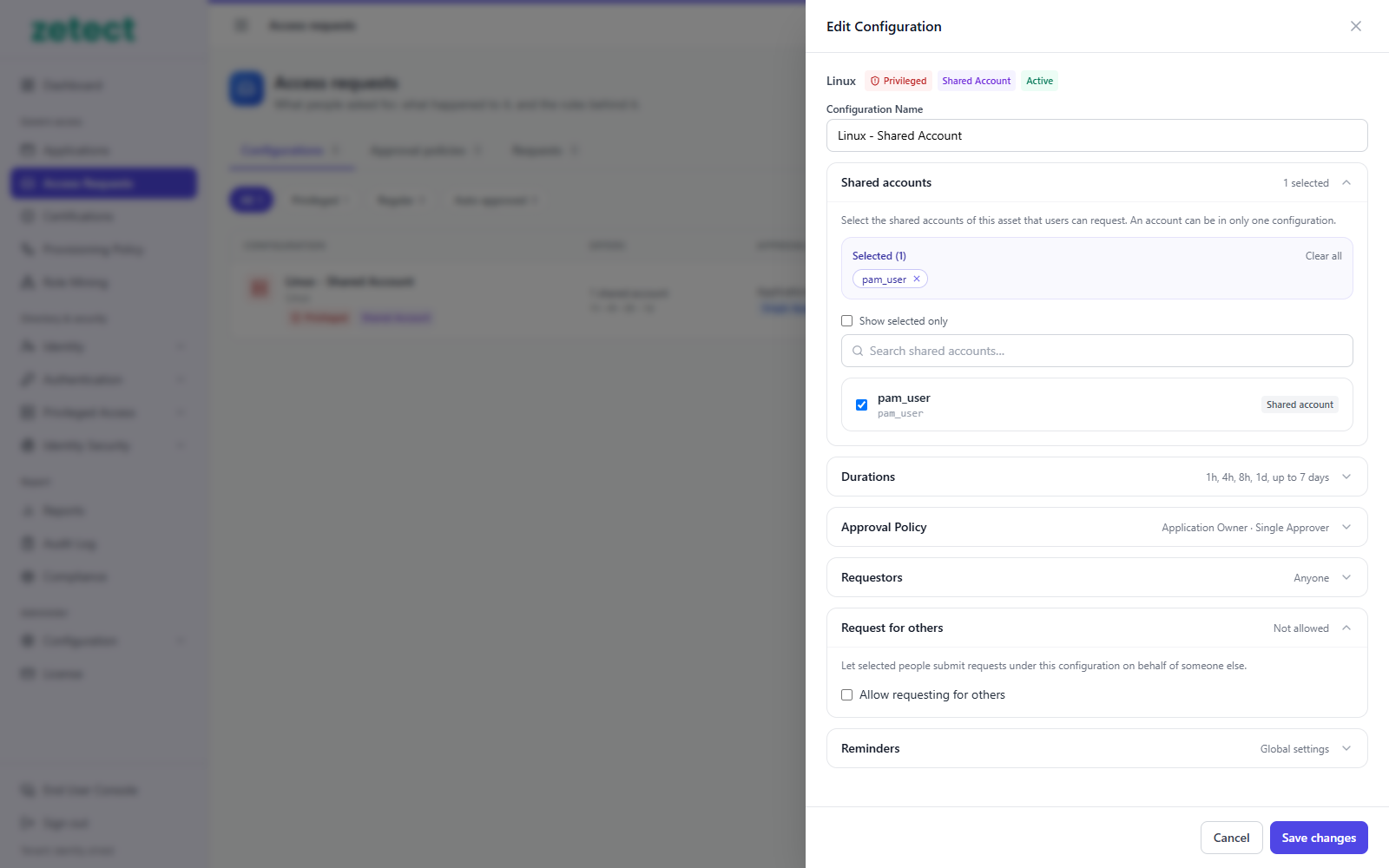
To allow requests for others:
- Go to Govern access → Access Requests and select the Configurations tab.
- Select Edit on the configuration's row.
- Expand Request for others and tick Allow requesting for others.
- Select Add rule.
- In Who can request, choose who may submit.
- In For whom, choose whose access they may request.
- Add more rules if needed. A request is allowed when any one rule matches.
- Select Save changes.
The configuration's row now shows a For others chip. In the end-user console, people a rule allows see a picker for the person they're requesting for. See Requesting Access for Others.
Request for others fields
| Field | Description |
|---|---|
| Allow requesting for others | Turns the feature on for this configuration. The section summary shows Not allowed, or Allowed with the number of rules. |
| Who can request | Managers, Specific user, Members of group or Everyone. |
| For whom | Their direct reports, Anyone or Members of group. A Managers rule always means their direct reports. |
Example: managers for their team
| Allow requesting for others | On |
| Rule 1 | Who can request: Managers · For whom: Their direct reports |
| Rule 2 | Who can request: Members of group IT-ServiceDesk · For whom: Anyone |
How a request for someone else is handled
- Once a person is picked, the catalog, the risk preview and the request itself are all worked out for that person.
- The person receiving the access must still meet the configuration's Requestors rules.
- They are the requester of record, so provisioning, their access list, certifications, SoD and risk all treat the request as theirs.
- Neither the person receiving the access nor the person who submitted the request can approve it.
- In My Requests, the person receiving the access sees "Requested by …" and the person who submitted it sees "For …". Either of them can cancel it.
- In the admin Requests tab, the Requester column shows the person receiving the access, with "Requested by …" underneath. See Tracking Requests.
Turning requests for others off
To turn requests for others off:
- Open the configuration with Edit and expand Request for others.
- Clear Allow requesting for others.
- Select Save changes.