
Tracking Requests
The Requests tab lists every access request raised in the tenant and what happened to it. Use it to decide pending requests, follow a request through its approval stages, and fix requests that were approved but never granted.
Access Requests – View in an administrator group.
Finding a request
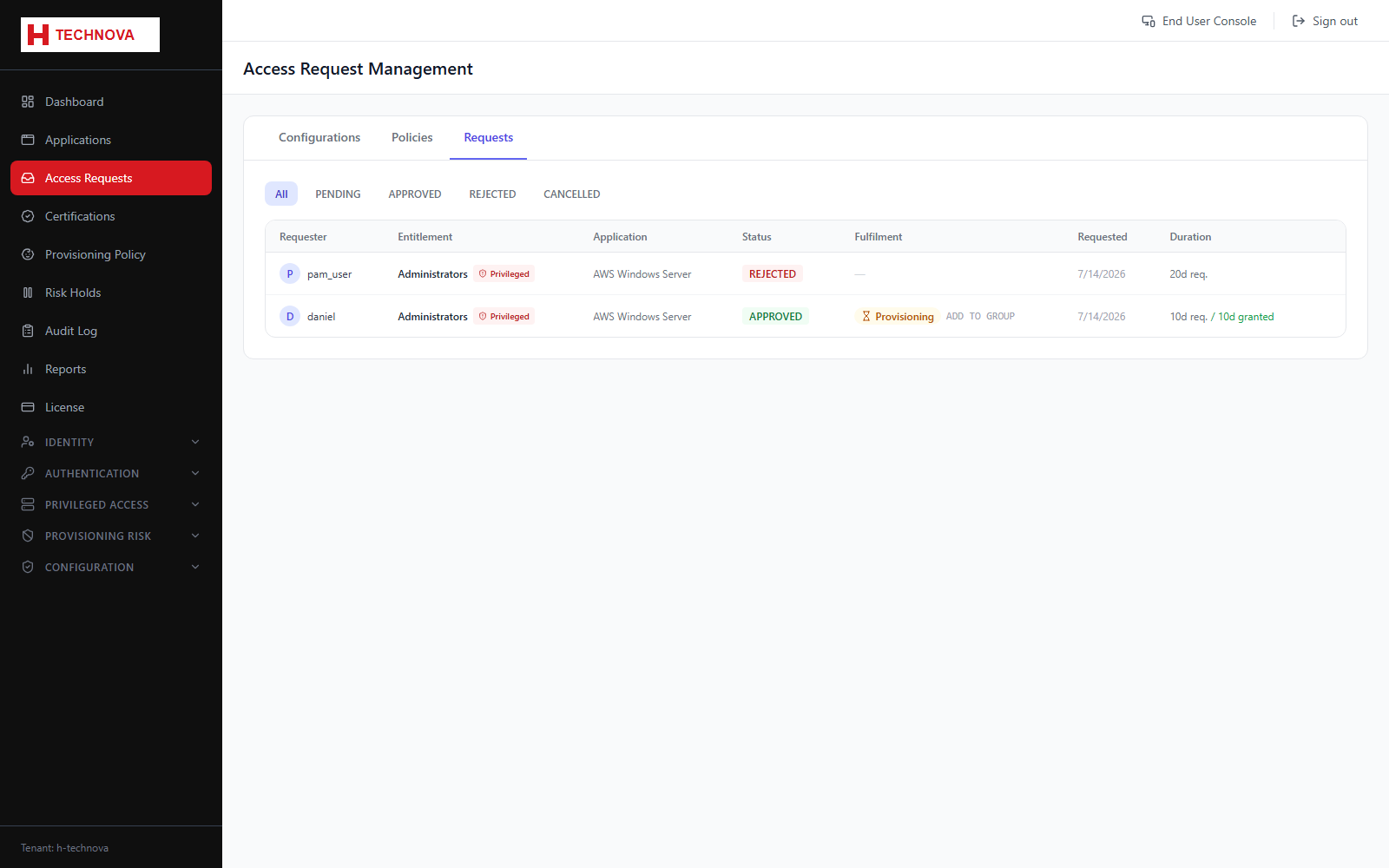
To find a request:
- Go to Govern access → Access Requests and select the Requests tab.
- Pick a status filter: All, Pending, Approved, Failed, Rejected, Cancelled or Expired.
- Search the page by person or access.
- Select a row, or View, to open the Request details drawer.
Request list fields
| Field | Description |
|---|---|
| Access | What was requested and on which application or asset, with a chip such as Privileged. Pending rows also show the risk the access would add if granted. |
| Requester | The person the access is for. If someone else submitted it, "Requested by …" appears underneath. |
| Outcome | A plain-words result, for example "Waiting for Line Manager, stage 1 of 2", "Rejected at stage 1", "Approved, but adding to the group failed" or "Access removed when it ended". See Outcomes. |
| Duration | The requested duration, or Permanent. For approved shared-account access, it also shows when the access ends. |
| Requested | How long ago the request was raised. |
Approving or rejecting a pending request
Approvers normally decide in their Approval Queue. You can also decide here.
To approve or reject a pending request:
- Find the request under Pending.
- Select Approve or Reject on its row, or in the Request details drawer.
- When approving, keep the grant duration As requested or set a Custom number of days, and add an optional note.
- When rejecting, enter a note. A rejection reason is required.
- Confirm.
An approval decides the current stage. If more stages follow, the request moves to the next one; after the last, Zetect provisions the access.
Reading a request's history
The Request details drawer has three parts:
- Details – the requested access, the application or asset, who it was Requested for and Submitted by (or Self-requested), when it was requested and decided, the duration, when the access expires, the justification and the final decision note.
- What happened – a timeline from Submitted through each approval stage to provisioning and, later, access removal. For each stage it shows the approver, the time limit and due date, who decided and when, notes, escalations, forwards ("Forwarded by … → …") and member votes for group stages.
- Technical details – the provisioning action and the error from the target. It opens by itself when the request failed.
Each stage shows a state such as Approved, Awaiting decision or Timed out. See Approval stage states.
Retrying a failed request
A request is Failed when it was approved but the access never reached the target, for example because provisioning failed at the agent. The person is still waiting. A banner at the top of the tab counts failed requests.
To retry a failed request:
- Select See what failed or Show failures in the banner, or pick the Failed filter.
- Open the request and read the cause under Technical details.
- Fix the cause, for example bring the agent back online or allow the action on the application.
- Select Retry on the row, or Retry fulfilment in the drawer.
Zetect sends the request to the target again. When it succeeds, the request returns to Approved.
Troubleshooting
- Outcome "Approved, but the target can't do this automatically". The application doesn't allow the action. See Controlling Allowed Operations.
- Outcome "Access ended, but removing it failed". Removal failed on the target. Check the person's Provisioning tab. See Monitoring Provisioning.
- A request was rejected at submission. Only the requester could have approved a stage, and no manager or owner could take it. See No self-approval.