
Writing Back to Identities
After a sync, fill in blank identity fields from the matched account. Use it when the application knows something Zetect doesn't, such as an email address or an employee number issued downstream. Writeback only fills blank fields; it never overwrites a value.
Identity matching rules link accounts to people. See Matching Accounts to Identities.
Applications – View in an administrator group.
Provisioning applications, and only accounts matched to a person.
Adding a writeback mapping
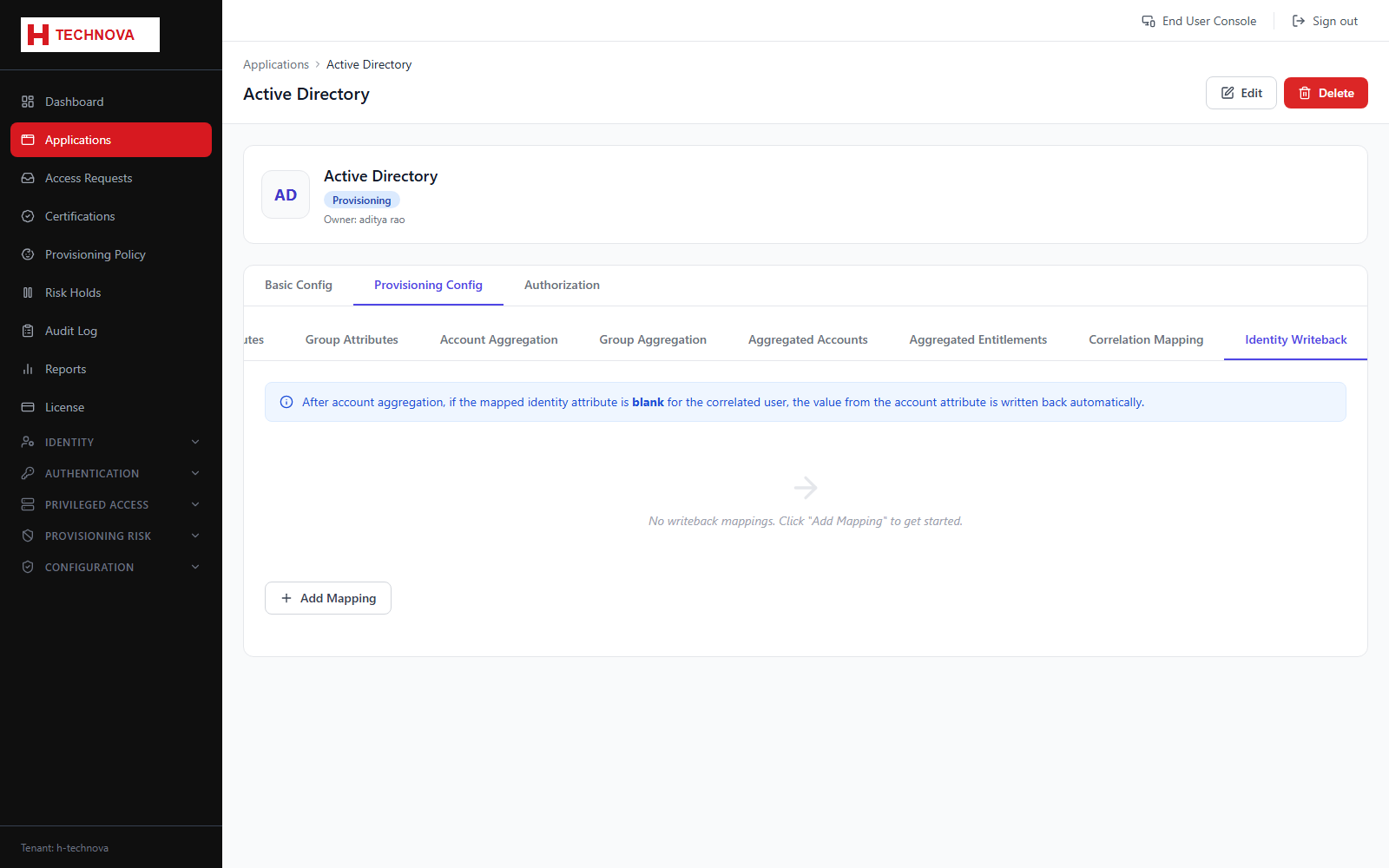
To add a writeback mapping:
- Open the application and select Identity writeback under Map.
- Select Add Mapping.
- Choose or type the Account Attribute to read, for example
mail. - Choose the Identity Attribute to fill.
- Select Save Mappings in the bar at the bottom, or Discard.
- Run an account sync. See Syncing accounts.
After the sync, every matched account's value is copied into the owner's identity attribute wherever that attribute is blank. Existing values are left alone, so writeback can't fight with an identity source that already sets the attribute.
Example: filling missing email addresses
| Account Attribute | |
| Identity Attribute | |
| Result | People with no email in Zetect get the address from their directory account after the next account sync |
Removing a writeback mapping
To remove a writeback mapping:
- On Identity writeback, select the bin icon on the mapping's row.
- Select Save Mappings.
Values already written to identities stay as they are.