
Managing SoD Policies
Create, preview, change and delete the policies that define conflicting access. Saving a policy starts a scan, so its violations appear within about a minute.
Aggregated applications or privileged assets, so their entitlements can be picked. See Aggregating Accounts and Entitlements.
Segregation of Duties – Add to create policies, Segregation of Duties – Edit to change them, and Segregation of Duties – Delete to delete them, in an administrator group.
Creating an SoD policy
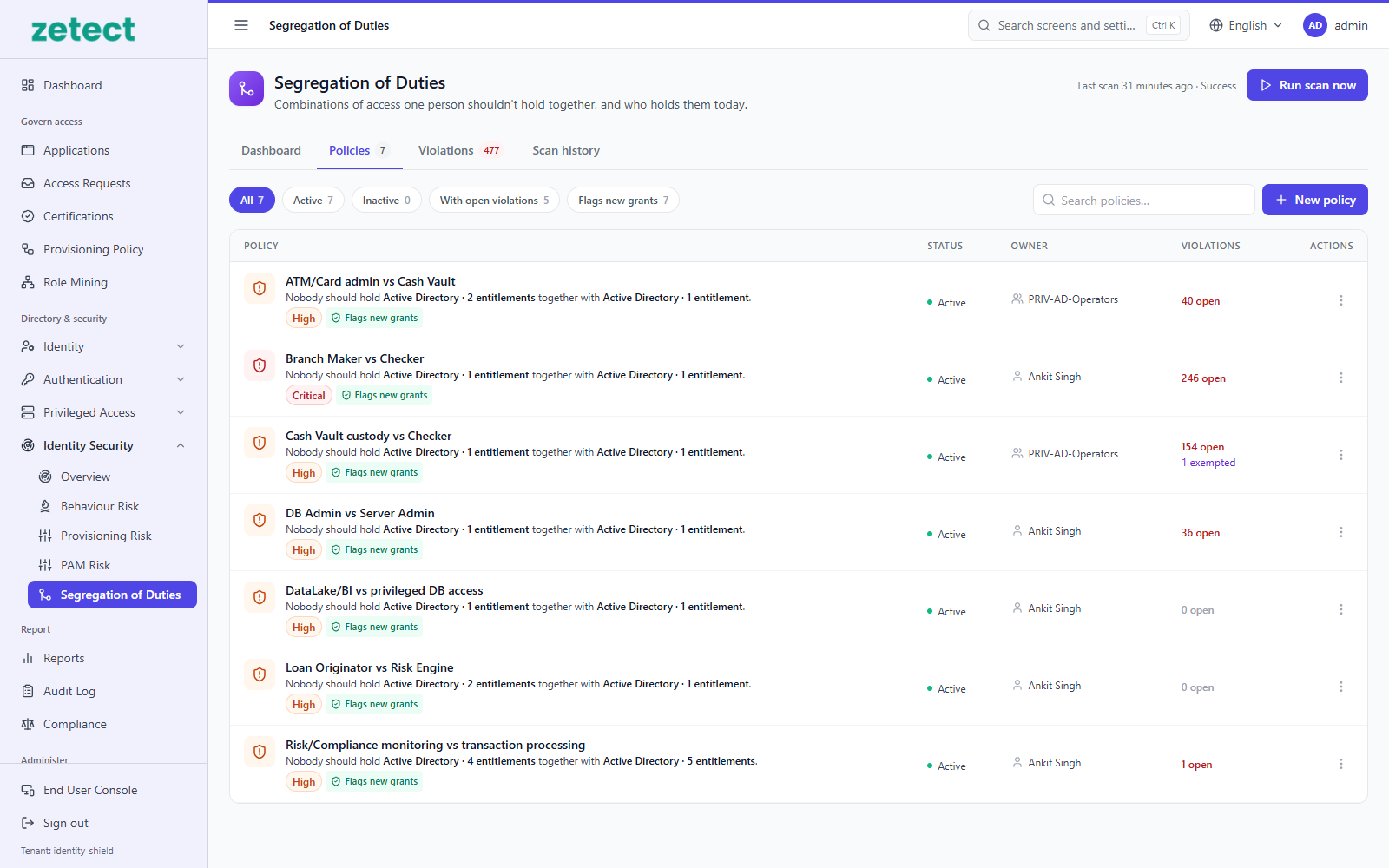
To create an SoD policy:
- Go to Identity Security → Segregation of Duties and select Policies.
- Select New policy. The editor opens in a drawer.
- Enter a Name and a Description, and choose the Severity.
- Leave Active on.
- Optionally, turn on Enforce at provisioning. See Preventing Policy Violations.
- Under Policy owner, choose User or Group, and select the owner.
- Under Conflicting access, build Set A:
- Add explicit access with Add entitlement, Add application account, Add asset entitlement or Add asset account.
- Add rules with Add criterion, and choose All conditions or Any condition.
- Build Set B the same way.
- Select Preview impact and check the result.
- Under Event alerts, tick who is emailed for each event.
- Select Save.
Saving starts a scan. Open violations appear on the Violations tab, and the policy's owner is notified if you ticked it under Event alerts. After the first save you can set reminders for the policy under Reminders.
Previewing a policy
Preview impact shows, before you save:
- how many entitlements each set matches;
- any entitlements that are in both sets, which anyone holding them violates on their own;
- how many users would violate the policy.
If you change a set after previewing, the preview says so. Run it again.
SoD policy fields
| Field | Description |
|---|---|
| Name | Required. For example "Create vendor vs. approve payment". |
| Description | What risk the policy prevents. |
| Severity | Low, Medium, High or Critical. Used for filtering and on the dashboard. |
| Active | Inactive policies aren't evaluated. Their open violations close at the next scan. |
| Enforce at provisioning | Checks new grants for conflicts with this policy. Shown in the list as Flags new grants, or Detect only when off. |
| Policy owner | Required. A user or a group. The owner can revoke access or grant exemptions from the end-user portal. |
| Explicit access | Specific items in the set. An application account or asset account means that holding any account there counts as access from this set. |
| Criteria | Entitlements matching these conditions are added to the set, in addition to the explicit access. Each criterion has a Field, an Operator and one or more values. See Criteria. |
| Event alerts | One email to the Policy owner and/or the Affected user for New violation detected, Violation status changed and Exemption created. |
| Reminders | Recurring reminder emails about open violations of this policy: Use global settings, Turn off for this policy or Custom. Saved separately from the policy with Save reminders. See Configuring Reminders and Alerts. |
Finding policies
The list shows each policy as a sentence ("Nobody should hold … together with …"), with its severity, status, owner, provisioning setting, and its open, exempted and in-progress violation counts. Select a count to see those violations. Filter with All, Active, Inactive, With open violations and Flags new grants, or use Search policies….
Editing and deleting a policy
To edit a policy:
- On the Policies tab, select the policy.
- Change its fields or sets.
- Select Save.
Saving starts a scan, which opens new violations and closes those that no longer apply.
To delete a policy:
- On the Policies tab, open the policy's actions menu.
- Select Delete.
- Confirm.
A policy with violation history is deactivated instead of deleted, so its audit trail is kept. Its open violations close as Resolved at the next scan.
Example: payment segregation
| Name | Create vendor vs. approve payment |
| Severity | Critical |
| Enforce at provisioning | On |
| Policy owner | Group: Finance-Controls |
| Set A | Criterion: Entitlement name contains "AP-Vendor-Create" |
| Set B | Criterion: Entitlement name contains "AP-Payment-Approve" |
| Event alerts | New violation detected → Policy owner |