
General Configuration
Choose which identity attributes Zetect uses for sign-in and messages, and how new users start. The General page sets the attribute that identifies users at sign-in, the attributes that hold their email address and mobile number, and whether new users must change their temporary password.
Required permission
General – View under Configuration in an administrator group. This is the same permission as Provisioning Risk and PAM Risk.
Prerequisite
The attributes you want to use exist under Identity → Attributes, and the login attribute is marked unique.
Setting the identity attributes
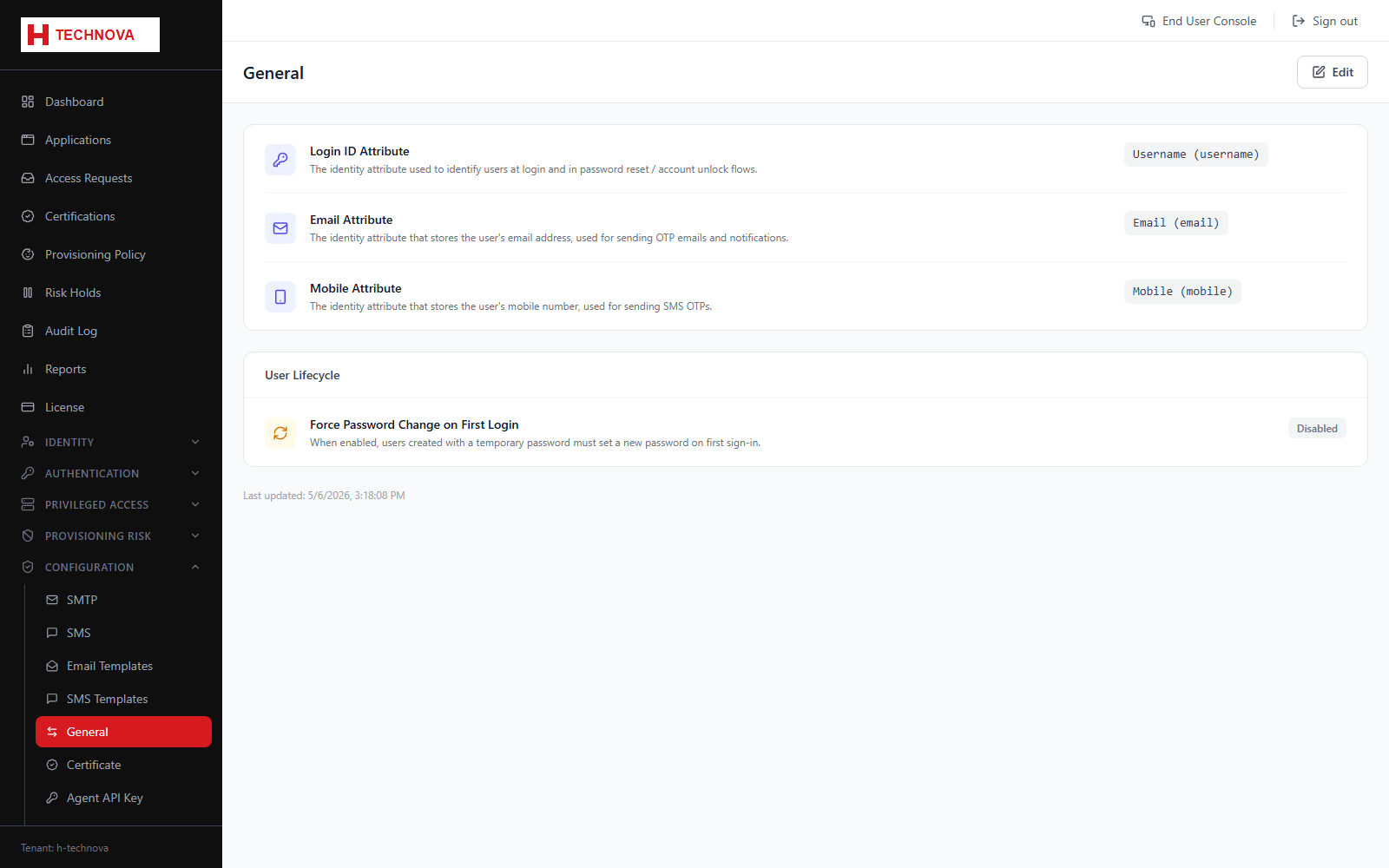
To change the general configuration:
- Go to Configuration → General.
- Select Edit.
- Under Identity attributes, choose the Login ID Attribute, Email Attribute and Mobile Attribute.
- Under User Lifecycle, turn Force Password Change on First Login on or off.
- Select Save Changes.
The time of the last change is shown at the bottom of the page.
General configuration fields
| Field | Description |
|---|---|
| Login ID Attribute | The identity attribute that identifies users at sign-in and in the password-reset and account-unlock flows. Only attributes marked unique under Identity → Attributes can be chosen. A new tenant uses the username. |
| Email Attribute | The identity attribute that holds the user's email address, used for email one-time codes and notifications. |
| Mobile Attribute | The identity attribute that holds the user's mobile number, used for SMS one-time codes. |
| Force Password Change on First Login | When on, users created with a temporary password must set a new password the first time they sign in. |
Example
A tenant where people sign in with their email address:
| Login ID Attribute | Email (email) |
| Email Attribute | Email (email) |
| Mobile Attribute | Mobile (mobile) |
| Force Password Change on First Login | On |