Applications List
The application estate: every SaaS or internal application Zetect federates sign-in for, provisions accounts into, or governs access to.
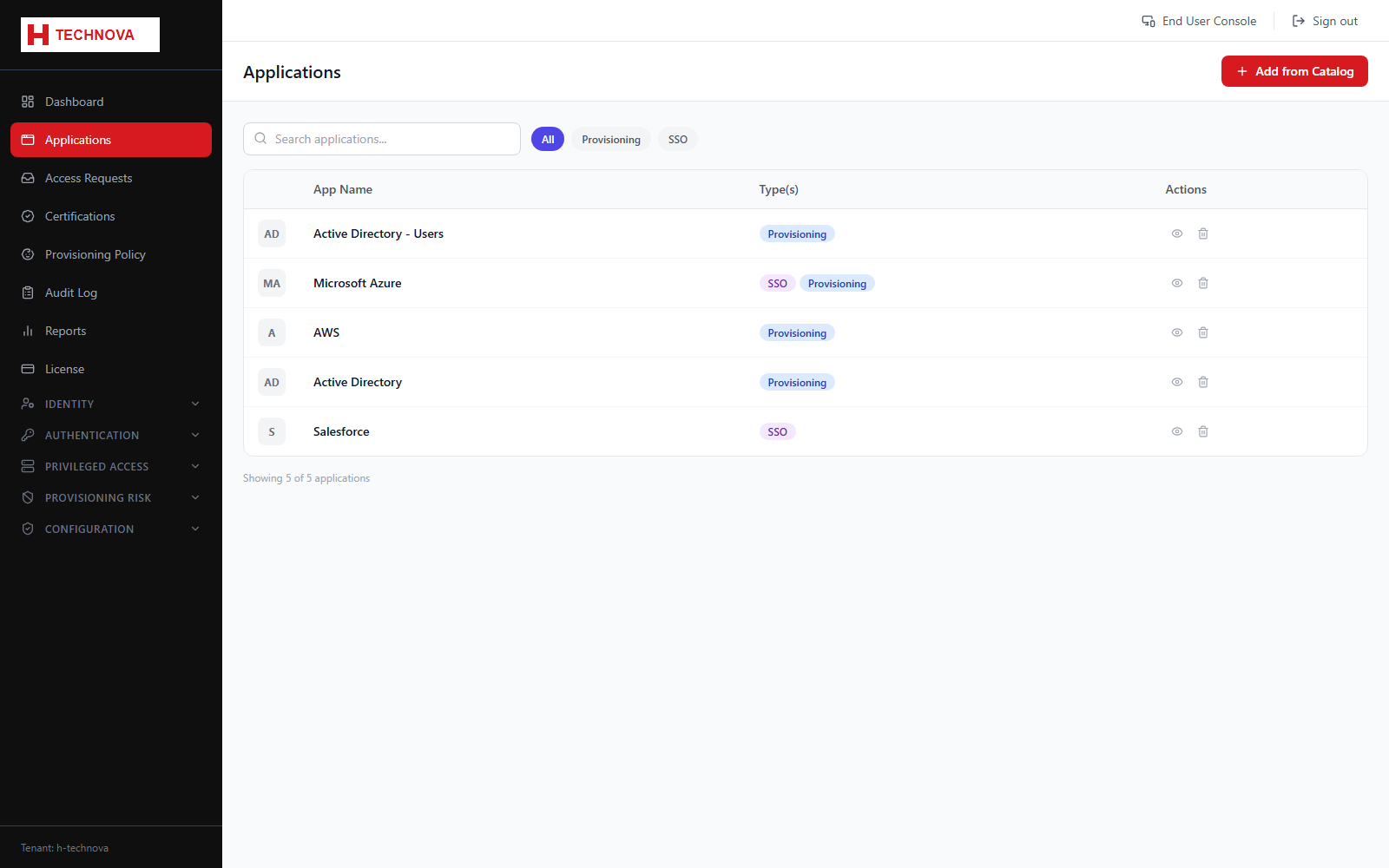 Applications List — captured from the h-technova tenant.
How to use it
- Open Applications from the sidebar to see all applications with their type and status.
- Click Add Application to onboard a new one — either from the built-in catalog (pre-filled SSO and provisioning metadata) or as a manual entry.
- Click any row to open its detail page and configure SSO, provisioning, attribute mapping and authorization.
- Use the status column to spot applications still in draft, which are not yet live for end users.
Field reference
| Field | Description |
|---|
| Name / Logo | Display name and icon shown to end users on the Launchpad. |
| Type | Regular (a provisioning/SSO application) as opposed to a Privileged Asset, which lives under Privileged Access. |
| SSO Protocol | SAML or OIDC, or blank where the application is provisioning-only. |
| Status | Active applications appear on the Launchpad for authorized users; drafts do not. |
Example — Demo data
| Salesforce | SAML · Active |
| Second application | Provisioning · Active |