
Managing Approval Policies
Approval policies are reusable approval templates. Each policy says who approves, in what order, how long each stage may wait, and what happens when time runs out. Request configurations point to a policy instead of defining their own approvers.
Required permission
Access Requests – View in an administrator group to see policies. Access Requests – Add or – Edit to create or change them.
Limits
A stage's step duration can be at most 365 days.
Creating an approval policy
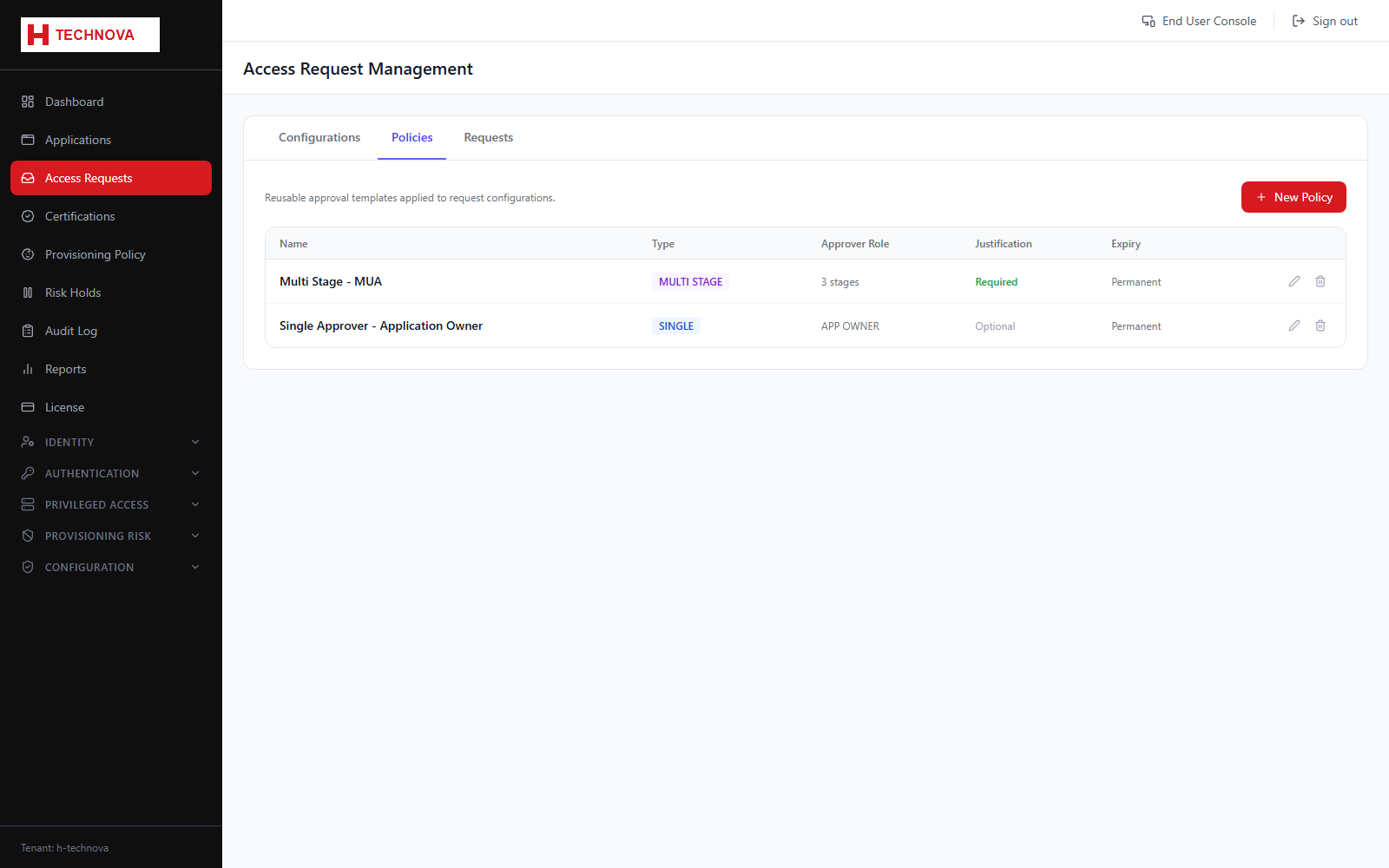
To create an approval policy:
- Go to Govern access → Access Requests and select the Approval policies tab.
- Select New Policy.
- Enter the Policy Name.
- Under How is a request approved?, choose Automatically, By one approver or In several stages.
- Set the approvers:
- For one approver, choose the Approver Role.
- For several stages, select Add Stage for each stage and choose its approver.
- For each stage, set the Step duration, or leave it at No limit.
- If the stage has a step duration, choose the action When the step duration runs out.
- For a group approver, choose the Group decision.
- Set Require justification from requester and Access Expiry (days) if needed.
- Select Create Policy.
The policy is now available in each configuration's Approval Policy section. See Managing Request Configurations.
Approval policy fields
| Field | Description |
|---|---|
| How is a request approved? | Automatically – access is granted on submission and no one checks it. By one approver – one person or group decides. In several stages – approvers decide in order and every stage must approve. A multi-stage policy with no stages approves automatically. |
| Approver Role | Application Owner or Line Manager (worked out when the request is made), Named User (pick the person), or Security Team (Group) (pick the group). |
| Step duration | How long the stage may wait, in days or hours, up to 365 days. Leave it at No limit and the stage waits until someone decides. A stage's clock starts when the previous stage is approved. |
| When the step duration runs out | Escalate, Move to next stage, Auto-reject or Auto-approve. See Timeout actions. |
| Group decision | Group approvers only. Any one member – the first member to decide closes the stage. All members – every member must approve, and one rejection decides. |
| Require justification from requester | Requesters must give a reason. Shown in the list's Justification column. |
| Access Expiry (days) | How long granted access lasts. Leave it blank for permanent access. Shown in the Access ends column. |
| How it approves | List column. The approval type, then each stage's approver, duration and timeout action, for example "Application Owner · 2d → escalate". |
| Used by | List column. How many configurations use the policy, and how many of them are privileged. |
Example: manager, then security
| Policy Name | Manager then Security |
| How is a request approved? | In several stages |
| Stage 1 | Line Manager · 2 days → Move to next stage |
| Stage 2 | Security Team (Group): SecOps · All members · 3 days → Escalate |
| Require justification | On |
| Access Expiry (days) | 90 |
Editing and deleting a policy
To edit or delete an approval policy:
- Go to Govern access → Access Requests and select the Approval policies tab.
- Choose what to do on the policy's row:
- Select Edit, make your changes and select Save changes. The editor shows how many configurations are affected.
- Open the ⋮ menu, select Delete and confirm.
Editing a policy changes how new requests under its configurations are approved. Requests already in progress keep the stage settings they started with.
Troubleshooting
- "The last stage has no next stage". Move to next stage can't be the timeout action of the last stage. Choose another action.
- Requests go to the resource owner instead of the line manager. The requester has no line manager, so the stage falls back to the owner.
- Requests are approved with no one checking. The policy is Automatically, or it is multi-stage with no stages.