
Managing Security Posture
Check how healthy your identity setup is, work through the findings behind each control, and ask to accept a risk for a limited time. Each control is measured from Zetect's own data and rated against a target.
ISPM Posture – View to see controls and findings. ISPM Posture – Edit to select Evaluate posture and request acceptance of a finding.
Controls are evaluated once a day, or when you select Evaluate posture.
Reviewing controls
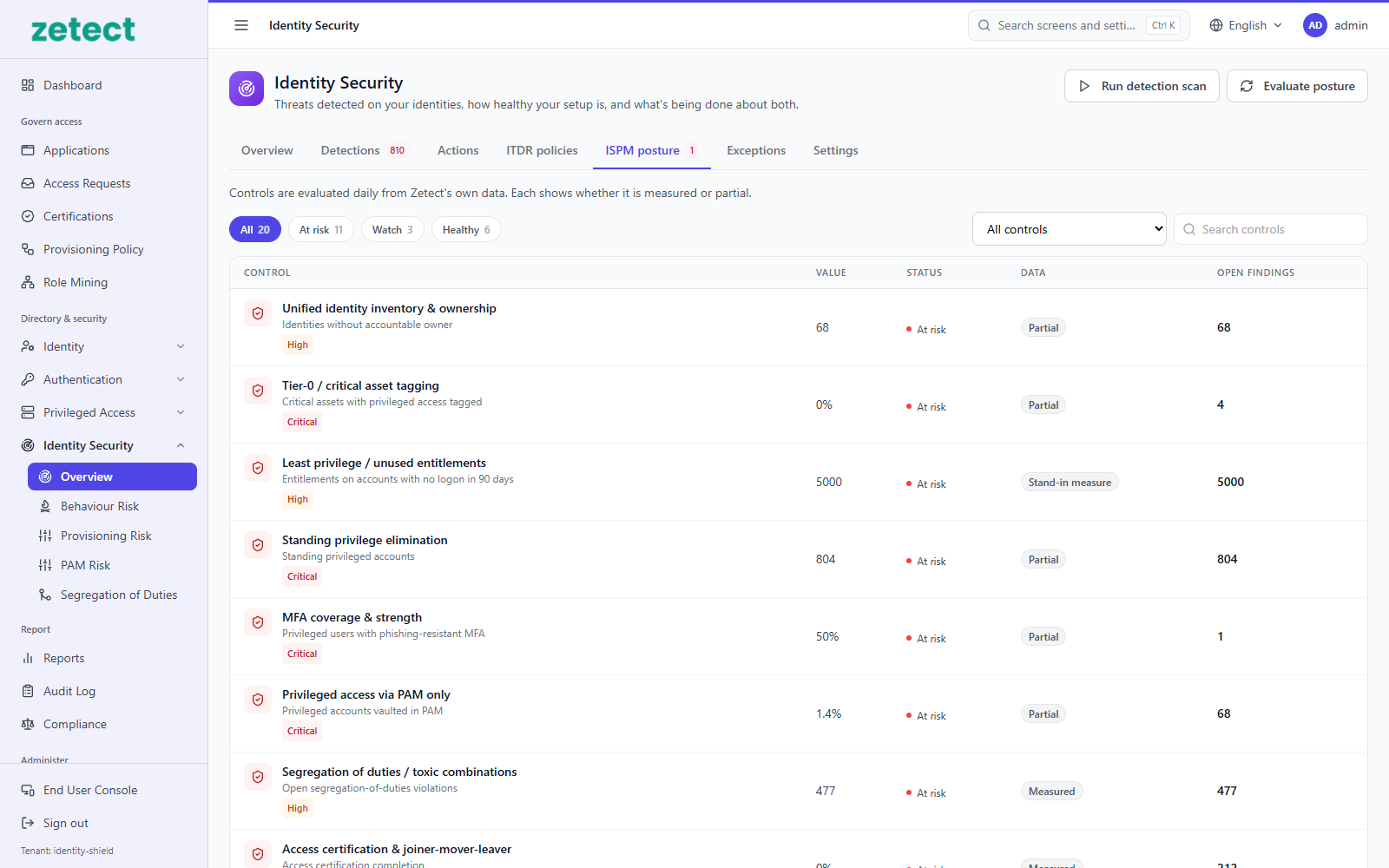
To review controls:
- Go to Identity Security → Overview and select the ISPM posture tab. The tab shows how many findings are past their due date.
- Filter with the pills: All, At risk, Watch or Healthy. The list is sorted worst first.
- Optionally, use All controls to show only controls that Uses existing data, or only those that Needs a tag or mapping.
- To find a control by name, type in Search controls.
- Select a control to open it.
| Column | Description |
|---|---|
| Control | The control name, what it measures, and its severity: Critical, High, Medium or Low. |
| Value | The measured value, as a count or a percentage. |
| Status | At risk, Watch or Healthy, against the control's target. |
| Data | Measured: calculated from Zetect's data for what Zetect governs. Partial: covers part of the control, and the note in the control says which part. Stand-in measure: not the control's usual measure. For example, unused entitlements uses accounts with no logon, because there is no entitlement usage data. |
| Open findings | How many findings are open for the control. |
Working through findings
The control opens in a drawer with What we check, the Target, How to fix, a Breakdown where the control has one, and its Findings.
To work through findings:
- Open the control.
- Read What we check, the Target and How to fix.
- Under Findings, switch between Open, Accepted and Resolved.
- Fix each open finding at its source, for example by enrolling the user in MFA or disabling the dormant account.
- To re-check now, select Evaluate posture at the top of the page.
A fixed finding moves to Resolved at the next evaluation. Each finding shows its subject, the detail and its due date.
Accepting a risk
When a finding can't be fixed yet, ask for it to be accepted until a set date. Someone other than you decides the request.
To request acceptance of a finding:
- Open the control and find the open finding.
- Select Accept risk.
- Enter a Justification.
- Choose an Accept until date. The form suggests 90 days.
- Select Request acceptance.
The finding shows Acceptance pending until the request is decided on the Exceptions tab.
Due dates
A finding is due a set time after it was first seen: Critical 7 days, High 30, Medium 60 and Low 90. A finding that comes back keeps its original first-seen date. Overdue findings are counted on the Overview tab.
Which controls appear
There are 25 measured controls. Controls with no data yet are left off this tab and out of the Overview counts. They are still evaluated, and appear once they have data. They still lower the share of controls measured on the Overview, so a tenant with little data doesn't look safe.
Three controls report the risk engines' results directly: Accounts at high provisioning risk, Identities at high provisioning risk and Users with high behaviour risk.
To bring more controls in:
- Tag service accounts, decoys, vendors, regulators and auditors in Settings.
- Review the privileged name patterns there.
- Map directory attributes such as last logon and account control flags on your directory application. See Mapping Attributes.