
Managing Password Policies
Set the rules a password must meet, decide who or what each set of rules applies to, and keep a list of banned words. Policies are enforced whenever a user sets a password, and are also used to generate passwords for provisioned accounts and privileged-account rotation.
Password Policies – View, Add, Edit or Delete, and Password Blacklist – View, Add or Delete, in an administrator group.
The Default policy is view-only and can't be deleted. An application or privileged asset can belong to only one policy.
Creating a password policy
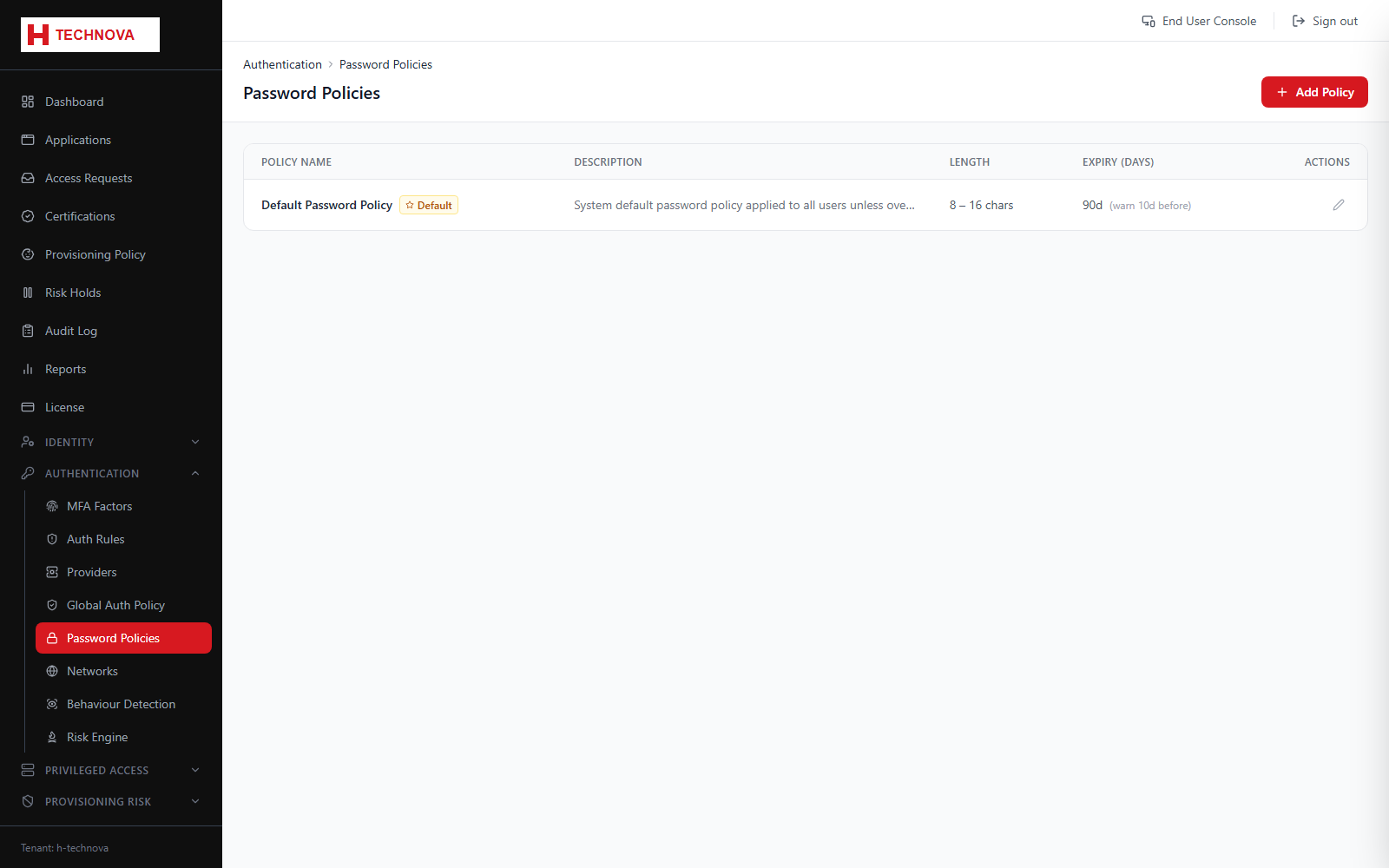
To create a password policy:
- Go to Authentication → Password Policies. The list shows each policy with what it Applies to, its Length and when it Expires.
- Select Add Policy.
- On the Rules tab, enter a Policy Name and description.
- Set the content rules, length and composition, and expiration.
- On the Assignment tab, add user conditions.
- Pick the applications and privileged assets the policy covers.
- Set its Priority.
- Select Create Policy.
The policy applies the next time a covered user sets a password, and the next time a password is generated for a covered application or asset.
Password policy fields
| Field | Description |
|---|---|
| Reject password that contains the word 'password' | Blocks passwords containing the word "password". |
| Reject password that contains the username | Blocks passwords containing the user's username. |
| Reject blacklisted passwords | Blocks passwords containing any word from the password blacklist. |
| Min / Max Password Length | Shortest and longest permitted password. Min can't exceed max. |
| Uppercase, Lowercase, Numeric, Alpha, Special Characters (min) | Minimum count of each character type. |
| Password History (versions) | How many previous passwords can't be reused. |
| Allowed Characters | The special characters that are permitted, for example !@#$%^&*. Leave blank to allow all. |
| Password Expiration (days) | Days until a password must be changed. |
| Expiration Warning (days before) | How many days in advance the user is warned. |
| Users | User conditions that select who this policy applies to. Leave empty to apply it only where it is assigned to a target. |
| Applications & Privileged Assets | Targets whose password generation and rotation always use this policy. Picking a target here moves it off any other policy. |
| Priority | Lower numbers are evaluated first when several policies' user conditions match. |
How a policy is chosen
Zetect picks the most specific policy:
- The policy assigned to the application or privileged asset being acted on.
- Otherwise, the policy whose user conditions the user matches, lowest priority number first.
- Otherwise, the tenant's Default policy, which covers everything not matched by another policy.
What users see
On forgot-password reset, a forced first-time change and self-service Change Password, a live checklist under the password field ticks off each rule as the user types. The submit button stays disabled until every rule that can be checked in the browser is met. The blacklist and password history are checked when the user submits.
Example — Strict policy
| Policy Name | Strict Password Policy |
| Length | 12 to 64 characters |
| Composition | 1 uppercase, 1 lowercase, 1 numeric, 1 special |
| Content rules | All three turned on |
| History | 5 versions |
| Expiration | 90 days, warn 10 days before |
| Users | Department equals Finance |
Editing and deleting a policy
To edit or delete a policy:
- Go to Authentication → Password Policies.
- To change a policy, select its row, make your changes and save.
- To delete a policy, open its row menu, select delete and confirm.
Users and targets covered by a deleted policy fall back to the next matching policy, or to the Default policy.
Managing the password blacklist
The blacklist is a list of words that can't appear in a password, wherever a policy turns on Reject blacklisted passwords.
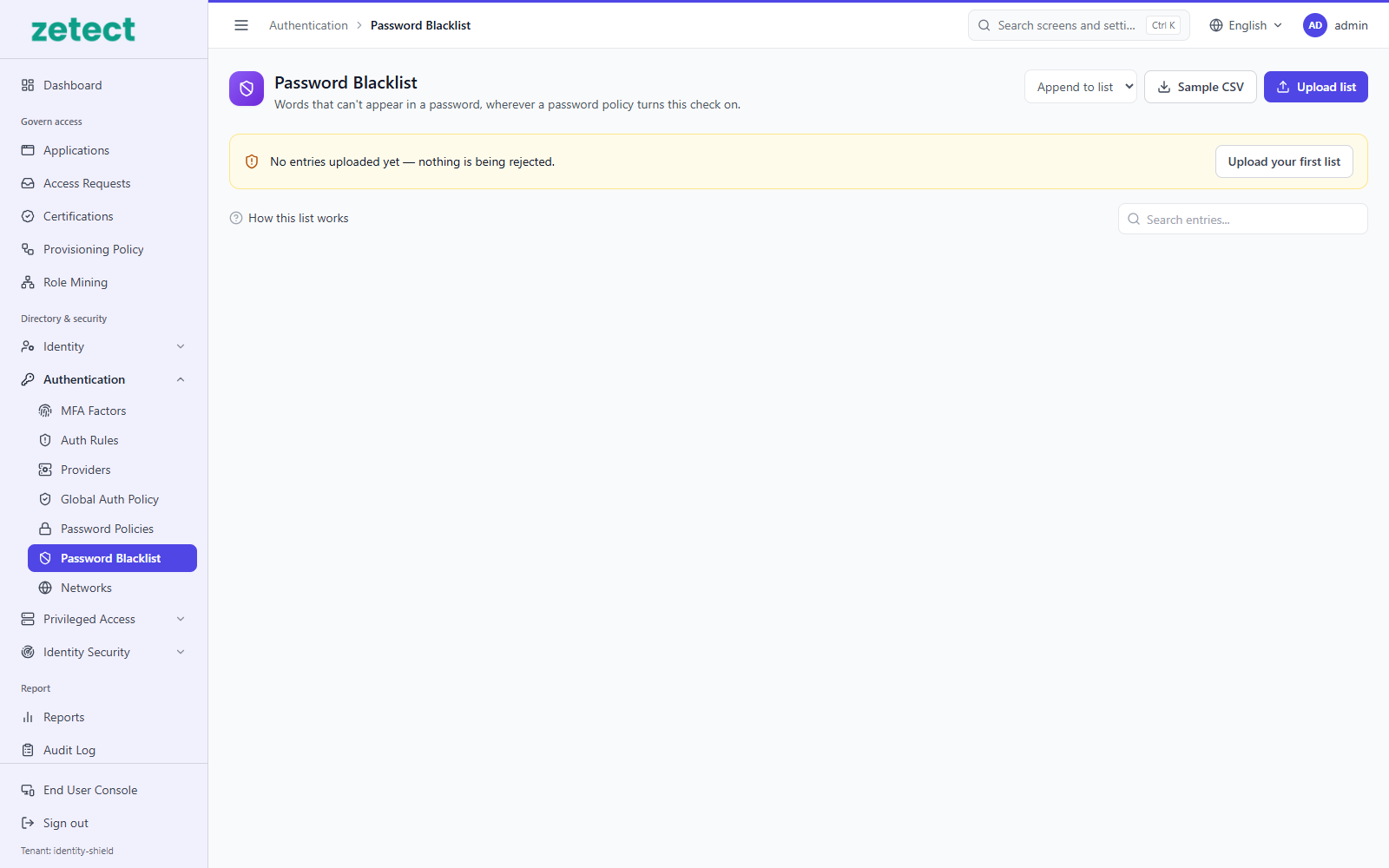
To upload a blacklist:
- Go to Authentication → Password Blacklist.
- Select Sample CSV to download a starter file with a header row and a few common weak passwords.
- Edit the file, one entry per line.
- In the drop-down next to the buttons, choose how the file affects the list:
- Append to list – add to the current entries.
- Replace list – swap them all out.
- Select Upload list, or Upload your first list when the list is empty.
- Pick your
.csvor.txtfile. - Go to Authentication → Password Policies and turn on Reject blacklisted passwords in each policy that should use the list.
To find a word, use Search entries.... To remove one, select the bin icon on its row and confirm.
A password is rejected if it contains any listed word, ignoring case. An empty list rejects nothing, even when a policy has the option turned on.
value
password
passw0rd
123456
qwerty
letmein
welcome