
Configuring PAM Risk
Set which signals score accounts on your privileged assets, how strongly each one counts and the score bands for each level, and override them for one asset when it needs different rules. PAM Risk works like Provisioning Risk: signals are checked after every privileged-asset account sync, and the score shows in Identity Security and counts toward each identity's risk. It never holds or blocks access.
Onboarded assets with accounts synced. See Managing Asset Accounts.
PAM Risk – View (the same permission as Configuration → General) in an administrator group. Raise detections also needs ITDR – View, and ITDR – Edit to change it. Asset overrides need Privileged Assets – View.
Setting PAM risk signals
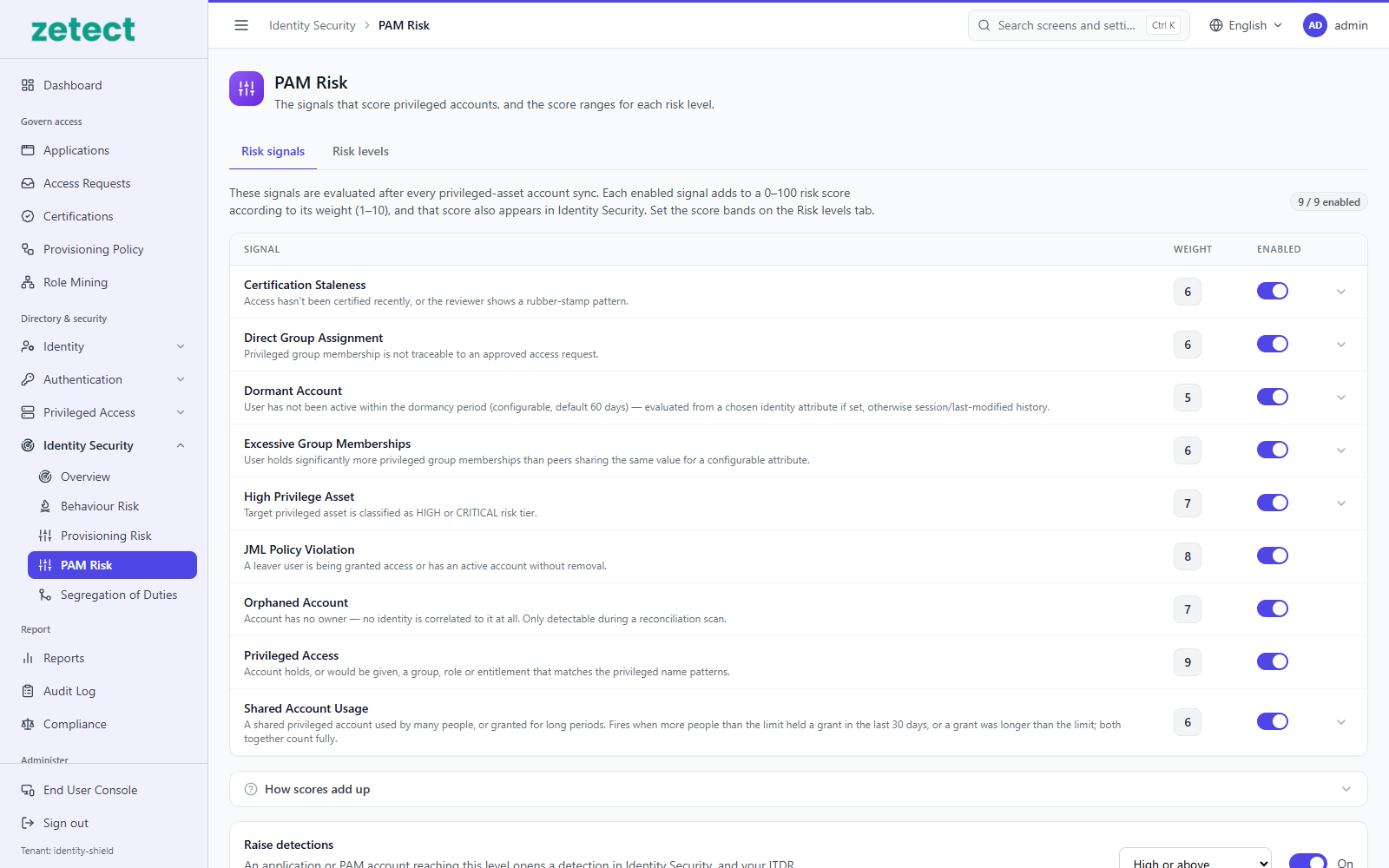
To set the PAM risk signals:
- Go to Identity Security → PAM Risk. The Risk signals tab opens.
- Switch each signal on or off.
- Select a signal's Weight badge to change it, from 1 to 10.
- Expand a signal's row to change its settings, where it has any.
| Signal | Fires when | Settings |
|---|---|---|
| Certification Staleness | Access hasn't been certified recently. | Max days since cert (default 180). |
| Direct Group Assignment | A privileged group membership can't be traced to an approved access request. | Grace period (default 14 days) and Scoring mode: Flat weight or Proportional to ungoverned share. |
| Dormant Account | The account hasn't been used within the dormancy period. | Dormancy period (default 60 days), Evaluate from (account attribute) and Value transform. Auto uses the native last login or last-modified time. |
| Excessive Group Memberships | The user holds many more privileged group memberships than peers with the same value of an attribute. | Peer group attribute (default department), Minimum peer group size (default 5) and Value transform. |
| High Privilege Asset | The asset's risk tier is High or Critical. | Critical tier bonus (default 2). |
| JML Policy Violation | A leaver is being granted access, or still has an active account. | None. |
| Orphaned Account | No identity is correlated to the account. | None. |
| Privileged Access | The account holds, or would be given, a group or role matching the privileged name patterns in Identity Security settings. | None. Set the patterns in Configuring Identity Security. |
| Shared Account Usage | More people than the limit held a grant to a shared account in the last 30 days, or a grant was longer than the limit. Both together count fully. | Max people with a grant (30 days) (default 5) and Longest grant (default 7 days). |
Scores combine as on Provisioning Risk: on its own, a weight 7 signal scores 47, and with a weight 9 signal the two score 79. An identity's score is its riskiest account across applications and privileged assets.
Raising detections
Under Raise detections on the Risk signals tab, choose the level at which a privileged account opens a High-risk account detection in Identity Security: Critical, High or above (the default) or Medium or above, and switch it on or off. This setting is shared with Provisioning Risk, so changing it here changes it there too.
Setting PAM risk levels
To set the PAM risk levels:
- Go to Identity Security → PAM Risk and select the Risk levels tab.
- Under Risk Level Thresholds, enter the highest score for LOW (default 30), MEDIUM (default 60) and HIGH (default 85). CRITICAL is everything above High.
- Switch Aggregation Risk Evaluation on or off. When it is on, every enabled privileged account is scored after each account sync.
- Select Save Policy.
Changing a threshold affects future evaluations only.
Overriding risk for one asset
An asset can use a different weight, on/off state or setting for any signal, and different bands. The tenant default stays visible beside every override, and each override needs a reason.
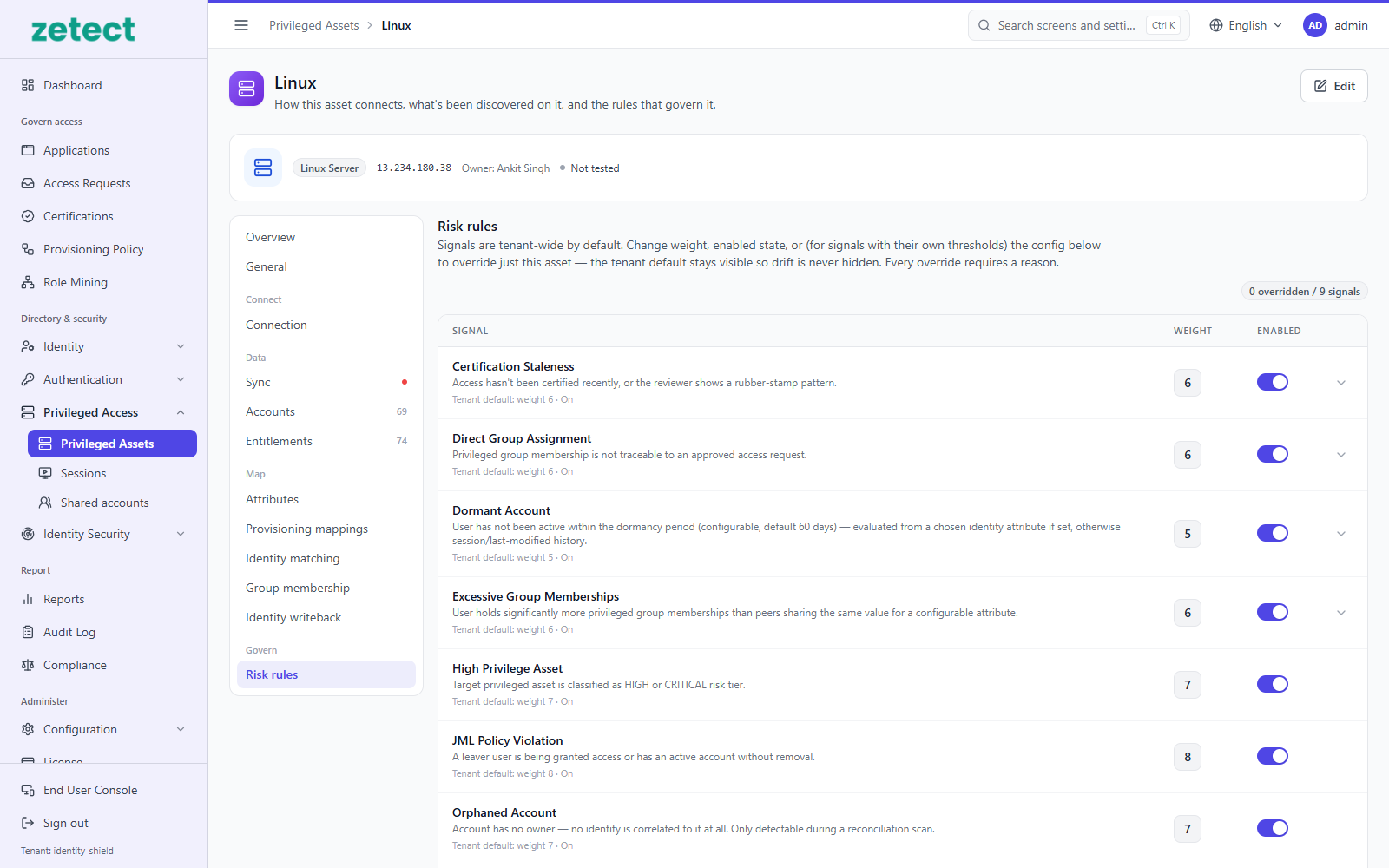
To override a signal for one asset:
- Open the asset and select Risk rules under Govern in the left menu. The pill at the top right shows how many signals are overridden, for example 0 overridden / 9 signals.
- Find the signal. Each row shows its description and the tenant default, for example "Tenant default: weight 6 · On".
- Change the Weight, or flip the Enabled switch.
- For Dormant Account, Excessive Group Memberships, Direct Group Assignment and Certification Staleness, select the arrow at the end of the row and change the signal's own settings.
- Type why this asset needs a different configuration in the reason box.
- Select Save override, or Discard changes.
To change the bands for this asset, edit them under Risk Level Thresholds below the signals, give a reason and select Save override; they show Overridden when they differ from the tenant policy. To go back to the tenant default, open the row and select Remove override (revert to global). A change to the tenant defaults reaches every asset that has no override for that signal.
| Signal | Dormant Account |
| Weight | 8 (tenant default 5) |
| Dormancy period | 30 days |
| Reason | Production database: unused admin accounts must be flagged after 30 days. |