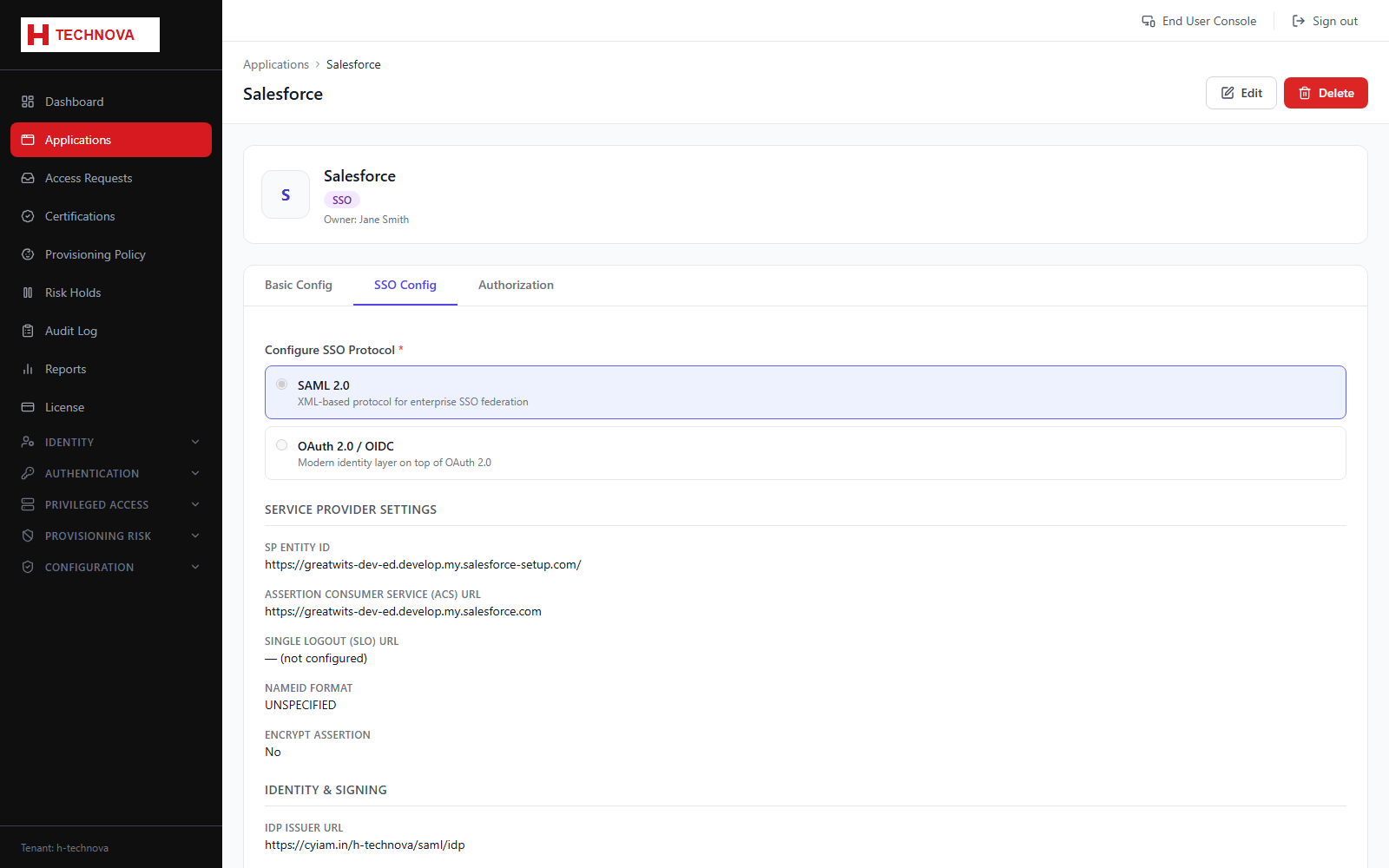
Federated sign-in settings. Zetect acts as the identity provider and the application as the service provider, so this tab is where the two exchange the identifiers and certificates that let them trust one another.
Application → SSO Config — captured from the h-technova tenant.
How to use it
Open the application and select SSO Config.
Choose the protocol — SAML 2.0 or OIDC.
For SAML, enter the service provider Entity ID and ACS (Assertion Consumer Service) URL supplied by the vendor.
Configure the NameID format and any attribute statements the application expects.
Download Zetect's IdP metadata or signing certificate and give it to the application owner.
For OIDC, register the redirect URI and copy the generated client ID and secret into the application.
Save, then test by launching the application from the Launchpad.
Field reference
Field
Description
Entity ID
Unique identifier for the service provider. Must match exactly what the application sends.
ACS URL
Where Zetect posts the SAML assertion after authentication.
NameID format
The identifier format asserted — commonly email address or persistent.
Attribute statements
Extra identity attributes included in the assertion, such as firstName or department.
Redirect URI (OIDC)
Permitted callback URL. A mismatch is the most common cause of OIDC failures.