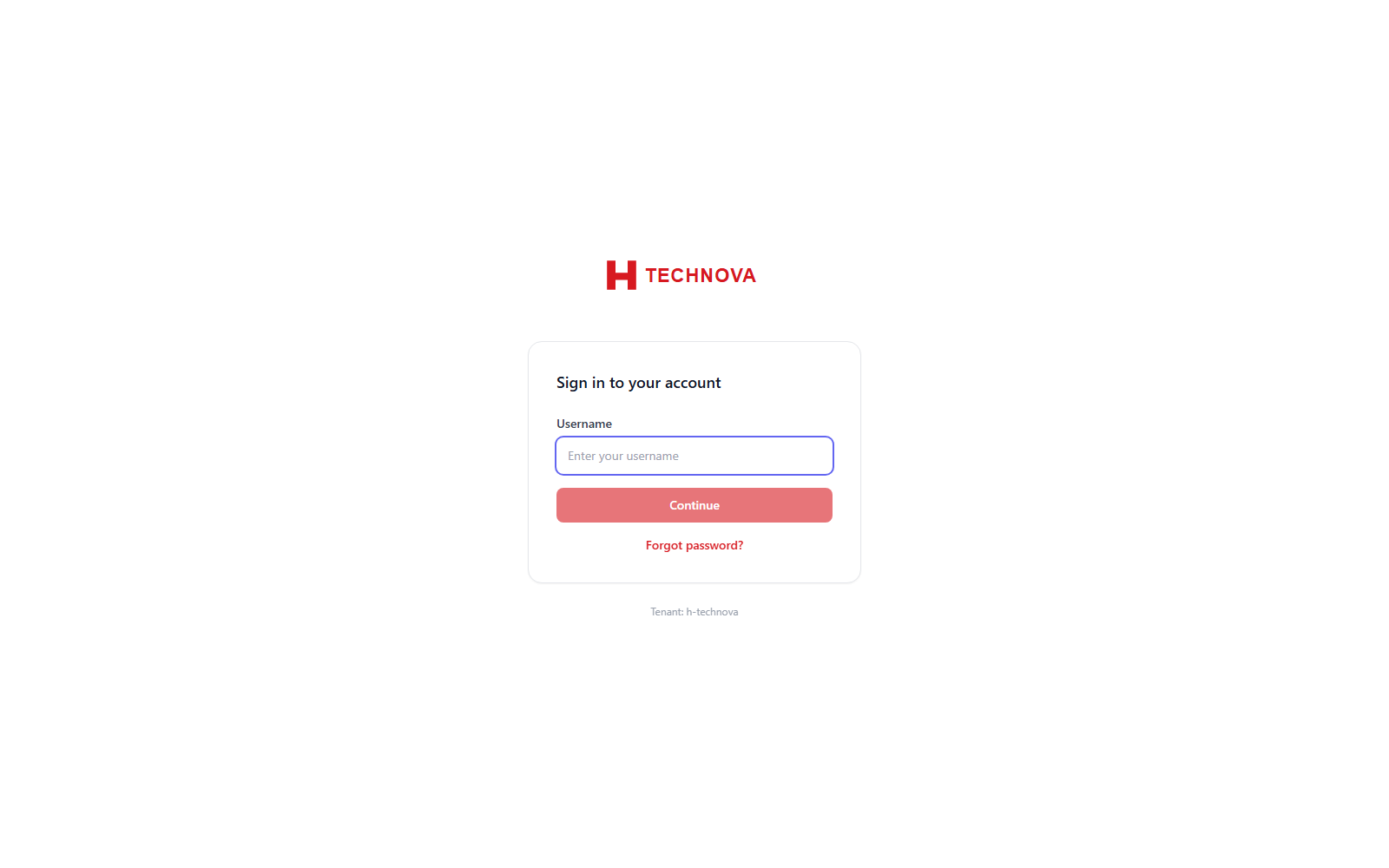
Every Zetect session begins at the tenant login page. Sign-in is a two-step flow: Zetect first resolves which authentication provider applies to the username you enter, then presents the matching first factor. This is why the password box only appears after you click Continue.
Signing In — captured from the h-technova tenant.
How to use it
Browse to your tenant URL — for the demo tenant that is https://cyiam.in/h-technova/login.
Enter your username, for example administrator, and click Continue.
Zetect evaluates the Authentication Rules and decides the first factor. For the demo tenant this resolves to the CyIAM Store provider, so a password field appears.
Enter your password and submit. If an Authentication Rule requires MFA you are challenged for a second factor here.
On success you land on the Dashboard. Accounts without admin permissions are taken to the End-User Portal instead.
Field reference
Field
Description
Username
Matched against the attribute configured as the login ID under Configuration → General. In the demo tenant this is the username attribute.
Password
Verified against the provider selected by the matched Authentication Rule — the local CyIAM Store, or an external LDAP/AD directory.
Forgot password?
Starts the self-service reset flow. Requires working SMTP under Configuration → SMTP.